Combine and merge all sheets from dozens or even hundreds of XLSX files into a single complete JPG long image
Translation:EnglishFrançaisDeutschEspañol日本語한국어,Update Time:2025-06-07 20:20:25
A complete JPG long image can avoid the problem of viewing by page, ensuring all content is fully presented in one image, making it easy to preview and save. When content from multiple Excel tables is needed to create reports, documents, or presentation materials, batch converting all sheets in a worksheet to a single JPG long image can simplify layout and avoid formatting errors. In scenarios involving printing or saving, a long image also ensures the data layout remains complete and consistent, eliminating concerns about misalignment caused by pagination.
1. Use Cases
When you need to insert all sheet contents from a large number of Excel files into presentations or share them on mobile devices, you can choose to convert all sheets in the workbook into a single long JPG image, making it easy to display the complete content and improve the browsing experience.
2. Effect Preview
Before processing:

After processing:


3. Steps
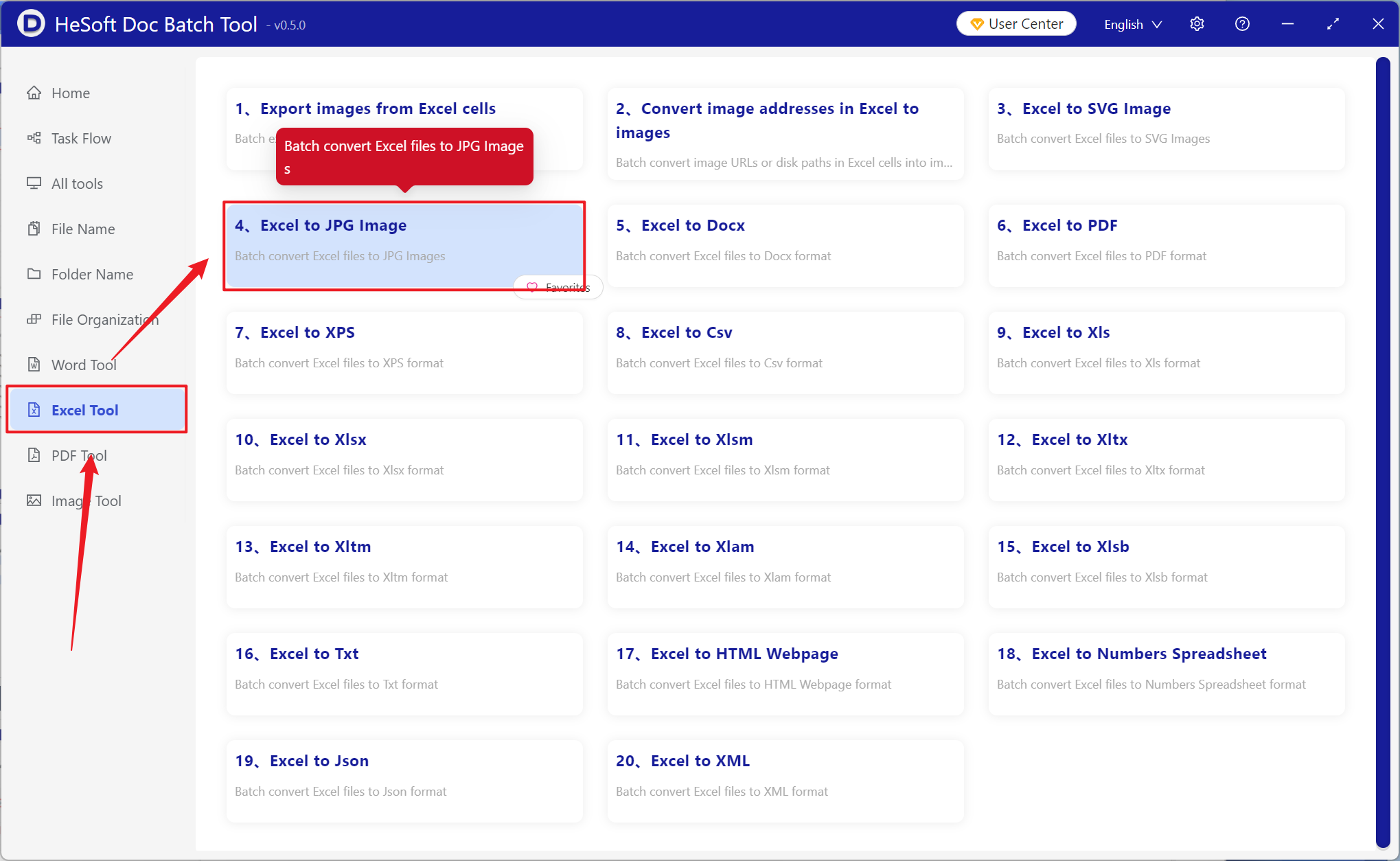
Open 【 HeSoft Doc Batch Tool 】, select 【Excel Tools】-【Convert Excel to JPG Image】.
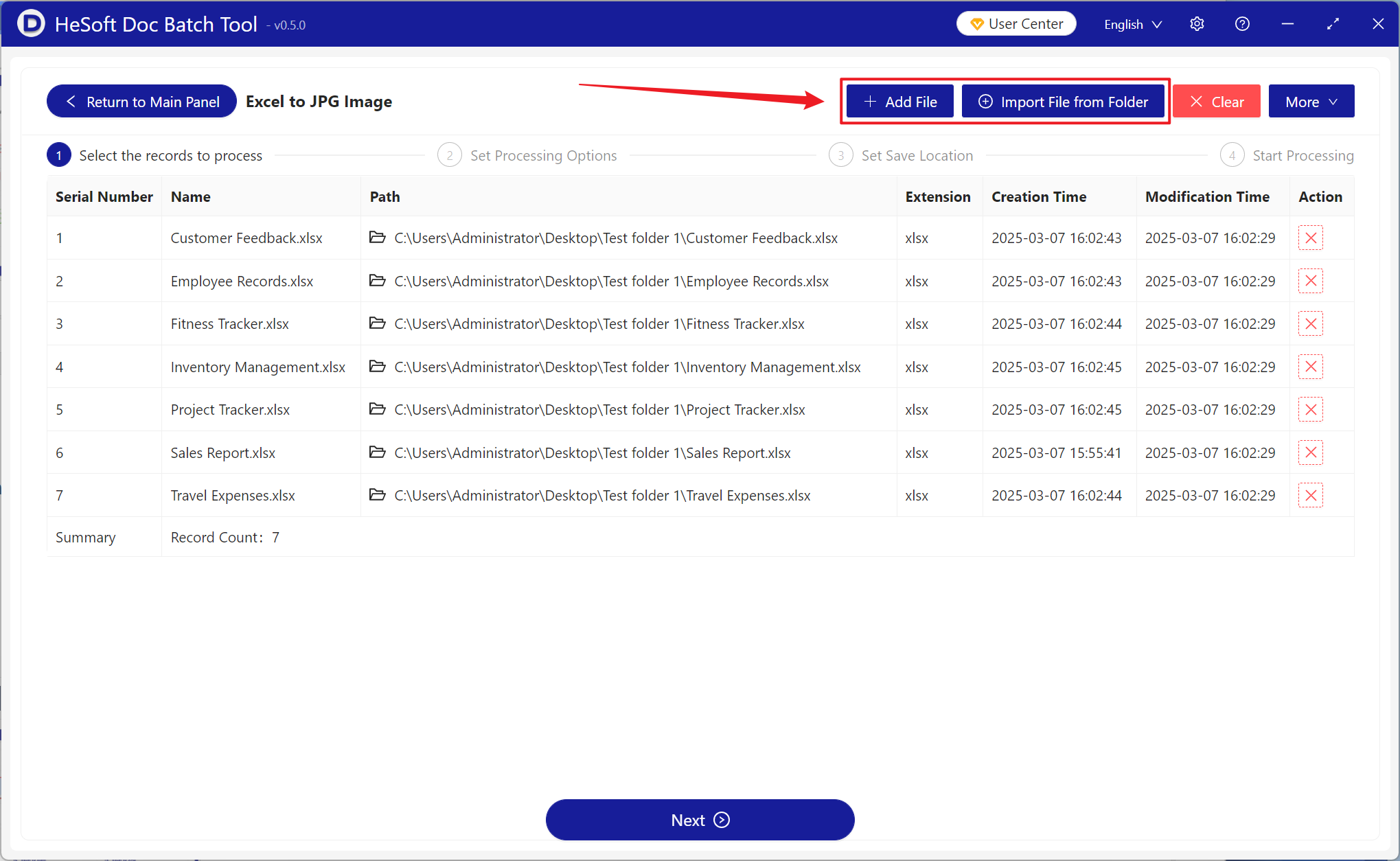
【Add Files】Add single or multiple Excel workbook files to be converted into a complete long JPG image.
【Import Files from Folder】Import all Excel files from the selected folder.
You can view the imported files below.
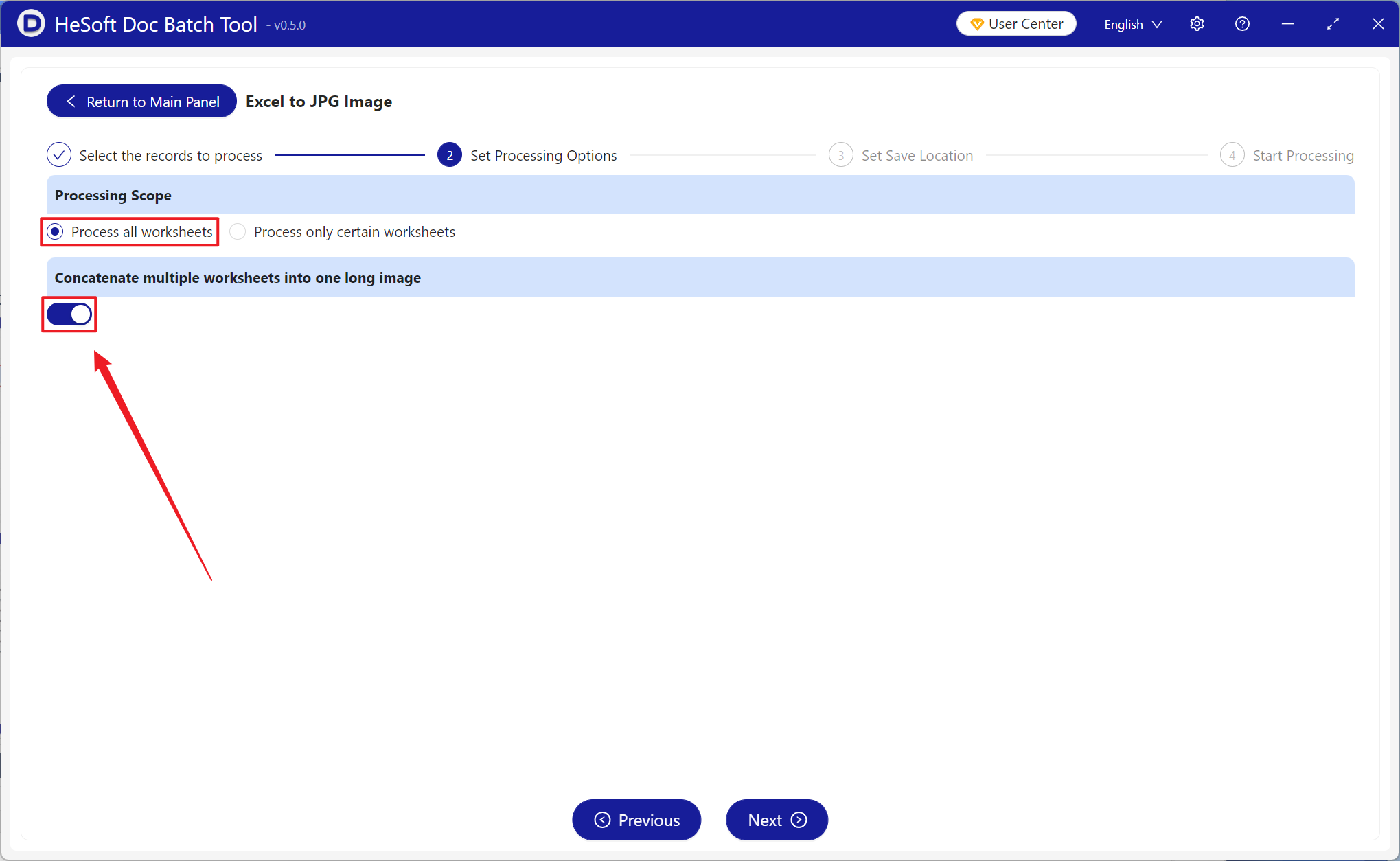
【Processing Scope】Select to process all worksheets, enable 【Stitch multiple worksheets into one long image】, and then click Next.
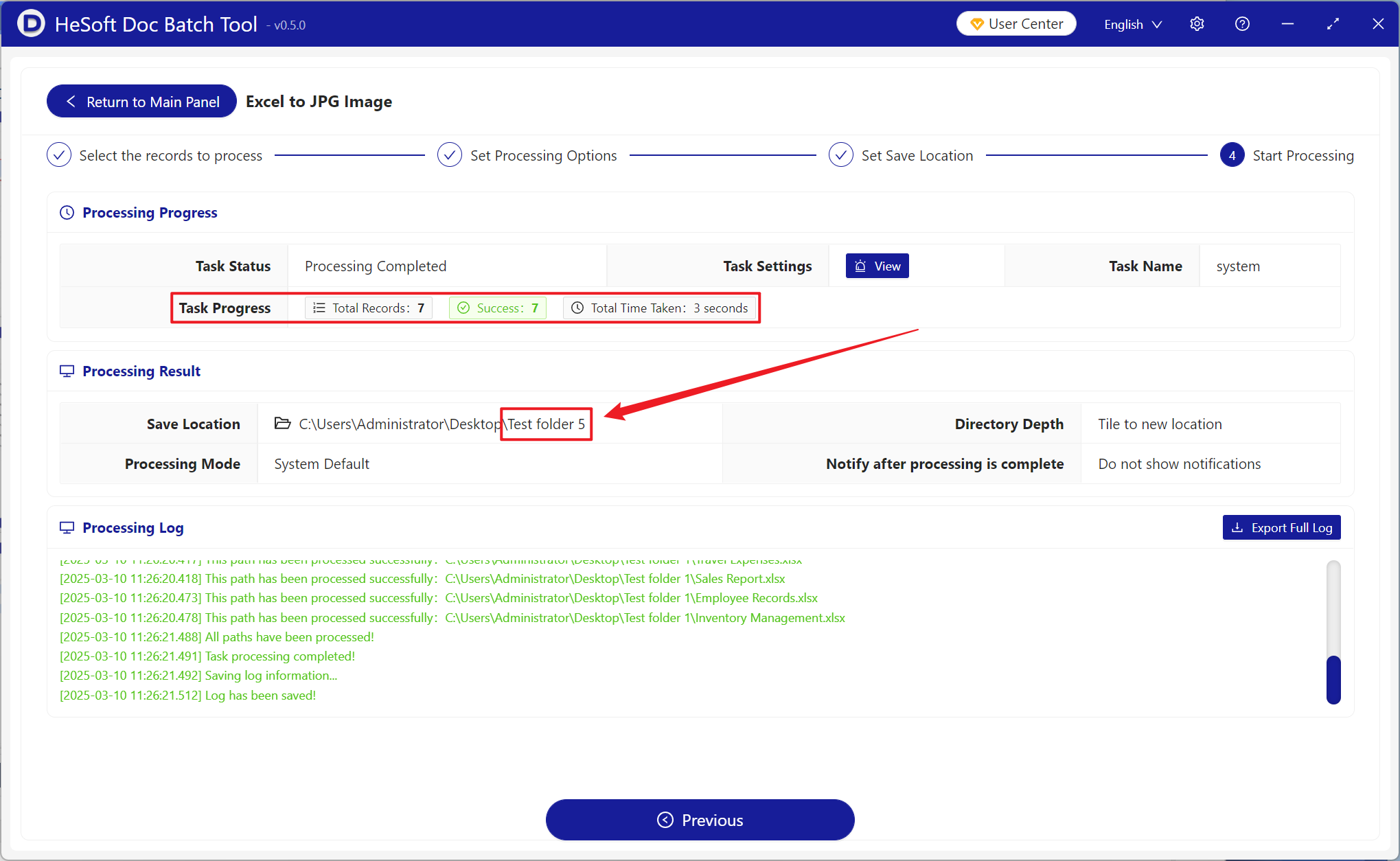
After the process is complete, click the save location to view the successfully converted JPG images.