Batch delete trailing whitespace at the end of each line in the content of a large number of TXT plain text files at once
Translation:EnglishFrançaisDeutschEspañol日本語한국어,Update Time:2025-06-07 20:22:43
Removing trailing whitespace from each line of TXT Notepad files can improve text standardization and compatibility, while also significantly benefiting database imports, code version management, and cross-platform file exchange. Eliminating trailing whitespace helps prevent parsing errors, reduces file size, and enhances script execution. The following describes how to quickly batch delete trailing blanks from each line in hundreds of TXT plain text files, supporting multiple text formats including TXT, JSON, HTML, XML, SRT, and CSV.
1. Use Cases
When a large number of TXT text files need to be imported into a database or exchanged as data, to prevent parsing errors or misaligned fields caused by trailing whitespace at the end of each line, we can batch delete these blank parts directly to ensure a uniform data format.
2. Effect Preview
Before processing:

After processing:

3. Operation Steps
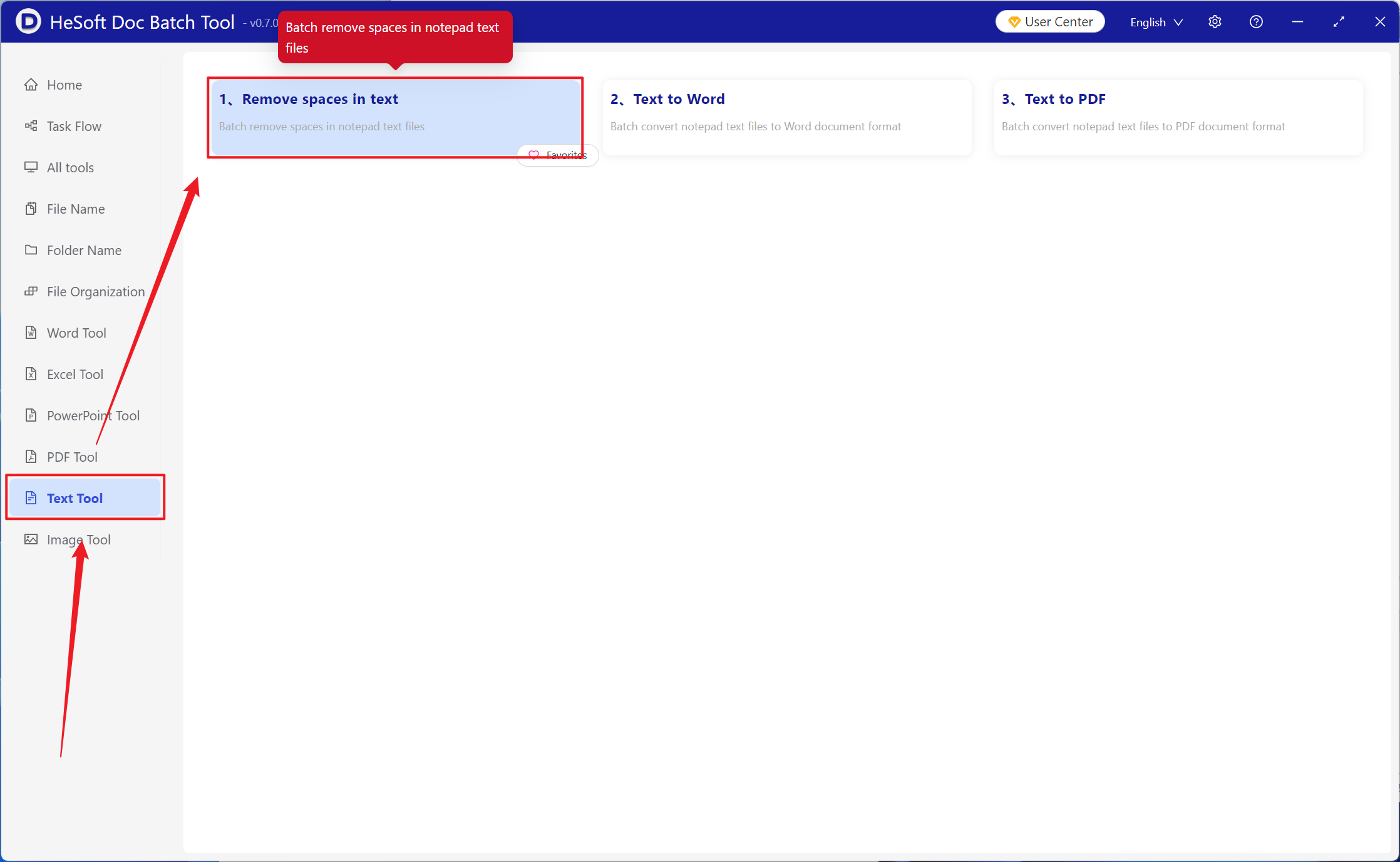
Open【 HeSoft Doc Batch Tool 】, select【Text Tools】-【Delete Whitespace in Text】.
【Add Files】add one or more TXT plain text files from which you want to delete the trailing whitespace at the end of each line.
【Import Files from Folder】import all TXT plain text files from the selected folder.
You can view the imported files below.

【Operation】below, check the option to delete trailing whitespace at the end of each line.

After processing is complete, click the save location to view the TXT notepad file where the trailing whitespace at the end of each line has been successfully deleted.
