Batch removal of extra blank spaces at the end of hundreds of TXT Notepad files
Translation:EnglishFrançaisDeutschEspañol日本語한국어,Update Time:2025-06-07 20:22:38
Sometimes, when working with plain TXT files, we may leave some spaces or blank lines at the end. These seemingly insignificant blank contents can cause quite a few problems. For example, when processing data, if there are blank lines at the end of a file, they may be mistakenly treated as extra data when imported into Excel or a database, affecting the analysis results; in overall documents, extra blank lines make the file appear unprofessional and may cause blank pages when printed; and when transferring files, excessive blank content can also slow down upload and download speeds. The following describes how to batch delete the blank spaces at the end of the entire content of multiple TXT notepad files, supporting various text formats including TXT, Json, HTML, XML, SRT, and CSV.
1. Use Cases
When many TXT files have extra spaces or blank lines at the end, they look untidy during organization or transfer and increase file size. In this case, you can batch-delete these trailing whitespace sections to make the TXT text cleaner and smoother.
2. Effect Preview
Before Processing:

After Processing:

3. Operation Steps
Open【 HeSoft Doc Batch Tool 】, select【Text Tools】-【Delete Whitespace in Text】.

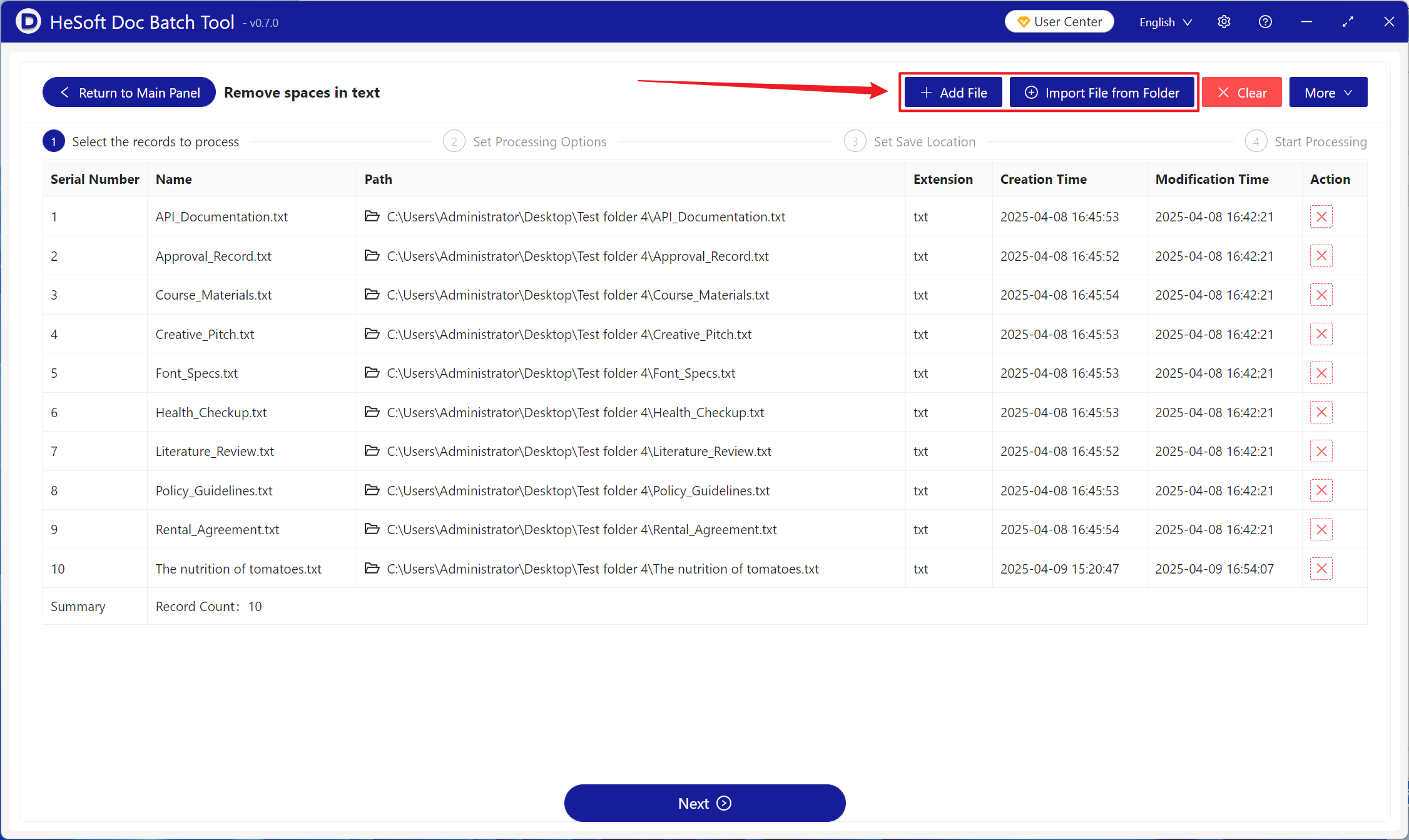
【Add Files】Add one or more plain TXT files that need trailing whitespace removed from the entire content.
【Import Files from Folder】Import all plain TXT files in the selected folder.
You can view the imported files below.
【Operations】Check the option below to delete trailing whitespace of the entire content.

After processing is complete, click the save location to view the TXT Notepad files with trailing whitespace successfully deleted.
