Batch extract the first page, second page, or partial pages from hundreds of PDF documents and convert them to JPG image format in bulk
Translation:EnglishFrançaisDeutschEspañol日本語한국어,Update Time:2025-06-07 20:21:00
When processing hundreds of PDF documents, it's especially time-consuming to open each PDF and flip through it every time you need to find the signature page of a contract, a paper abstract, or the parameter table of a product manual. By batch converting the specified pages (such as the first, second, or third page) of these PDF documents into JPG image format, you can quickly preview the key content. Moreover, JPG images are much smaller than PDF files, making them particularly convenient for sharing with others for viewing. Important key information becomes small images that can be saved on mobile devices and accessed anytime, without worrying about PDFs not opening or loading slowly. So how can we batch extract and convert the key pages of hundreds or thousands of PDF files into JPG images? Here is a method that can boost your efficiency several times over!
1. Use Cases
When you have 100 contract files in PDF format and need to batch-view the first page and the signature page (second page) of all contracts, you can bulk-convert the first page and signature page of each contract into a single image. This allows you to preview pages instantly, just like browsing photos, and makes distribution and transfer very convenient, significantly improving office efficiency.
2. Effect Preview
Before processing:


After processing:

3. Steps
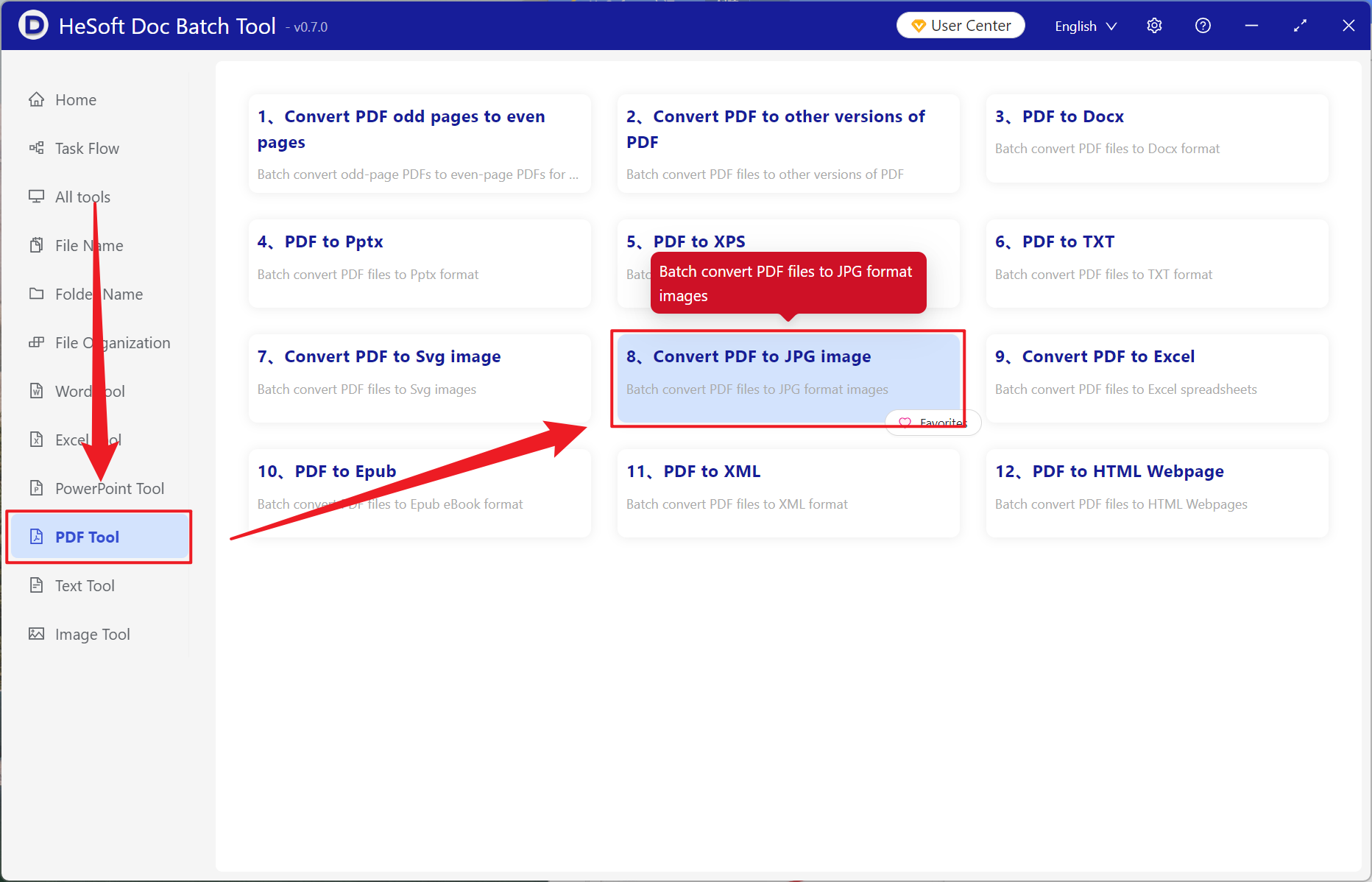
Open 【 HeSoft Doc Batch Tool 】 and select 【PDF Tools】-【Convert PDF to JPG images】.
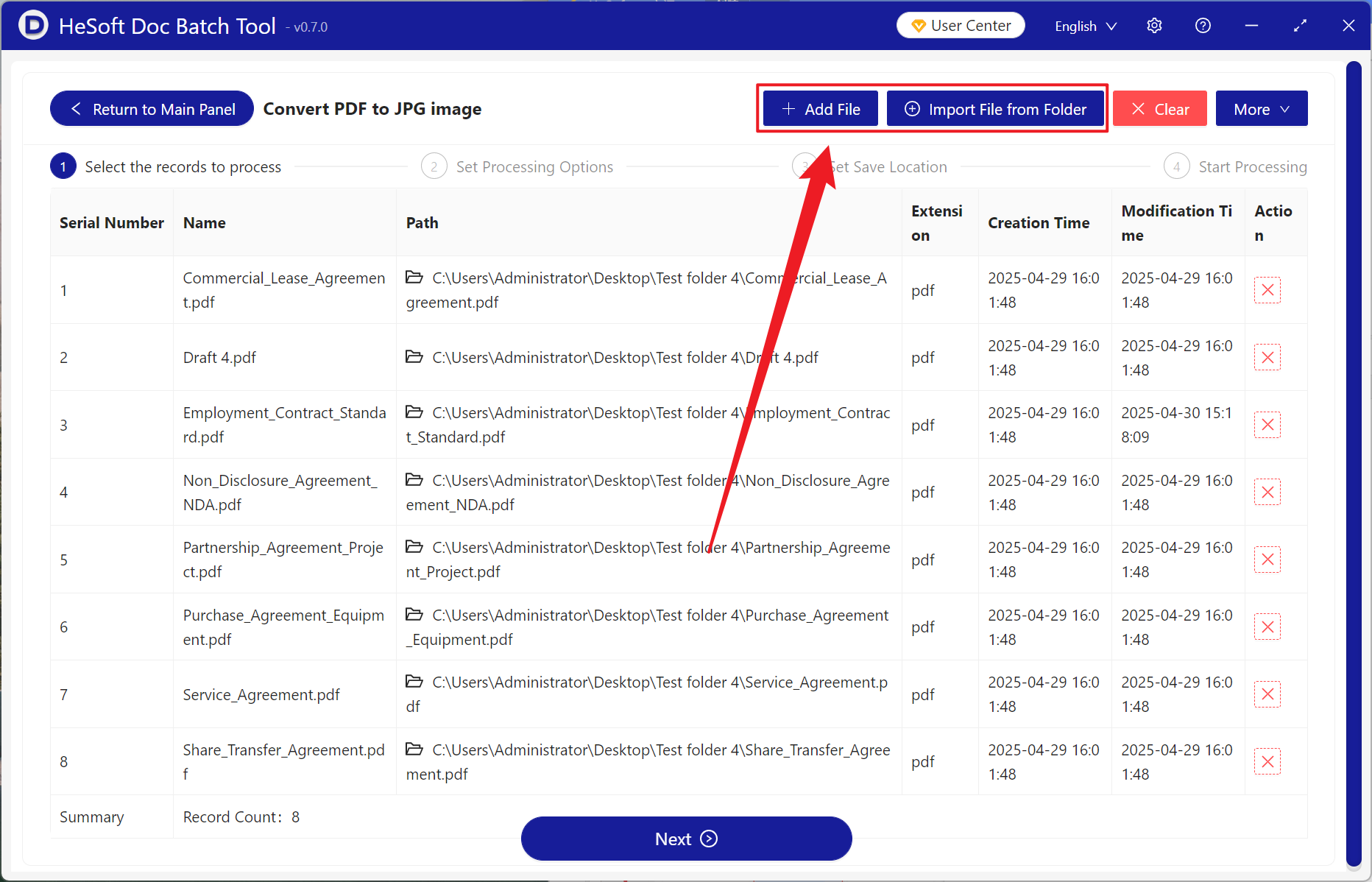
【Add Files】 allows you to manually select PDF documents for which you want to extract key pages.
【Import Files from Folder】 imports all PDF files from a selected folder.
View the imported files below.
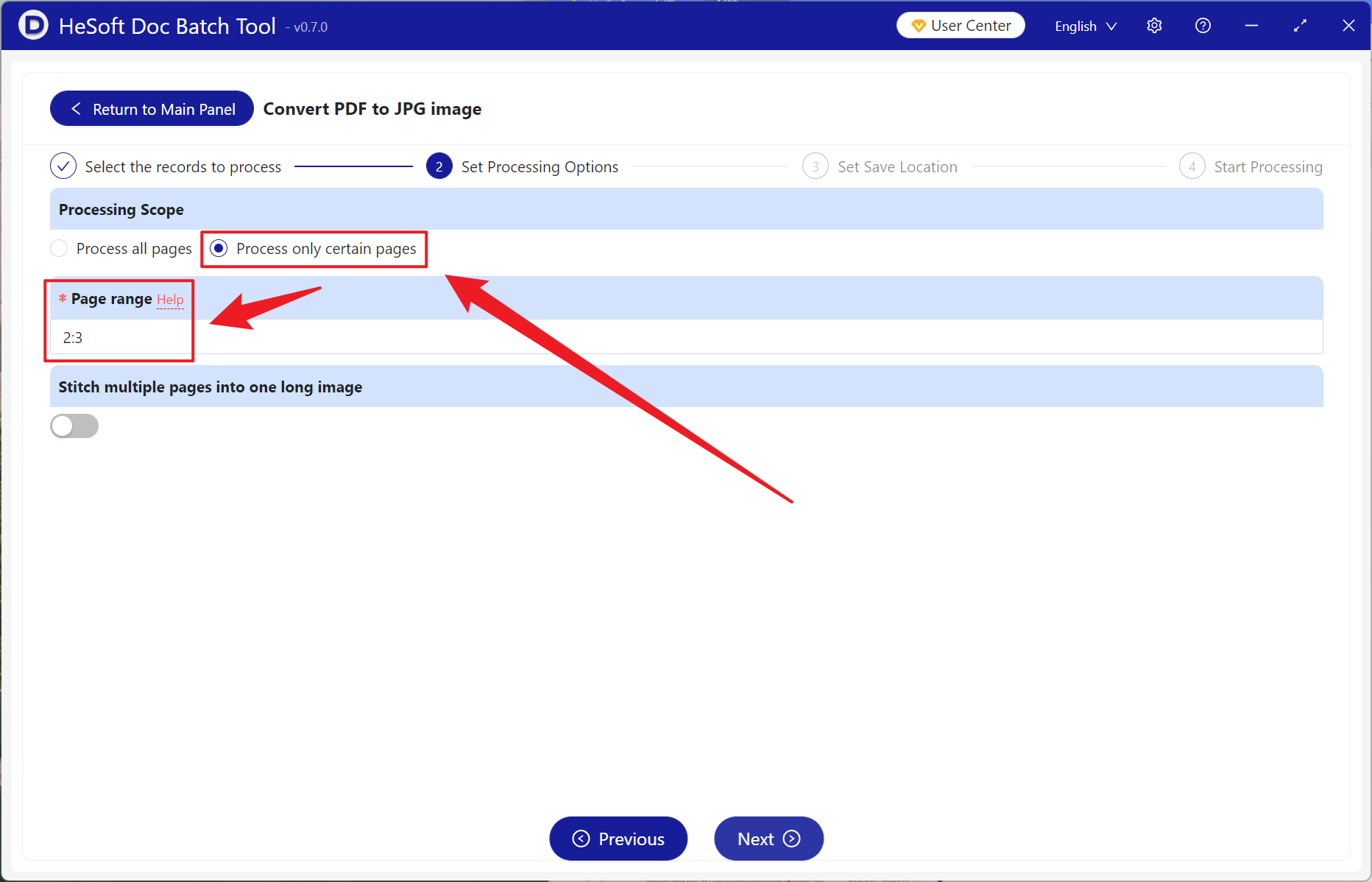
【Processing Range】 allows you to choose to process only partial pages.
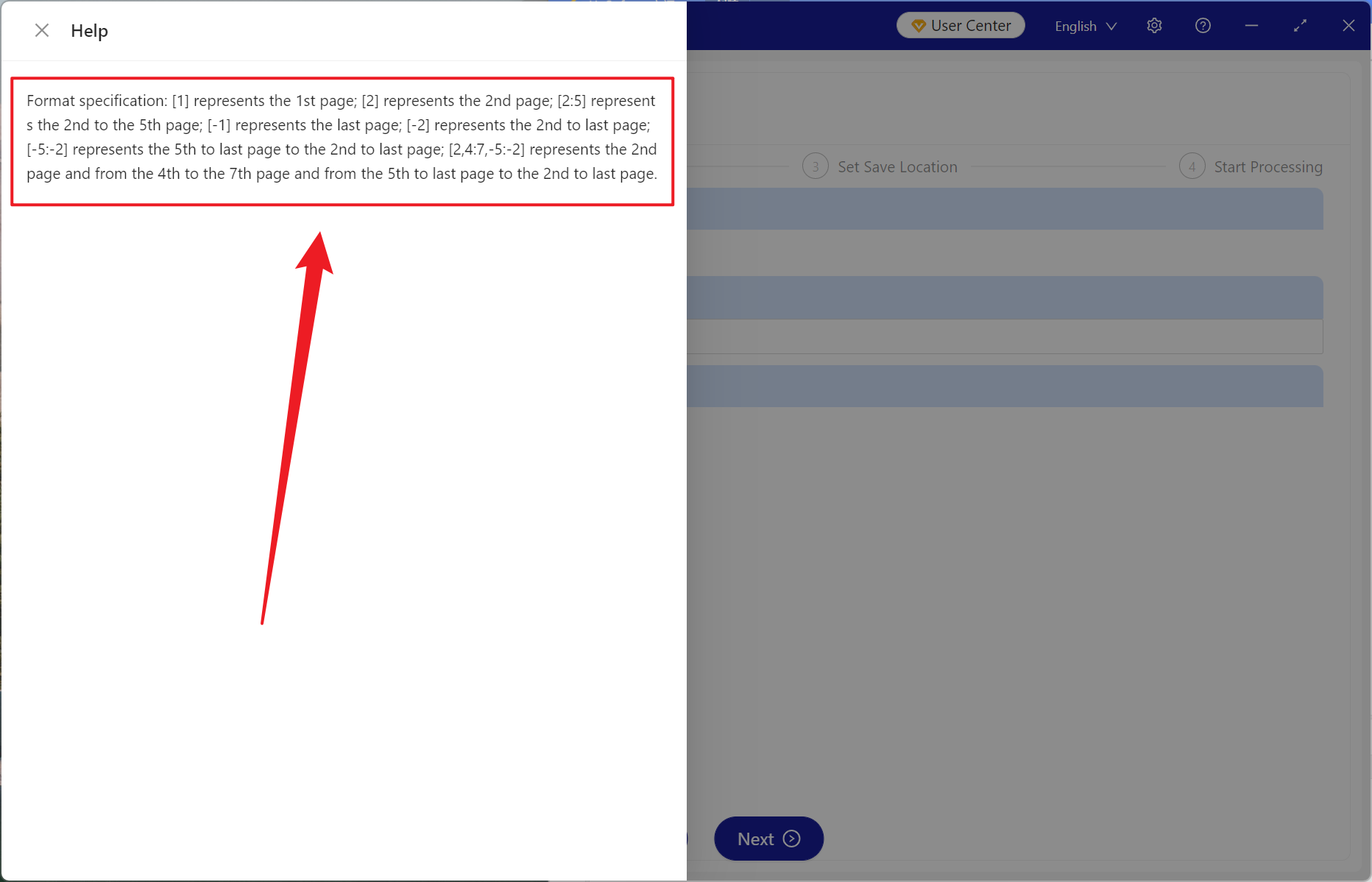
【Page Range】 enter the pages to be extracted. Please refer to the help content below for details.
【1】 is the first positive page.
【-1】 is the first page from the end.
【:】 this symbol signifies consecutive page conversion to images. For example, 2:5 extracts the second, third, fourth, and fifth pages, totaling four pages.
【,】 this symbol acts like a breakpoint. For example, 2,5,-3 extracts the second page, the fifth page, and the third page from the end, totaling three pages.
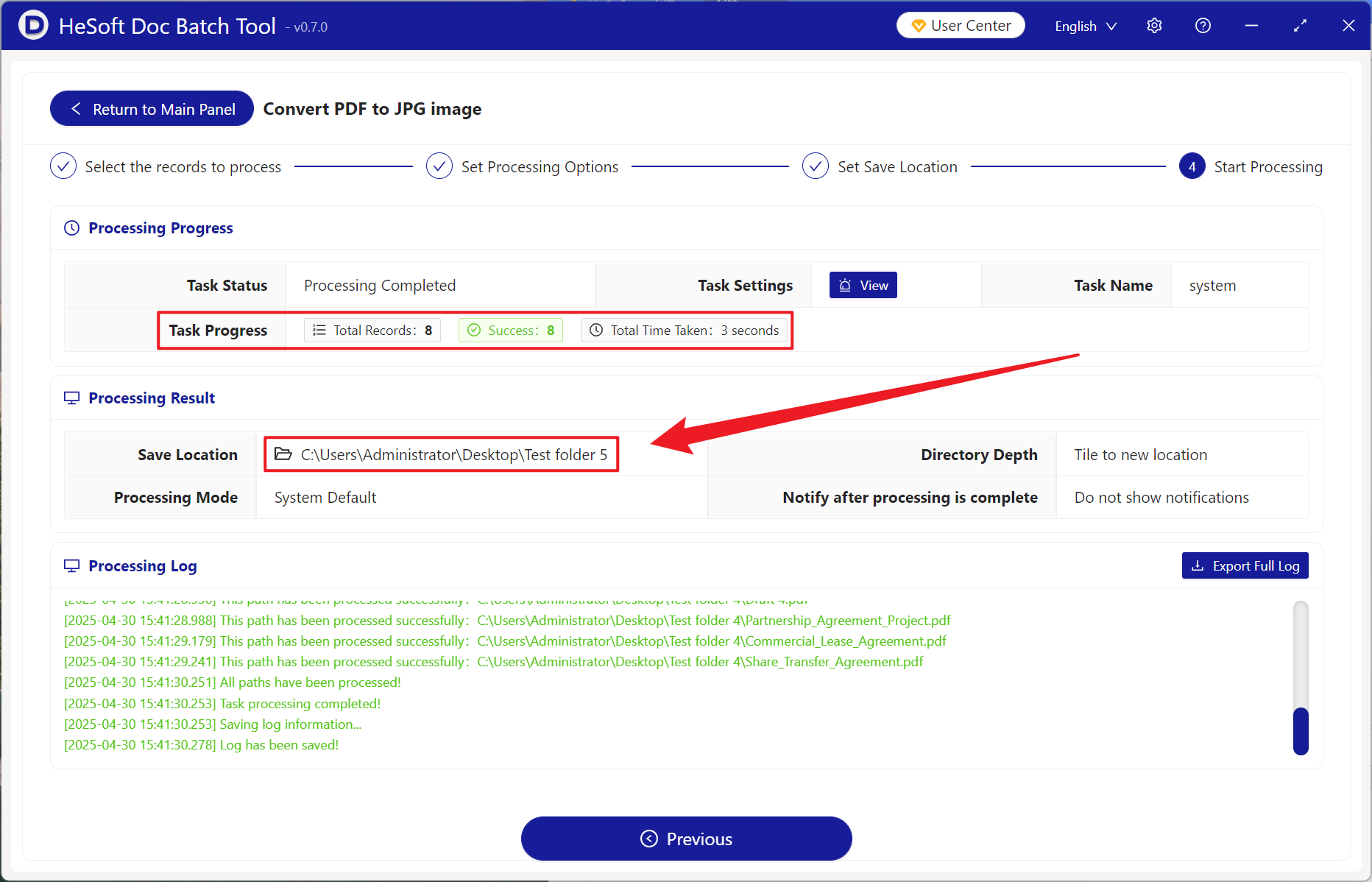
After processing is complete, click on the save location to view the successfully converted JPG images.