Extract pages from thousands of PDF documents and export them as JPG images
Translation:EnglishFrançaisDeutschEspañol日本語한국어,Update Time:2025-06-07 20:20:58
Converting PDF files to JPG images comes in handy in many situations. The most common scenario is when sharing materials on social media. You want to share the content from a PDF onto a platform or with friends. If you send the PDF directly, the recipient needs to download it before opening and viewing. Converting it to JPG images allows them to see the content directly—convenient and intuitive. When presenting materials to clients, the display may not be ideal on the other party's device, but JPG images are much more reliable. Any phone or computer can view them directly, without worrying about format compatibility issues. Sometimes we also need to extract specific pages from a PDF, such as key clauses, important icons, etc. After converting to JPG, they can be saved or sent individually. At the same time, keeping JPG versions of important materials on your phone is very necessary. When you need to view them in an emergency, you can open and view them even without a PDF reader. Exporting over 1,000 PDF documents as JPG images enables viewing on various devices, quick sharing, or extracting partial content. Converting all pages to JPG images can greatly expand usage scenarios. So, how can you batch convert many PDF documents to JPG images?
1. Use Cases
When you have a large number of PDF documents to upload to social media platforms, but some platforms do not support uploading PDF files, converting each page of the PDF into a JPG image allows for quick publishing, makes browsing easier, and resolves compatibility issues across different devices.
2. Preview
Before processing:

After processing:

3. Steps
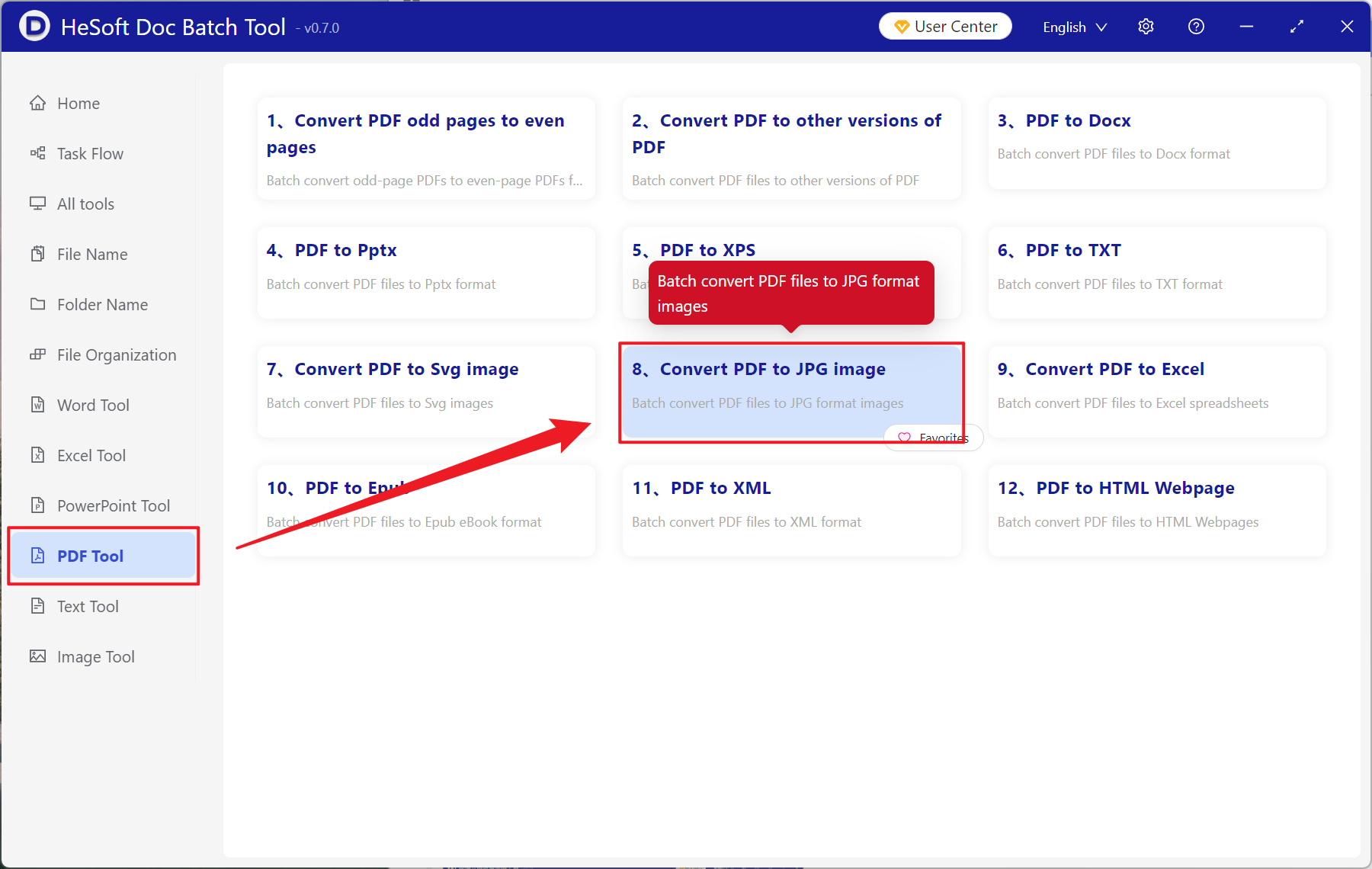
Open【 HeSoft Doc Batch Tool 】, select【PDF Tools】-【PDF to JPG】.
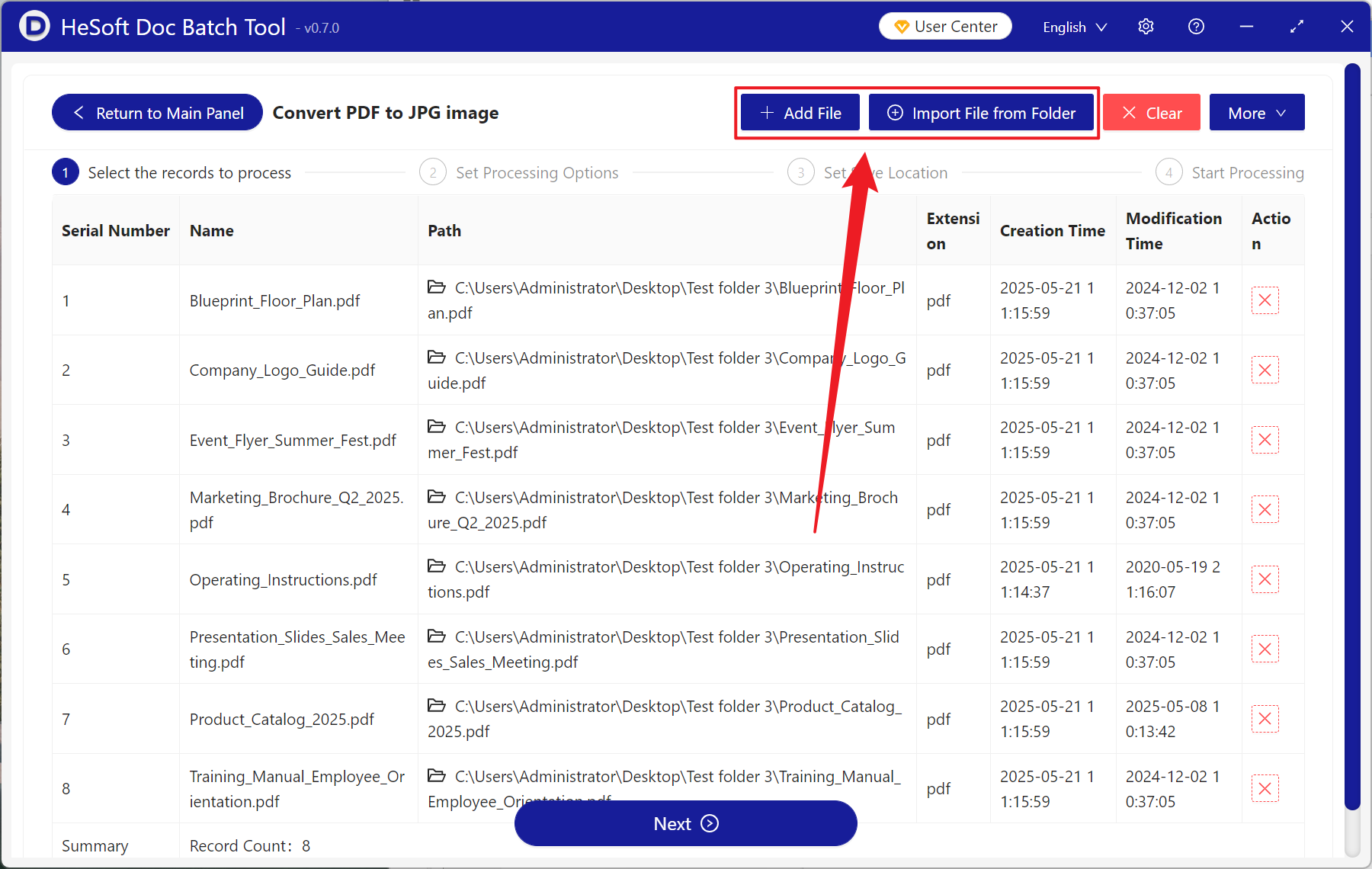
【Add Files】allows you to manually add PDF files for conversion to JPG images.
【Import Files from Folder】imports all PDF files from the selected folder.
You can view the imported files below.
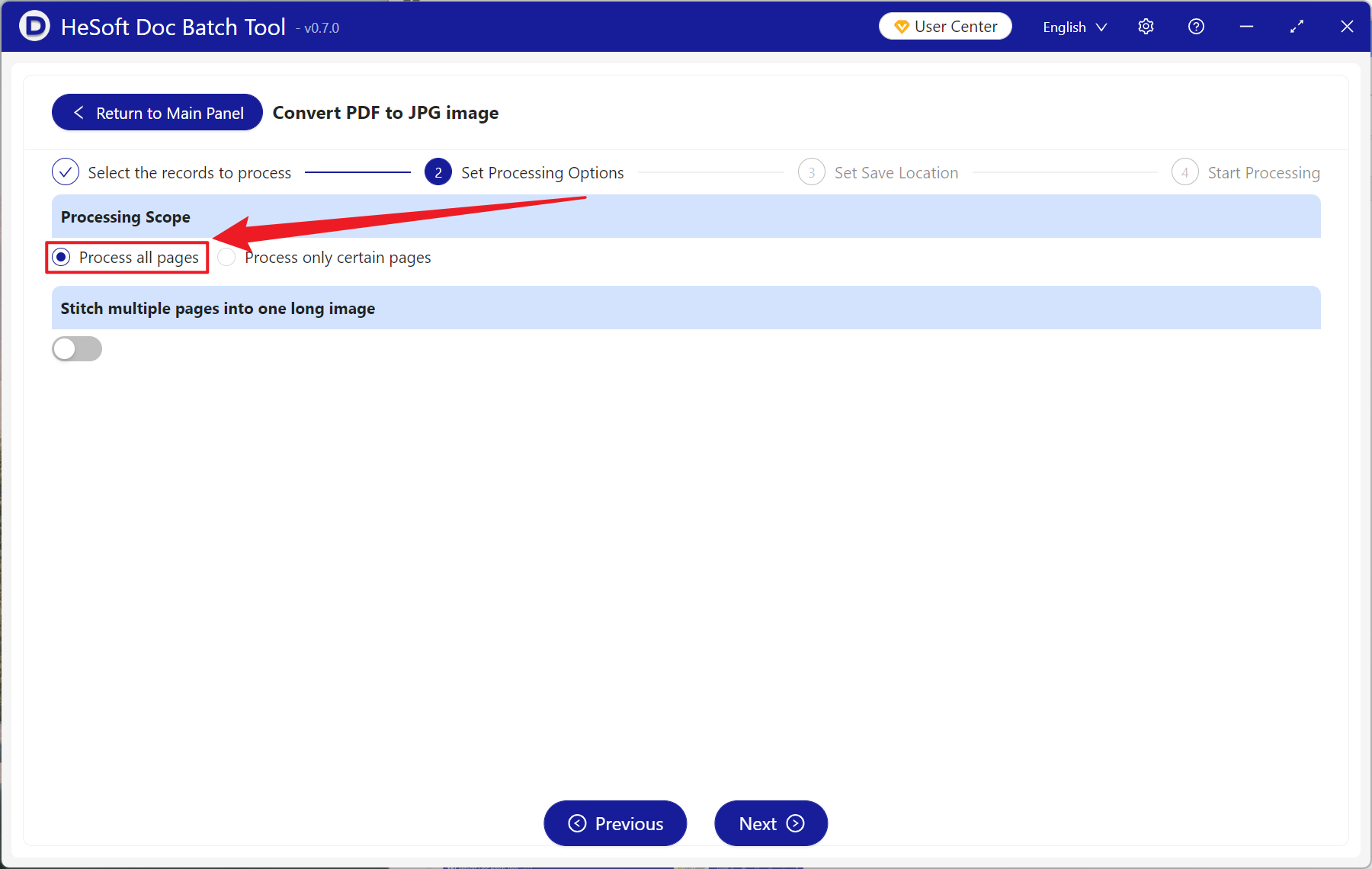
【Processing Range】Choose to process all pages, then click Next.
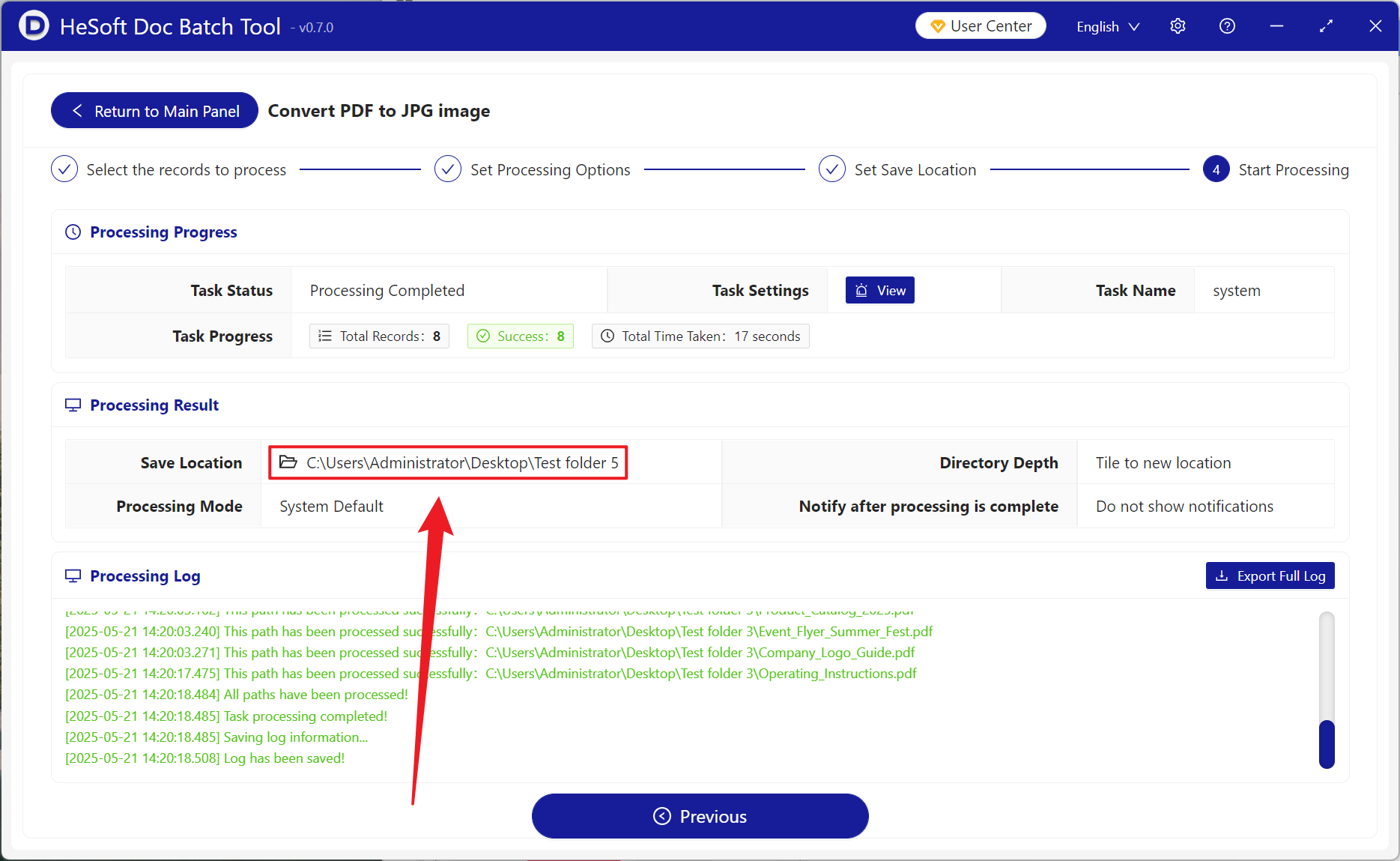
After processing, click the save location to view the successfully converted JPG image files.
Keyword:Batch PDF to JPG , extract PDF pages to images , convert PDF pages to JPG