How to batch split multiple images sequentially into a nine-grid or evenly divide them into any number of parts
Translation:EnglishFrançaisDeutschEspañol日本語한국어,Update Time:2025-06-07 20:23:19
In certain specific scenarios, we need to evenly split an image into multiple smaller parts, in order to better manage and utilize image data. For example, marketing tasks such as operations and copywriting often require the use of grid-based image slicing like nine-grid or six-grid layouts, which can greatly highlight uniqueness. Splitting a complete image evenly into multiple parts and then reassembling them into a whole, when used within articles, can enhance detail and elevate the layout aesthetics. Compared to a single large image, the split images have smaller file sizes, which speeds up page response times and improves browsing experience. The following explains how to batch-process a large number of individual images by evenly splitting them into any desired number of parts, supporting the following image formats: jpg, jpeg, png, bmp, gif, tif, tiff, webp, tga, avif.
1. Use Cases
Sequentially and evenly cut multiple images into 6 or 9 equally sized images, or split them into any number of equally sized images.
For example: An image with dimensions of 512x512
needs to be evenly divided into 9 parts.
Each resulting image will have dimensions of 170x170.
2. Effect Preview
Before processing:

After processing:


3. Operation Steps
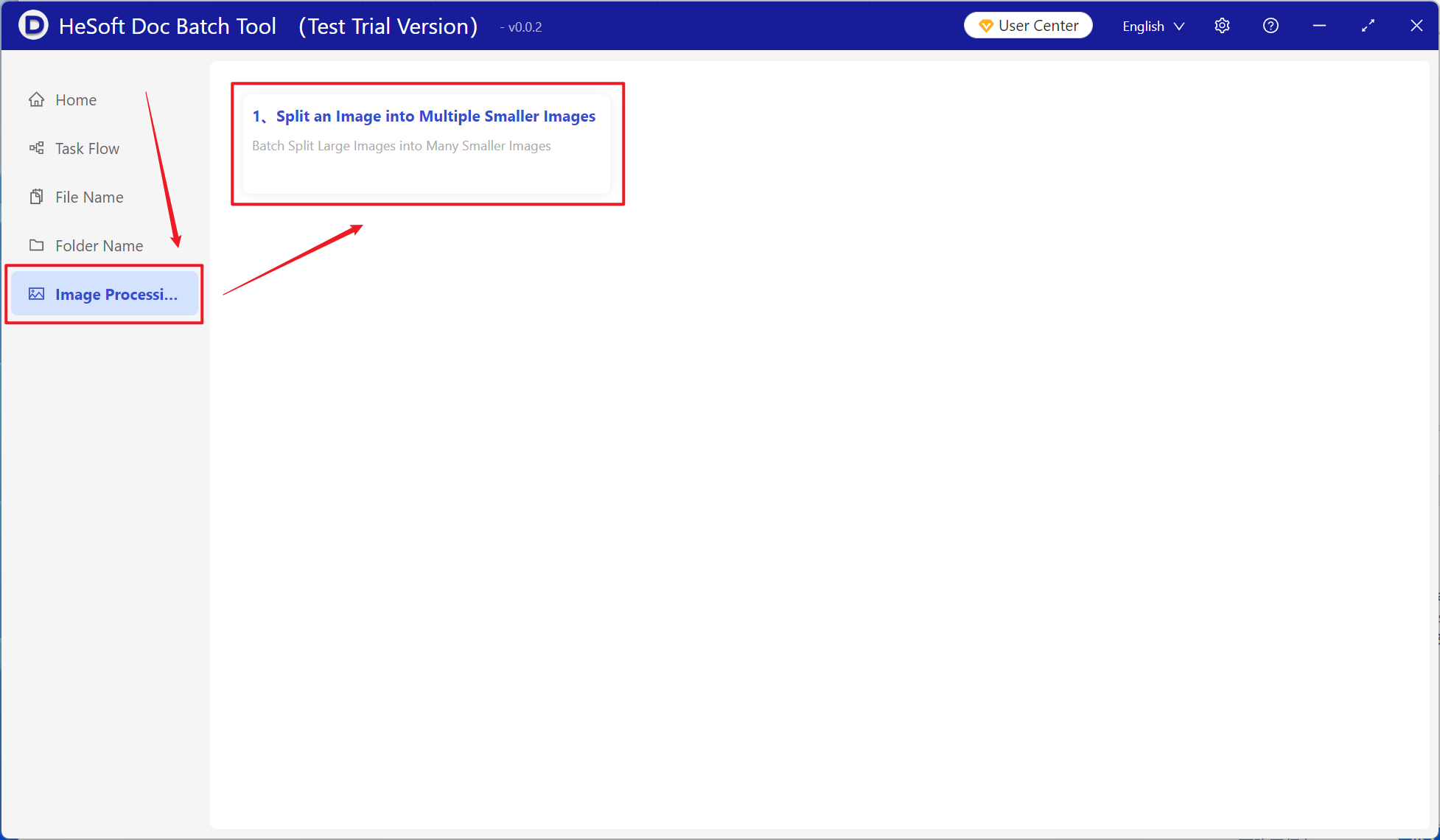
Open 【 HeSoft Doc Batch Tool 】, select 【Image Processing】-【Split Image into Multiple Small Images】.
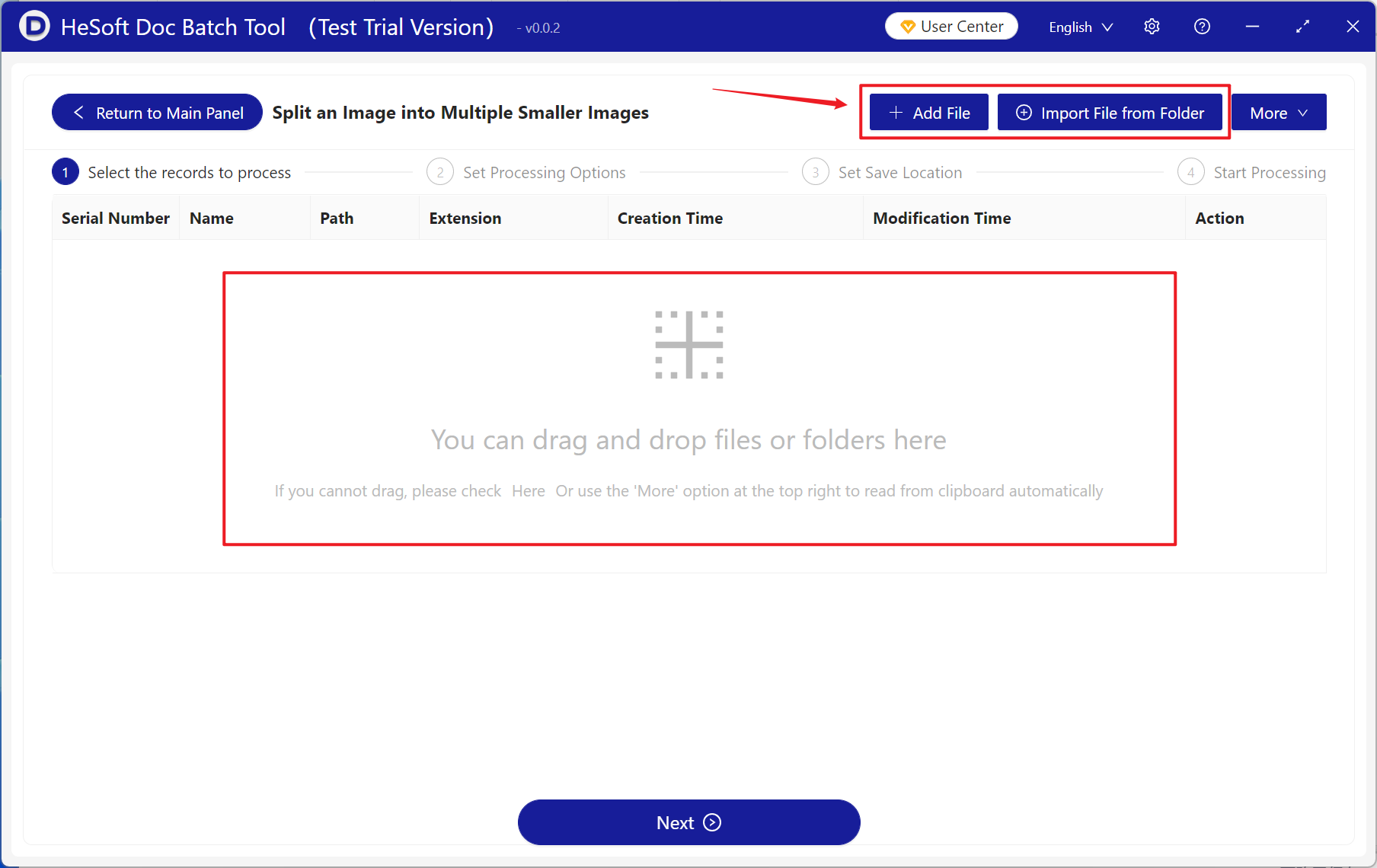
【Add Files】 Add one or more image files that need to be evenly split into equally sized images.
【Import Files from Folder】 Import a folder containing a large number of image files that need to be evenly split into equally sized images.
You can also drag and drop files directly into the area below. Then click Next.
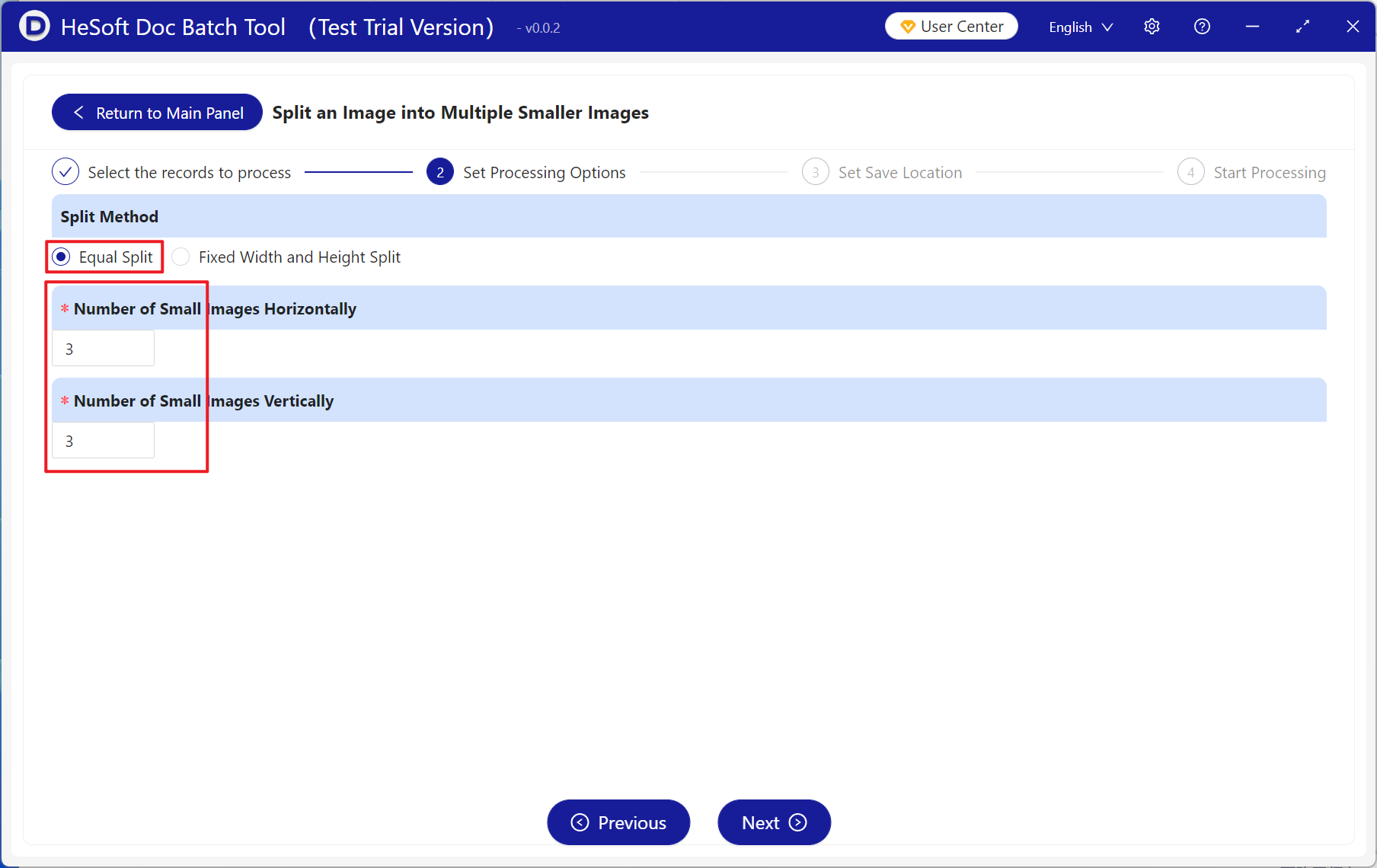
Select 【Average Split】
You can choose the number of horizontal small images and vertical small images below.
For example, the ratio for a six-grid is: 3 and 2, or 2 and 3.
The ratio for a nine-grid is: 3 and 3.
After determining the quantities, click Next.
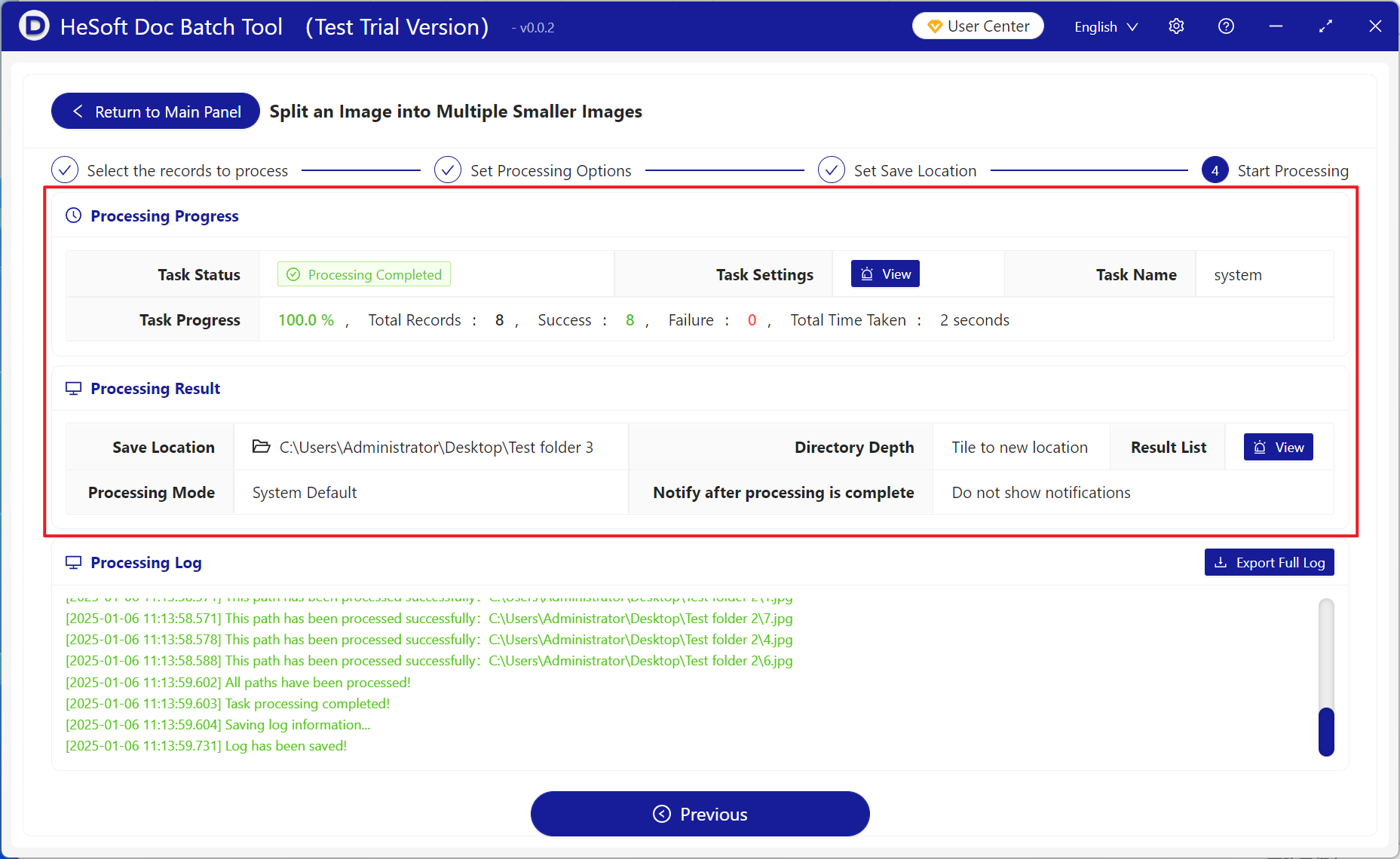
Wait for the processing to complete, then click the save folder to view the finished files.