How to convert image links in an Excel table into images and adjust them to the same size?
Translation:EnglishFrançaisDeutschEspañol日本語한국어,Update Time:2025-08-04 11:42:22
In dozens of Excel spreadsheet files, there is a large amount of text data and image URL links. To make the worksheet data visually intuitive and enhance content completeness, it is often necessary to convert the HTTP links in the workbook into images. If you need to retain the URL links in the Excel table while also being able to preview images to ensure information integrity, you can choose to cover the cell to the left of the image URL link for the operation, and covering the cell to the right is also supported. The following describes how to simultaneously batch-cover the left cells with HTTP links from dozens of xlsx worksheets for visualization.
1. Usage Scenario
Retain the HTTP URL links in the Excel table and preview the images from the links by overlaying them onto the content of the left or right adjacent cell.
2. Preview of Results
Before processing:

After processing:

3. Operating Steps
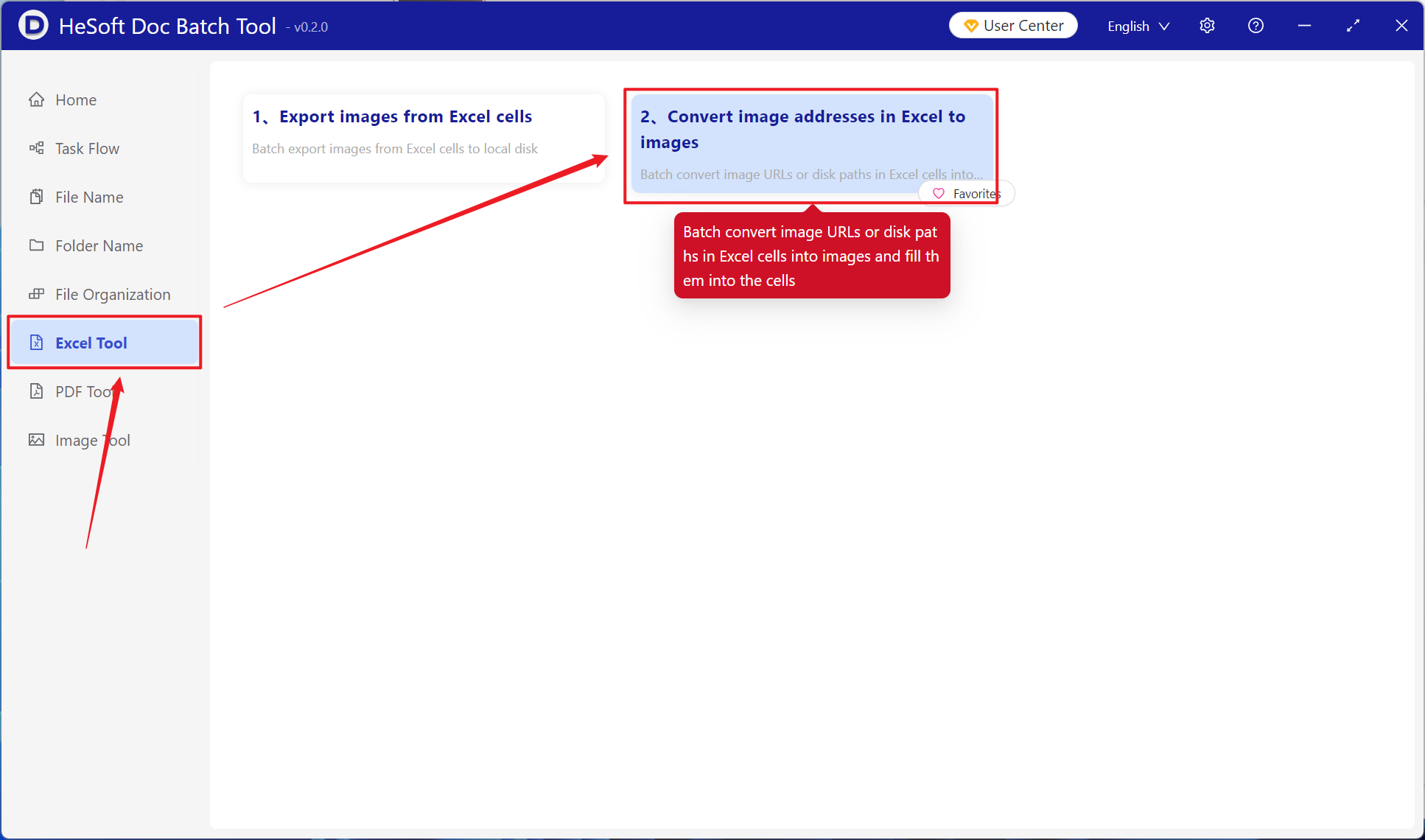
Open【 HeSoft Doc Batch Tool 】, and select 【Excel Tools】 - 【Convert Image URLs to Images in Excel】.
【Add File】Add one or more xlsx files whose links need to be converted to images.
【Import Files from Folder】Import a folder containing a large number of xlsx files that need link-to-image conversion.
You can also drag and drop files directly into the area below.

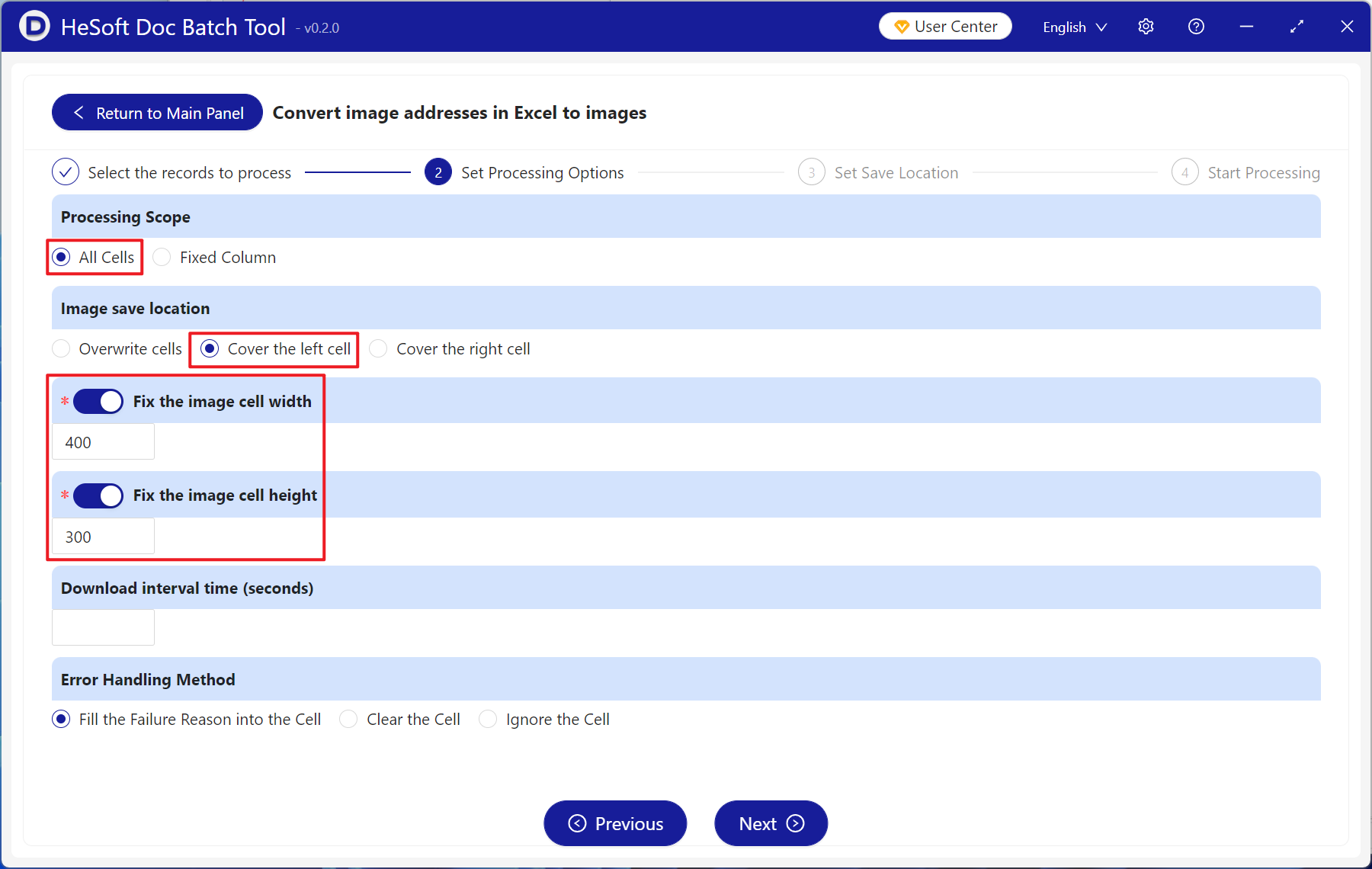
【Processing Scope】Select all cells.
【Image Placement】Choose whether to overlay the image from the URL link onto the left or right adjacent cell based on your needs.
【Fixed Image Cell Width and Height】Enter the desired width and height for the images.
After the processing is complete, click the save location to view the dozens of converted Excel files.