Batch Convert Hundreds of XLSX Worksheet Files to XPS Files
Translation:EnglishFrançaisDeutschEspañol日本語한국어,Update Time:2025-06-07 20:20:47
Microsoft's XPS format is similar to PDF, both are fixed-layout document formats suitable for high-fidelity printing or cross-platform sharing. When multiple Excel spreadsheets with layout content and formatting need to maintain their original style and be opened for viewing on older versions or systems, we can uniformly convert them to XPS format for preview. For files archived or shared in Windows systems, the XPS format can also provide better compatibility and security.
1. Use Cases
There are many XLSX worksheets that need their table data content distributed across multiple people's computers. Some of these may involve older software versions or systems that cannot open the spreadsheet files or encounter formatting errors due to compatibility issues. In such cases, you can batch convert Excel spreadsheets to XPS format to avoid inconsistent layouts.
2. Preview
Before processing:

After processing:

3. Steps
Open【 HeSoft Doc Batch Tool 】and select【Excel Tools】-【Convert Excel to XPS】.

【Add Files】Add single or multiple Excel files to be converted to XPS format.
【Import Files from Folder】Import all Excel files within the selected folder.
You can view the imported files below.

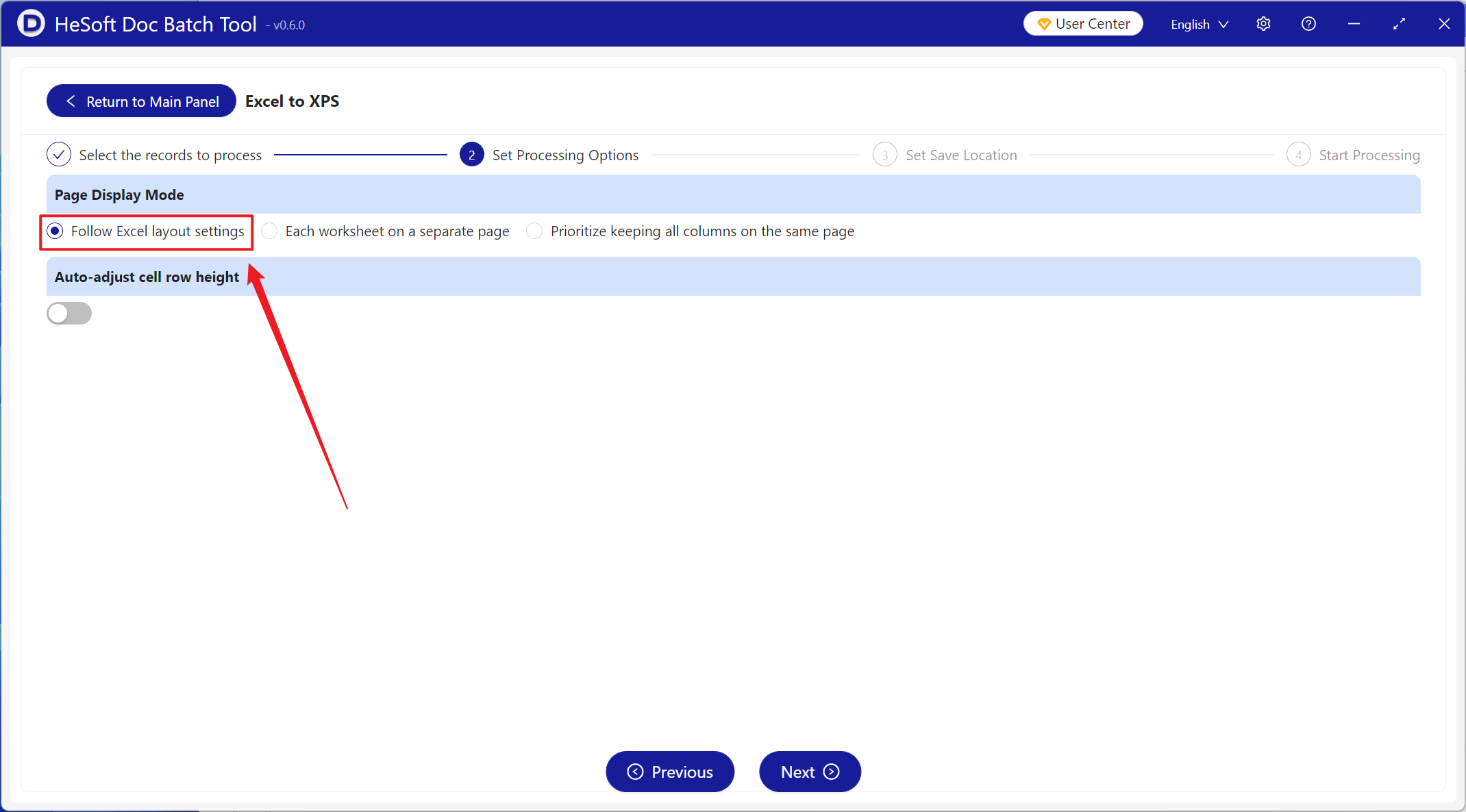
【Page Display Mode】Select to follow the Excel layout settings.
After processing is complete, click the save location to view the successfully converted XPS files.
