Delete prefix content in file names of dozens of files at once
Translation:EnglishFrançaisDeutschEspañol日本語한국어,Update Time:2025-06-07 20:24:02
Before starting a project, drafts are usually created to describe various details of all files related to the project. To distinguish these draft files, a prefix similar to a template is typically added to the beginning of the file name. After the final version is confirmed, once the prefixes like "draft" in front of these file names are no longer needed, renaming each file one by one to remove them significantly reduces work efficiency. The following introduces how to batch delete the leftmost prefix content from a large number of files, and it also supports removing suffix content.
1. Usage Scenario
Delete the leftmost numbers, letters, keywords, or other prefix content from file names.
For example: three files named Draft Project Report 1.docx, Draft Team Photo Event 1.jpg, Draft Marketing Analysis 1.xlsx
You need to uniformly delete the "Draft" prefix on the left. After processing, they become Project Report 1.docx, Team Photo Event 1.jpg, Marketing Analysis 1.xlsx
2. Preview
Before processing:

After processing:

3. Operation Steps
Open [ HeSoft Doc Batch Tool ], click [File Name] - [Find and Replace File Name].
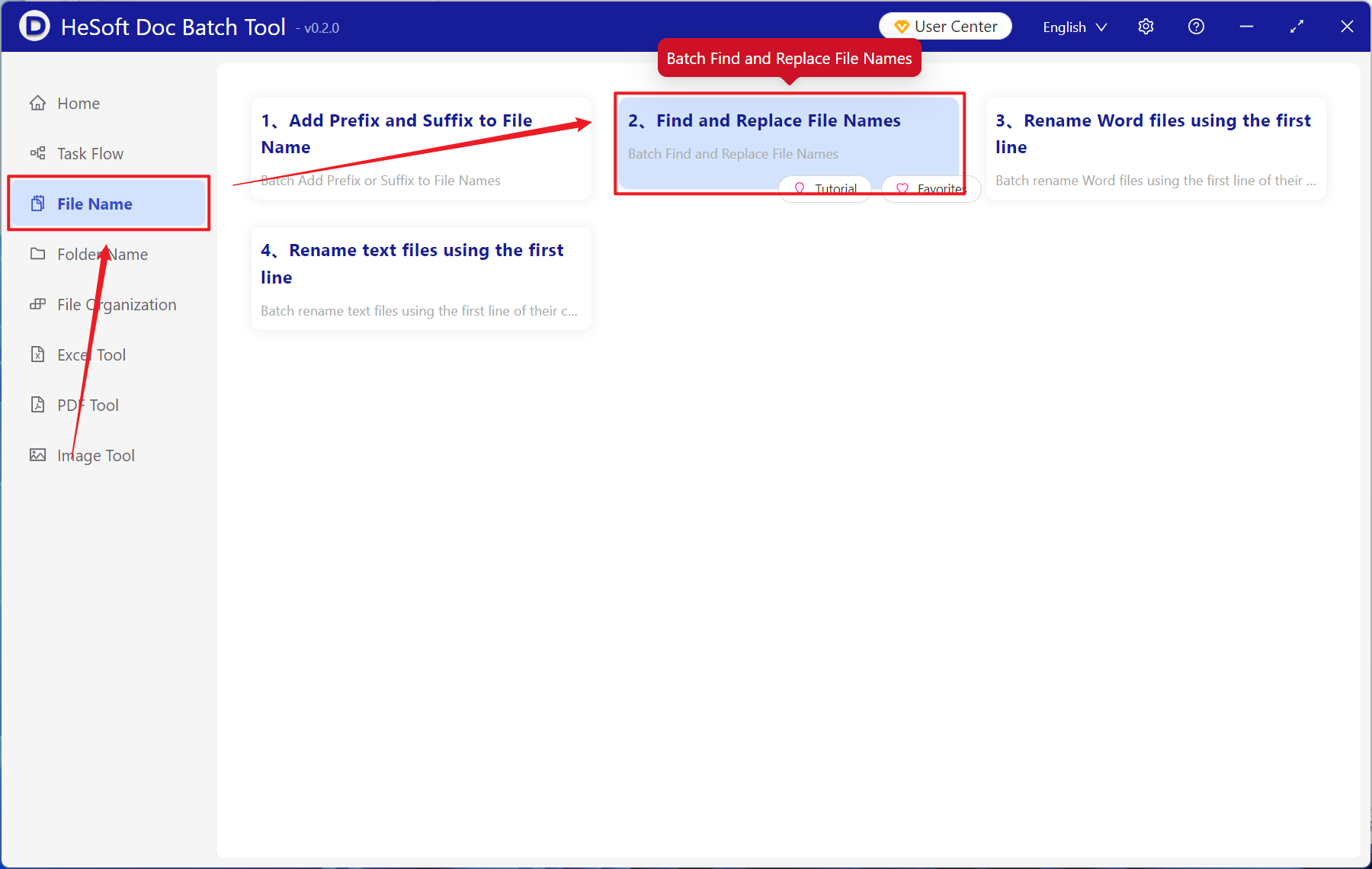
[Add Files] Add single or multiple files whose names need prefix content deleted.
[Import Files from Folder] Import a folder containing a large number of files whose names need prefix content deleted.
You can also directly drag and drop files into the area below.

[Find Text] Enter the file name prefix content to be deleted below.
[Replace With] Leave this blank.

Wait for the process to complete, and check the successfully modified files at the save location.
