Batch remove trailing whitespace from each line in a large number of TXT files
Translation:EnglishFrançaisDeutschEspañol日本語한국어,Update Time:2025-06-07 20:22:43
After system export or manual editing of a large number of TXT plain text files, many trailing spaces may be generated. These blank parts can cause file parsing errors or data processing issues, and the trailing spaces can make the text look messy and disorganized, affecting the browsing and reading experience. By removing trailing spaces, the text can be made more standardized and tidy, facilitating reading, parsing, and storage. Below is an introduction on how to batch remove trailing spaces at the end of each line in many TXT notepad files at once, supporting various text formats: TXT, JSON, HTML, XML, SRT, CSV.
1. Use Cases
When you have multiple large TXT text files, the accumulated trailing whitespace at the end of each line occupies significant extra storage space and makes the text content messy and unorganized. Here, you can batch delete the trailing whitespace content at the end of each line in Notepad files to optimize document resources and improve document tidiness.
2. Effect Preview
Before processing:

After processing:

3. Operation Steps
Open【 HeSoft Doc Batch Tool 】, select【Text Tools】-【Delete Whitespace in Text】.

【Add Files】Add single or multiple TXT plain text files for which you need to delete the trailing whitespace at the end of each line in the file content.
【Import Files from Folder】Import all TXT plain text files in the selected folder.
You can view the imported files below.

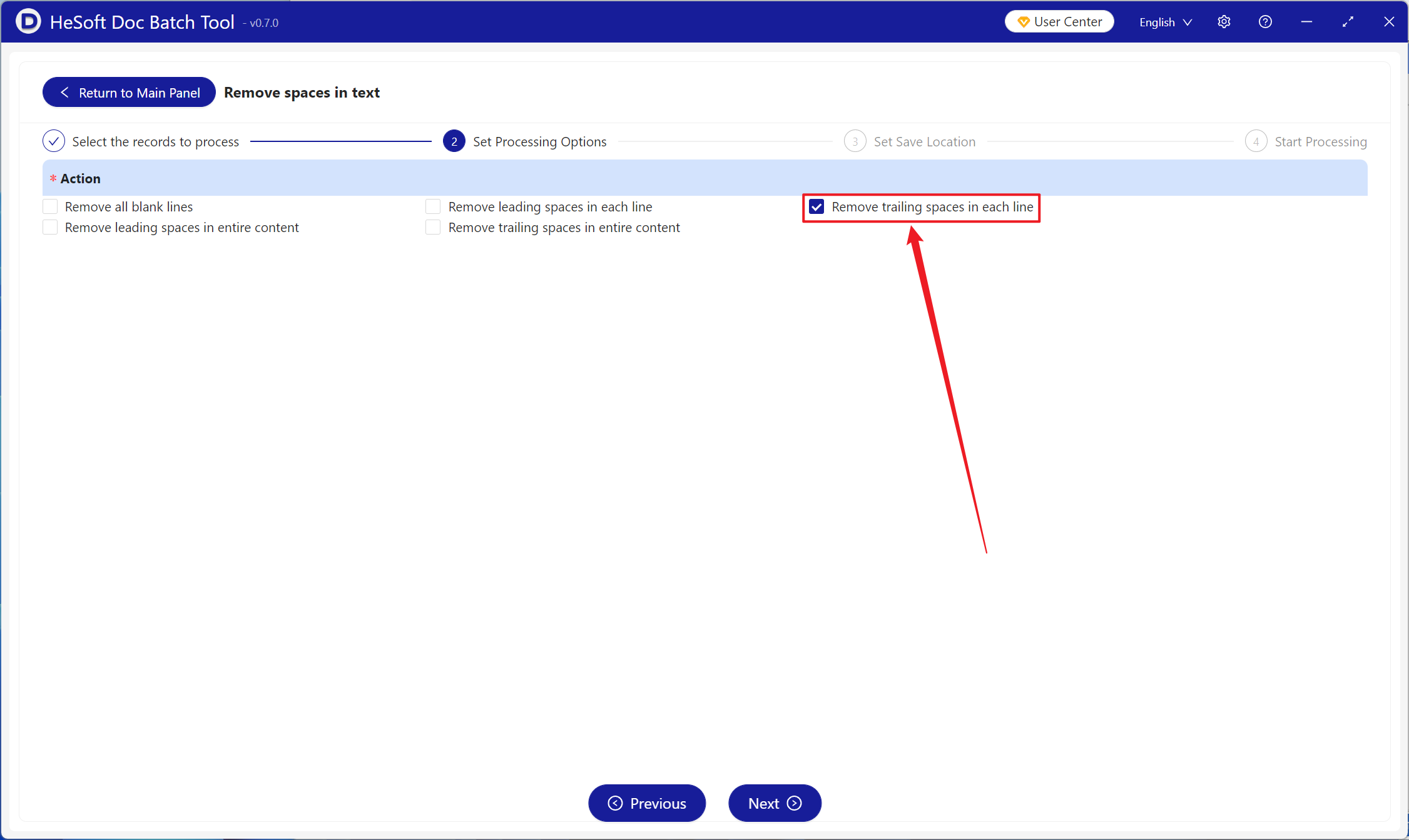
【Operation】Check below to delete whitespace at the end of each line.
After processing is complete, click the save location to view the TXT Notepad files where trailing whitespace at the end of each line has been successfully removed.
