Quickly batch convert thousands of Excel worksheets to plain text CSV format
Translation:EnglishFrançaisDeutschEspañol日本語한국어,Update Time:2025-06-07 20:20:21
When converting XLSX spreadsheets for data exchange with other software or systems, transforming them into CSV format enhances file compatibility and allows most databases and programming languages to read and process them directly. For automated processing or batch imports (e.g., data cleaning, analysis, and uploading to cloud platforms), the plain text nature of the CSV format facilitates script processing. Even when sharing data across platforms, the CSV format does not rely on specific software and can be transferred seamlessly between different operating systems.
1. Use Cases
When a large number of Excel spreadsheet files need to be cleaned and visualized, batch converting them to CSV format makes it more convenient to use programming languages for data analysis and processing.
2. Preview
Before:

After:

3. Steps
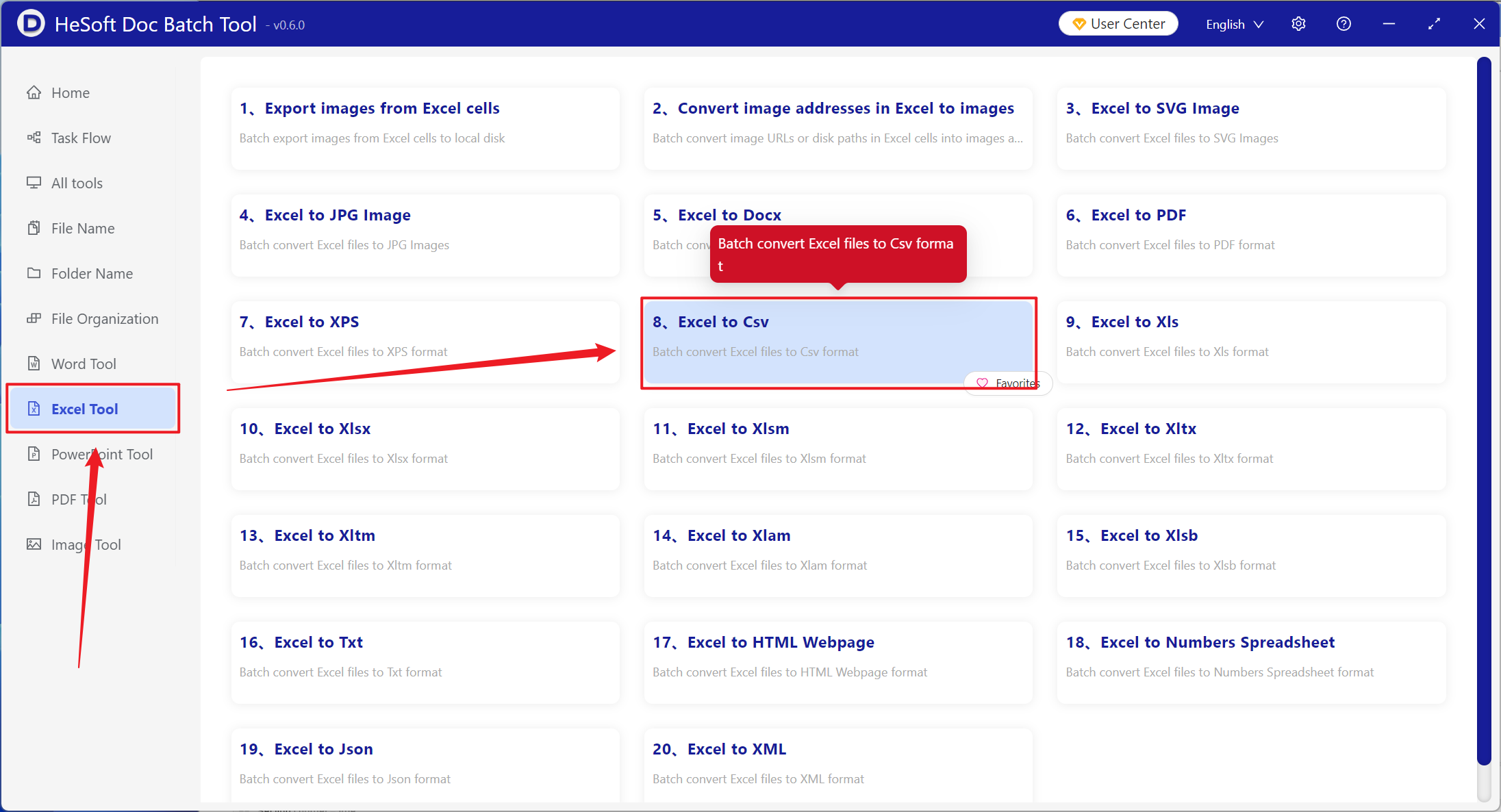
Open【 HeSoft Doc Batch Tool 】, select【Excel Tool】-【Excel to CSV】.
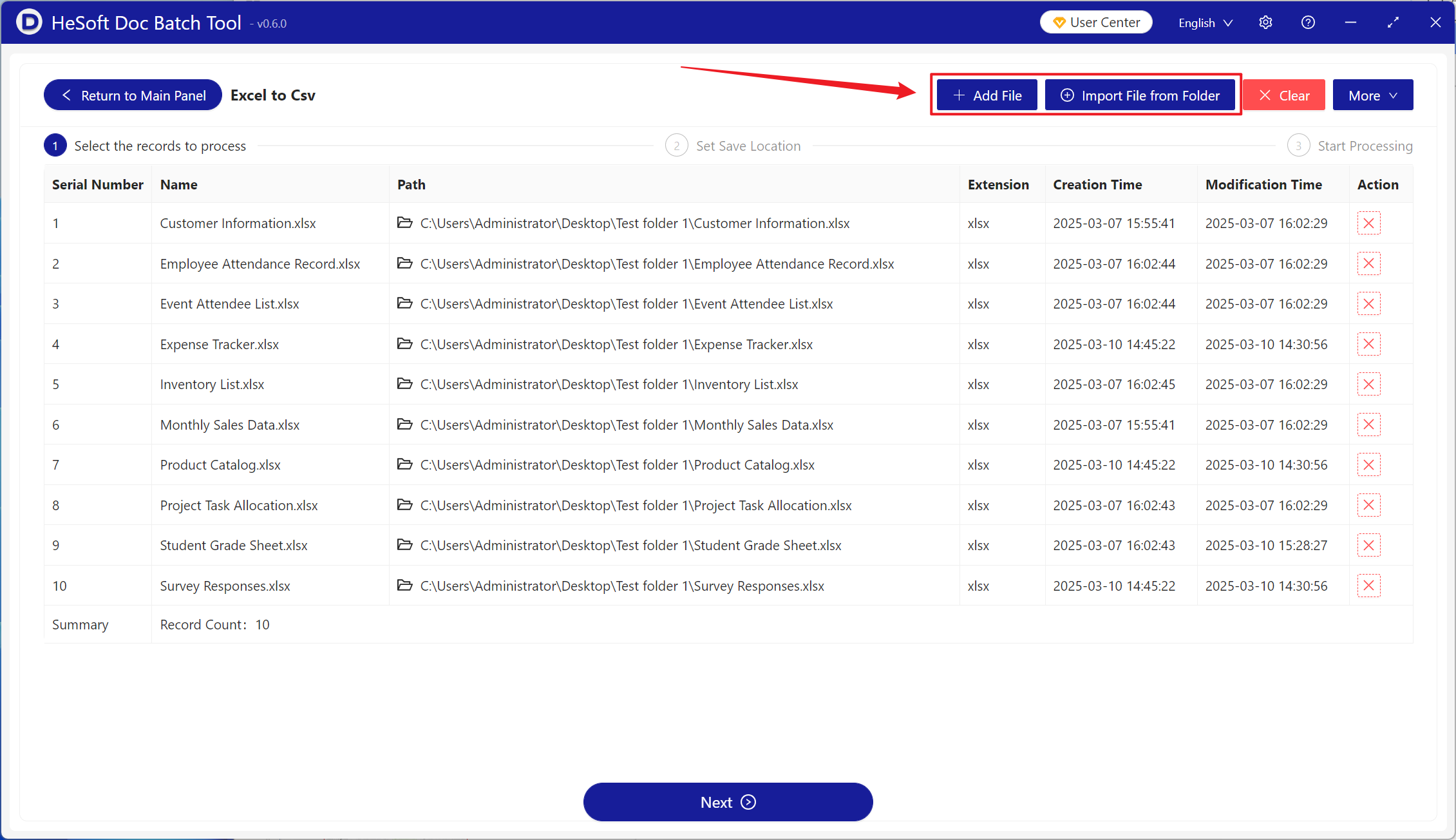
【Add Files】Add one or more Xlsx files that need to be converted to CSV format.
【Import from Folder】Import all Xlsx files from the selected folder.
Below you can view the imported files.
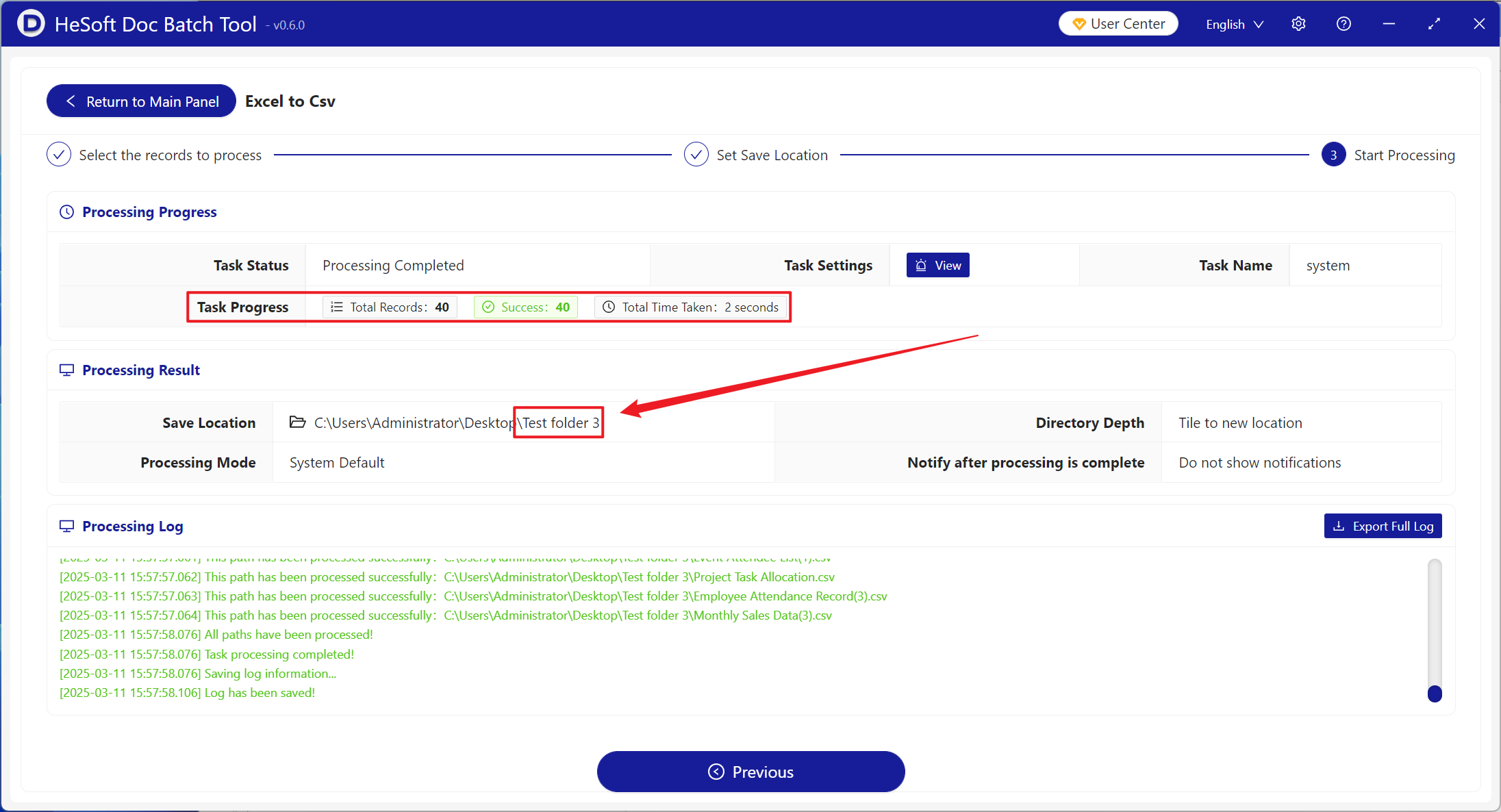
After processing is complete, click the save location to view the successfully converted CSV tabular file.