Tips for batch exporting Excel tables to CSV format! Solve it quickly in just 1 minute
Translation:EnglishFrançaisDeutschEspañol日本語한국어,Update Time:2025-10-30 17:27:30
In daily office work and data analysis and processing, converting Excel files to CSV (Comma-Separated Values) is very common. CSV files are lightweight, have strong cross-platform compatibility, and feature a simple structure, making them an ideal choice for data exchange, storage, and migration. The primary needs are reflected in database imports and automated script processing. Converting Excel to CSV can significantly improve work efficiency, so learning and mastering fast and accurate Excel-to-CSV conversion methods is essential for both office staff and developers.
This article shares four conversion methods to help those in need choose the most efficient conversion approach based on actual scenarios, improving data processing efficiency at work. Let's learn together hands-on!
When do you need to convert Excel to lightweight CSV plain text files?
1. When sharing Excel data, converting to CSV format is very convenient. CSV files are very small in size and can be transmitted via email or online, ensuring recipients can quickly open and view the data.
2. Currently, many tools and software on computers support CSV text data. After converting Excel to CSV, data can be more easily imported into Python for further analysis and processing.
3. Excel files with large numbers of data rows occupy significant file storage space. When backing up data, converting Excel to CSV can reduce file size, save our storage space, and protect important data from damage.
Effect preview after batch converting Excel to CSV files
Before processing:
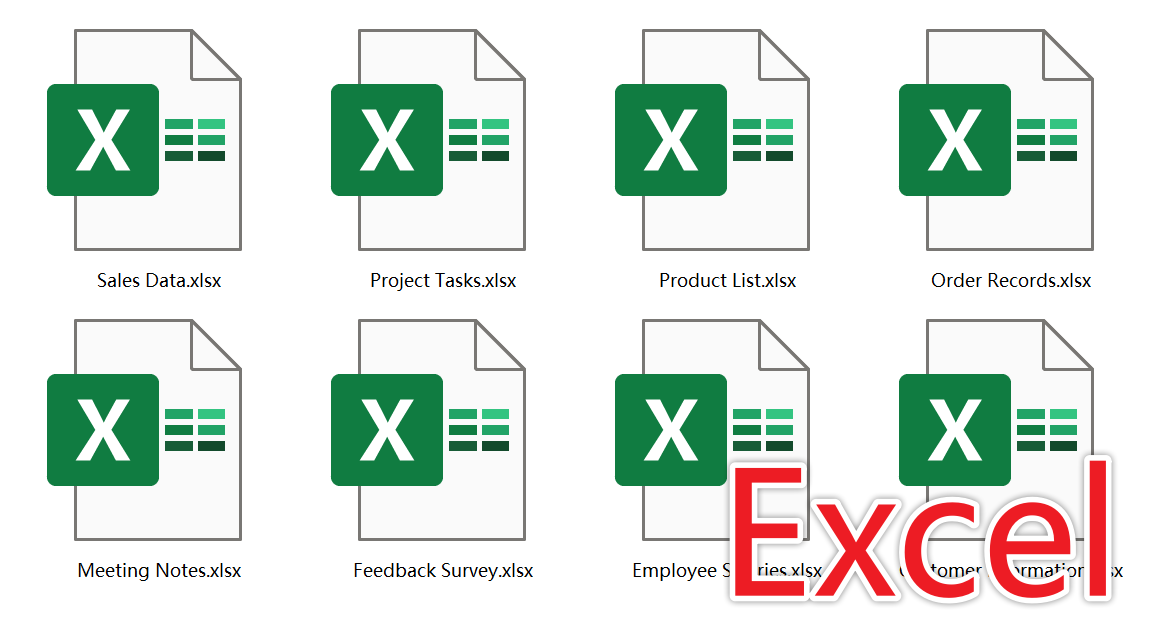
After processing:

Method 1: Use HeSoft Doc Batch Tool to batch convert Excel to CSV files
Recommendation index: ★★★★★
Advantages:
- Able to batch convert a large number of Excel files simultaneously, without file size restrictions.
- All files are processed locally, protecting user file privacy.
Disadvantages:
- Software can only be installed and used on a computer.
Operation steps:
1. Open [ HeSoft Doc Batch Tool ], select [Excel Tools] - [Excel to CSV].

2. In [Add File] or [Import Files from Folder], choose a method to import the Excel files you need to convert to CSV, or you can directly drag files below. After confirming the added files are correct, click Next. Then click Browse to select the save location for the new files.

3. After processing is complete, click the red path inside the box to open the folder and view the converted CSV files.

Method 2: Use Excel's built-in "Save As" feature to save as CSV format
Recommendation index: ★★★☆☆
Advantages:
- Completely free and does not require an internet connection.
- Conversion can be completed in seconds, with the best compatibility.
Disadvantages:
- Can only convert the currently active worksheet, no batch conversion support.
- Some characters may appear garbled or have other issues after conversion.
Operation steps:
1. Open the Excel worksheet you need to convert, click File - Save As - Choose CSV UTF-8 format in the Save as type dropdown.

2. Click Save.
Method 3: Use TXT Notepad to change Excel data into CSV data
Recommendation index: ★★★☆☆
Advantages:
- No internet or software installation required.
- Suitable for very simple tabular data.
Disadvantages:
- No delimiters after conversion, format will be disrupted.
- Only capable of processing plain text data.
Operation steps:
1. Select all data in Excel and copy it.

2. Open a TXT file and paste, select File - Save As.

3. Enter [filename.csv] for the file name, choose [All Files] for the file type, then select encoding [UTF-8] and save.

Method 4: Use ASPOSE online to convert Xlsx spreadsheet to CSV spreadsheet
Recommendation index: ★★★☆☆
Advantages:
- Can handle relatively complex spreadsheets, supporting comma and semicolon settings.
- Cross-platform compatible, supports conversion on Windows or mobile devices.
Disadvantages:
- Uploading sensitive data may carry the risk of privacy leaks.
- If the file data is large, conversion waiting time will also increase.
Operation steps:
1. Search online for ASPOSE to enter the conversion interface, find Excel to CSV, and add the file you need to convert.

2. Once completed, you can save the CSV file.

Keyword:Batch convert Excel to CSV format: how to batch convert Xlsx to CSV , batch export Excel tables to CSV files