Rename multiple PDF files in batches using the content of the first line
Translation:EnglishFrançaisDeutschEspañol日本語한국어,Update Time:2025-06-07 20:22:31
When processing company documents or study files, extracting the first line of a PDF as the file name can quickly manage a large number of files and also facilitate searching and locating. By accurately capturing the first line of a PDF file, such as the title, report name, or company/institution key information, it enables the conversion of hundreds of PDF files from fixed file names to document titles. This is highly suitable for government agencies, medical institutions, and academic organizations that need to process many documents. It effectively solves various issues such as low efficiency in manual naming, difficulty in retrieval due to lack of keyword content, and version inconsistencies in cross-department collaboration. So how can we uniformly rename these PDF files using their first line as the file name? Here is a quick and convenient method—three steps to instantly boost your efficiency!
1. Use Cases
When dealing with hundreds or thousands of PDF documents such as academic papers or official documents, where the first line typically contains the title or the issuing authority's identifier, extracting the first line for batch renaming not only saves manual operation time but also ensures compliance with standards and improves retrieval efficiency.
2. Preview of Results
Before processing:


After processing:


3. Steps
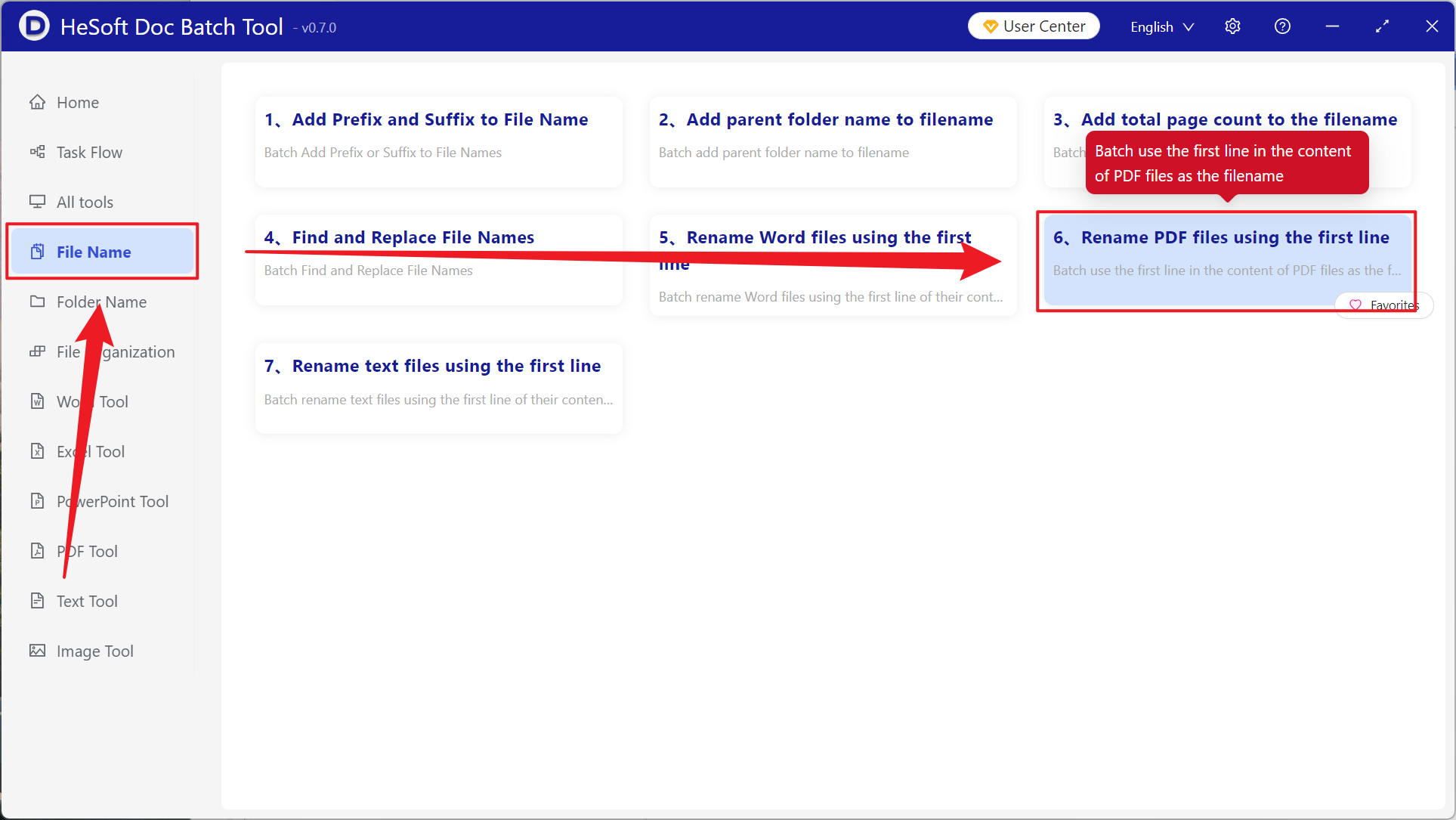
Open [ HeSoft Doc Batch Tool ], select [File Name] - [Rename PDF Files Using First Line].
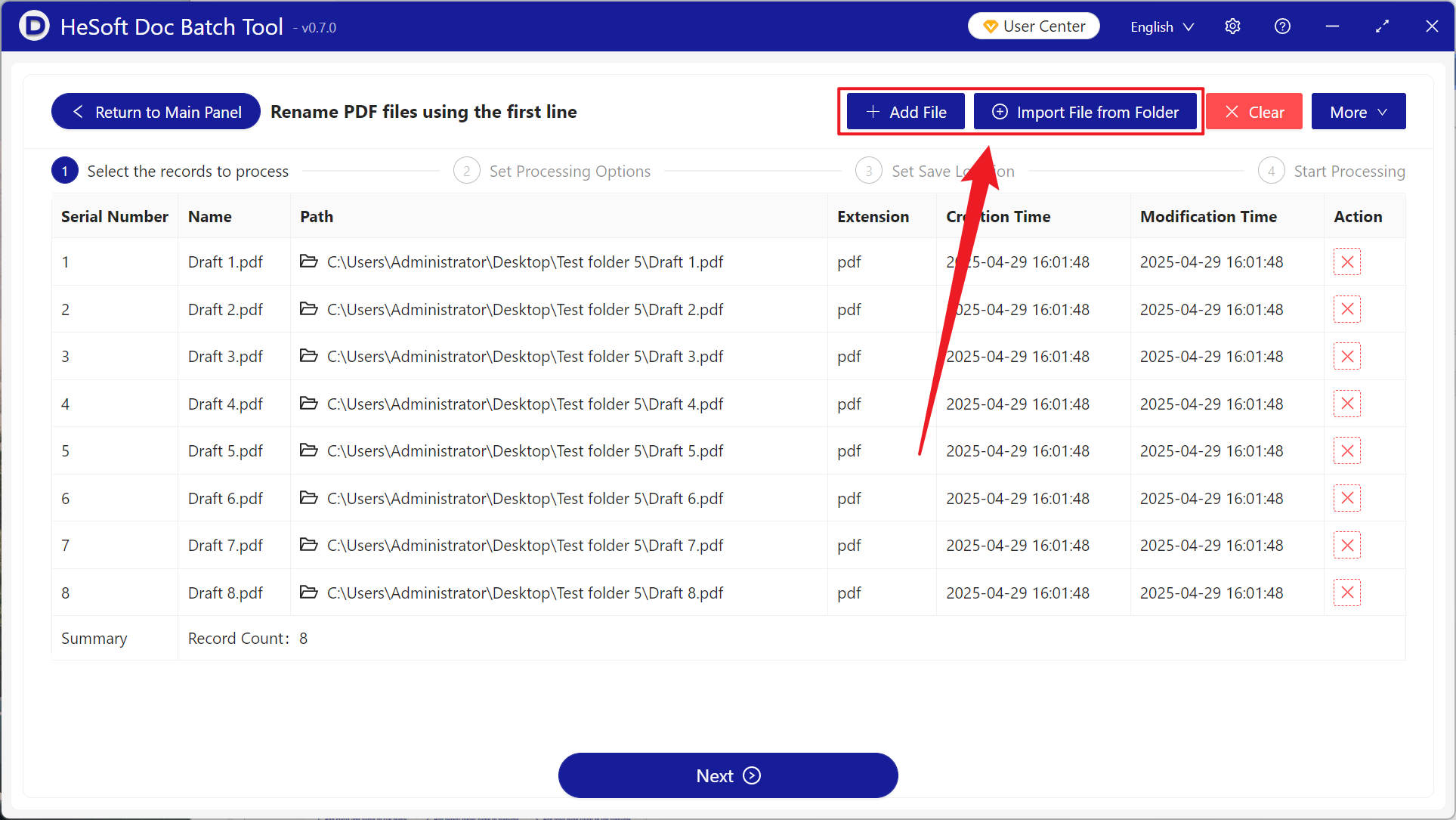
[Add Files] allows you to manually select PDF files to rename.
[Import Files from Folder] imports all PDF files from a selected folder.
View the imported files below.
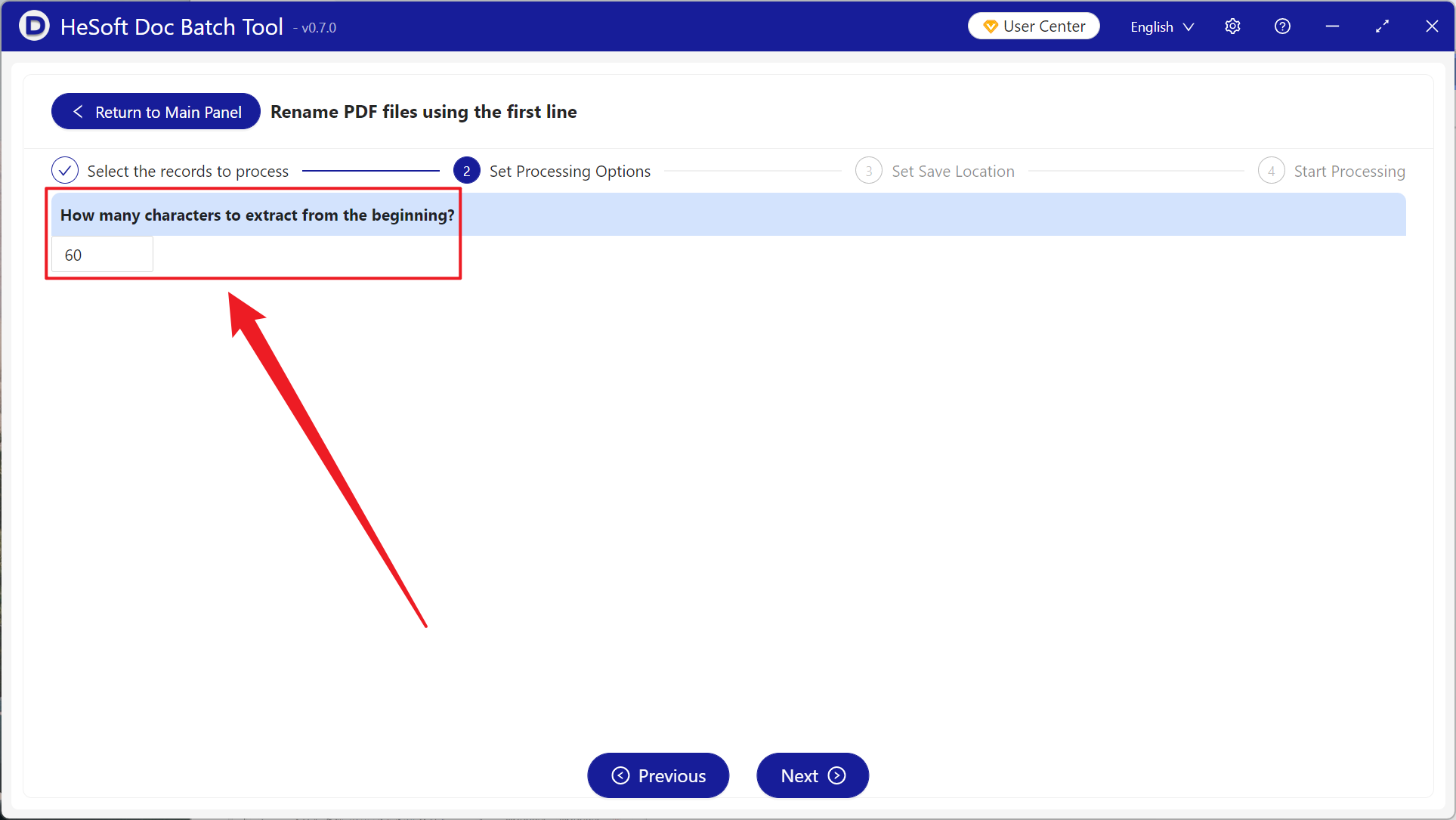
[Truncate to how many characters?] default is 60 characters, where 1 letter equals 1 character, and can be adjusted as needed.
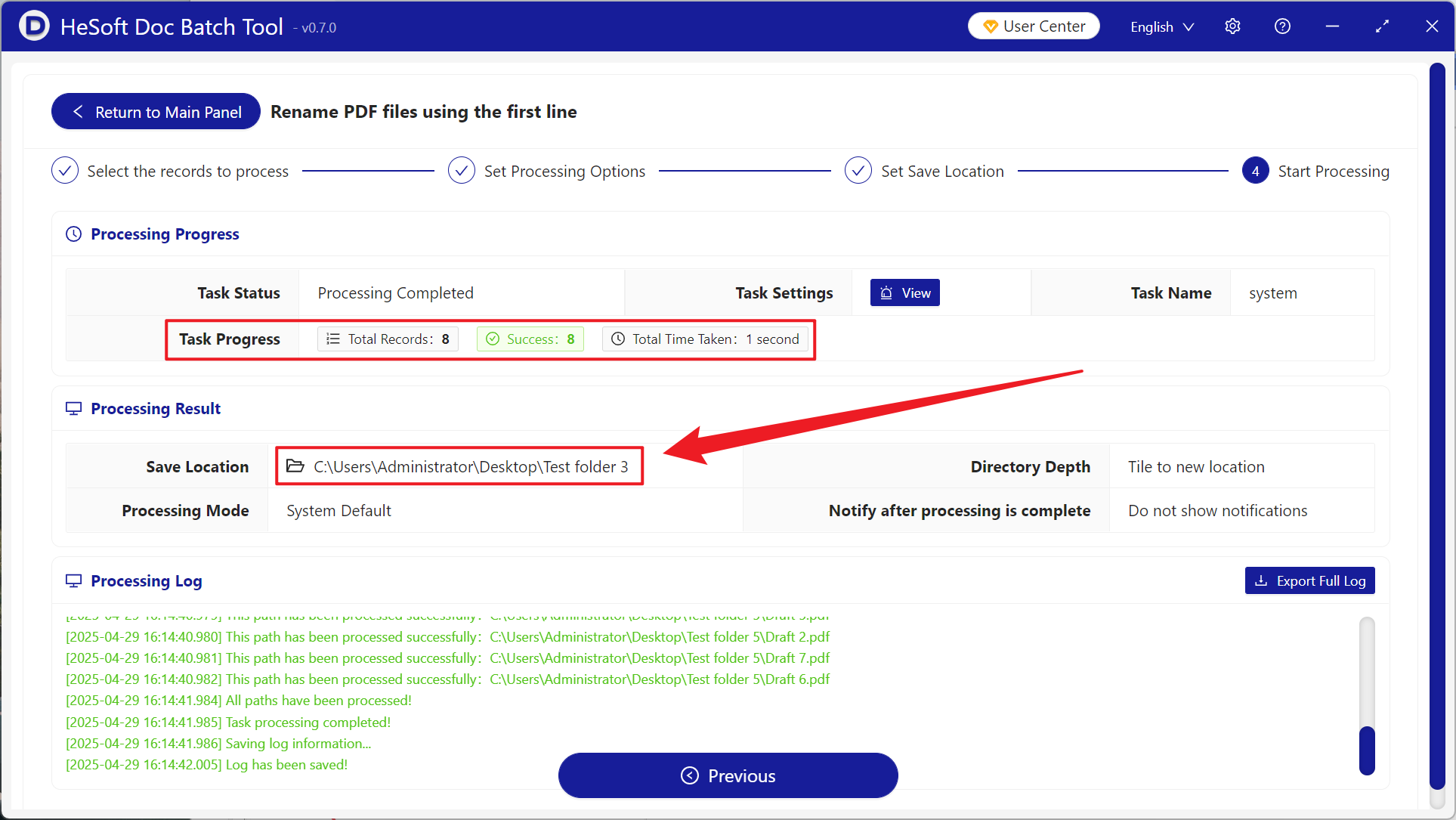
Once processing is complete, click the save location to view the renamed PDF files.