Batch Convert Thousands of PDF Documents to Word Documents
Translation:EnglishFrançaisDeutschEspañol日本語한국어,Update Time:2025-06-07 20:20:51
In daily office work and data processing, PDF is widely used due to its stable format and strong cross-platform compatibility. While PDF is convenient for reading, its non-editable nature becomes a hindrance when we need to edit, extract, or reformat content. When faced with a large number of uneditable PDF documents, converting them to Docx format allows direct modification of fonts, formatting, and other elements. When writing papers and other content, directly copying and pasting PDF-formatted literature can lead to formatting errors; after converting to Word, it becomes easier to cite, freely modify, batch process, and adjust. Or when converting scanned PDF books from publishers into Docx files, adjusting their layout and correcting typos becomes quick and convenient. The following introduces how to batch convert hundreds or thousands of PDF files into the Docx format in Office Word, enhancing document processing efficiency and making work twice as effective with half the effort!
1. Use Cases
When a company has many internal PDF documents, and you need to extract key data or reformat the layout to match company standard templates, you can batch convert them to Docx format for editing, saving a significant amount of work time.
2. Result Preview
Before processing:

After processing:

3. Steps
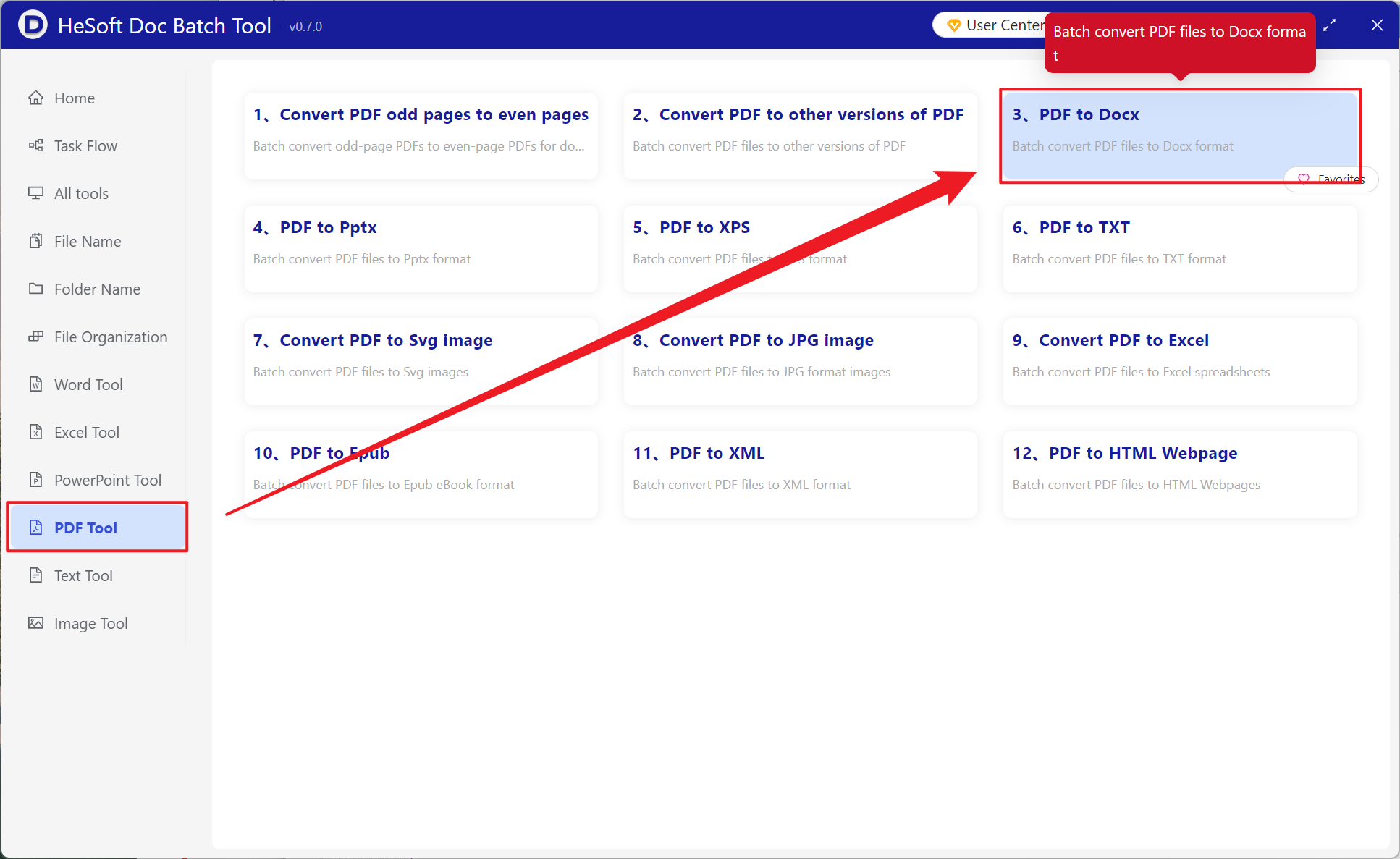
Open [ HeSoft Doc Batch Tool ], select [PDF Tools] - [PDF to Docx].
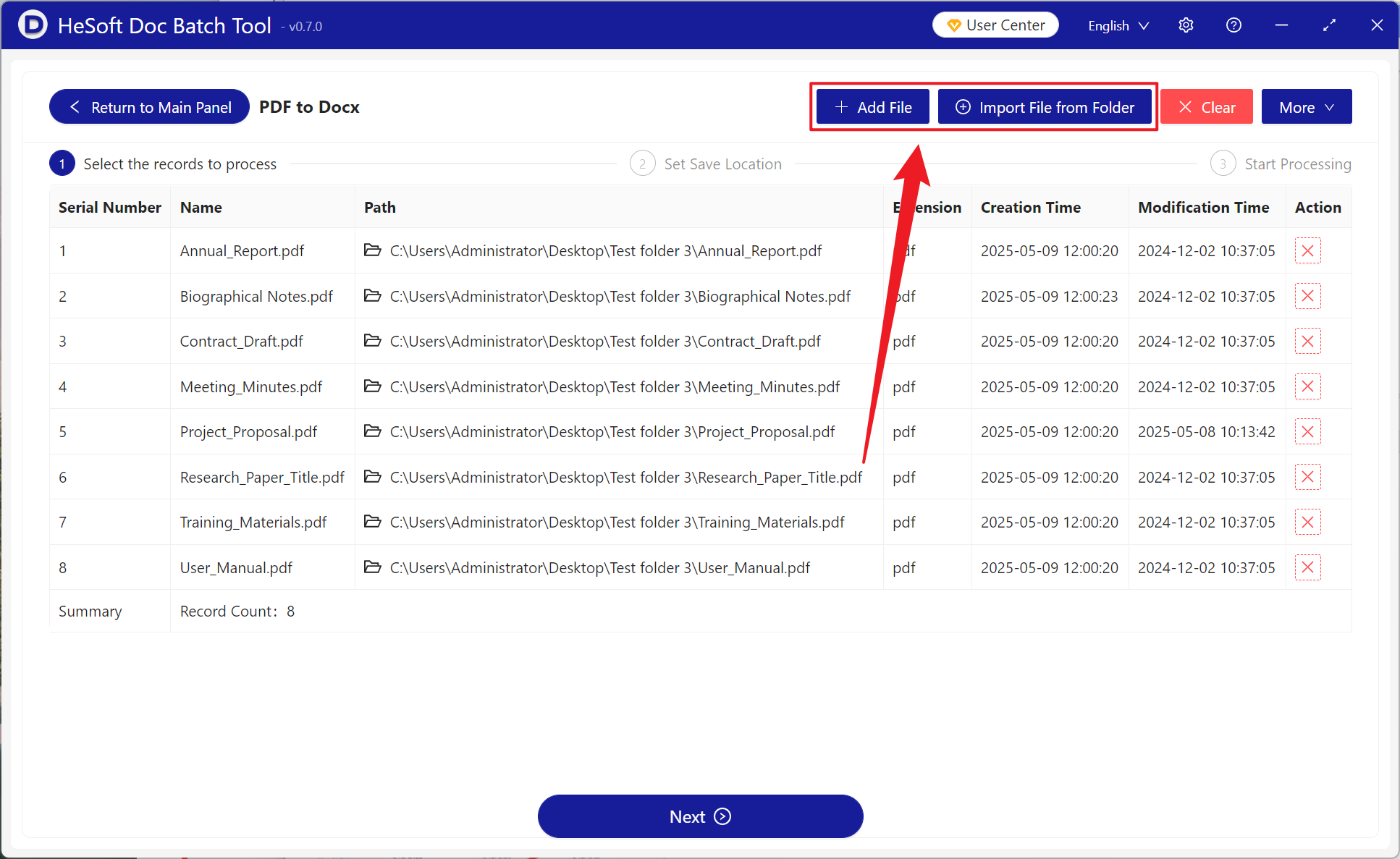
[Add Files] to manually select and add the PDF documents you want to convert.
[Import Files from Folder] imports all PDF files in the selected folder.
View the imported files below.
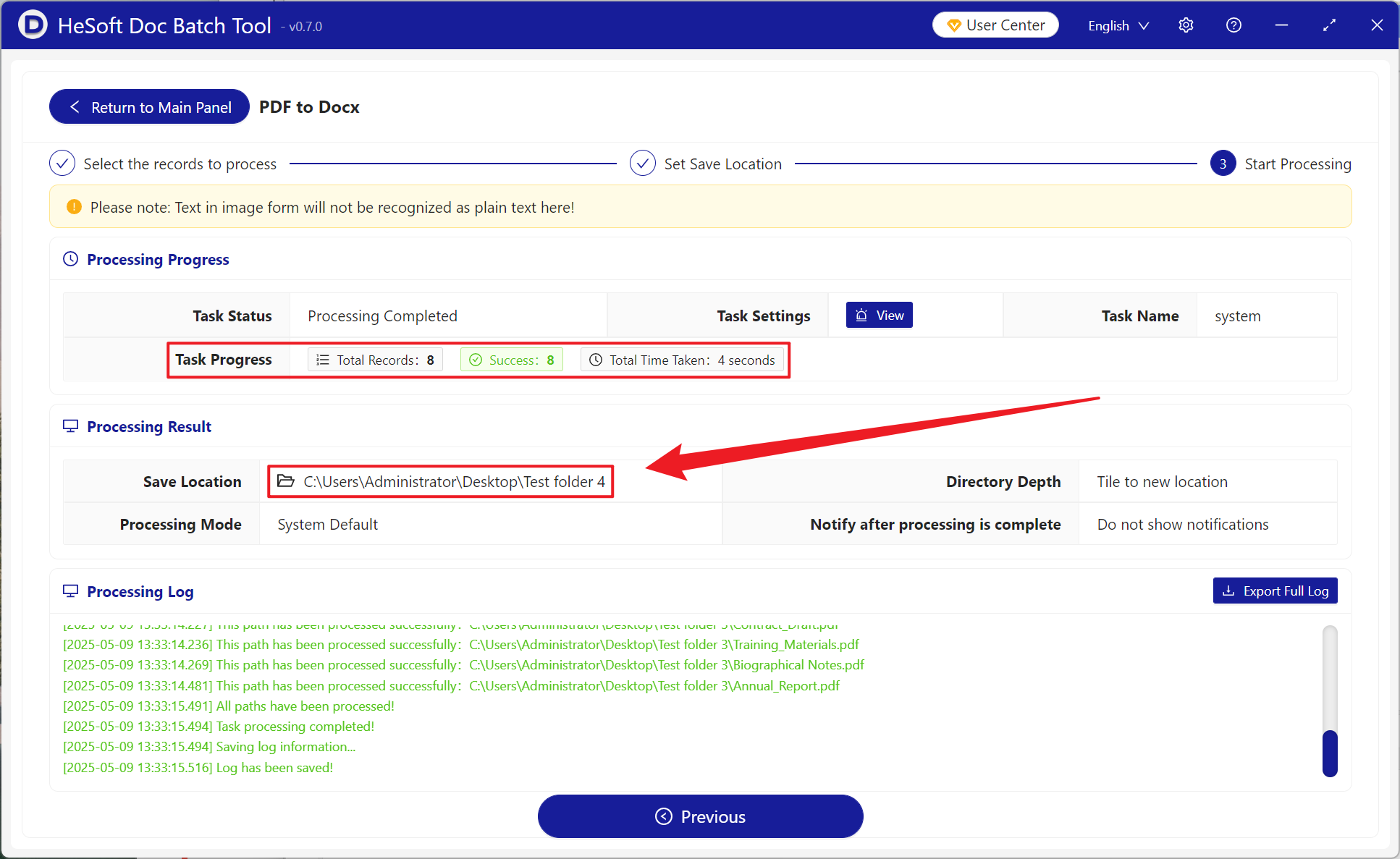
After processing is complete, click the save location to view the converted files.