Batch convert 1000 TXT notepad files to Docx document format
Translation:EnglishFrançaisDeutschEspañol日本語한국어,Update Time:2025-06-07 20:23:58
It's easy to take notes with Notepad in everyday use, but in formal work, converting them into Word documents allows you to adjust fonts, bold key points, and insert images, making the documents look more professional. For example, TXT-format text has no paragraph spacing, with words crammed together and often missing titles. After conversion to a Word document, the layout becomes clear, important content can be highlighted in different colors, and it becomes very convenient to browse. Important contracts and report files in office work are also insecure when saved as Notepad files, whereas converting to a Docx document allows you to set password protection and prevent others from making changes. At the same time, you can standardize template files like leave forms and expense reports. Although plain TXT text is simple and easy to use, in formal work occasions, converting to Docx documents makes files more standardized and secure. For team collaboration, official archives, or printed files, this method can save a lot of trouble and make work more efficient and professional.
1. Usage Scenarios
When multiple TXT notepad files cannot meet basic formatting requirements, we can convert them to Docx format, which allows the use of rich formatting tools, automatic numbering, table of contents generation, headers and footers, and other professional features, greatly improving work efficiency.
2. Effect Preview
Before processing:

After processing:

3. Operation Steps
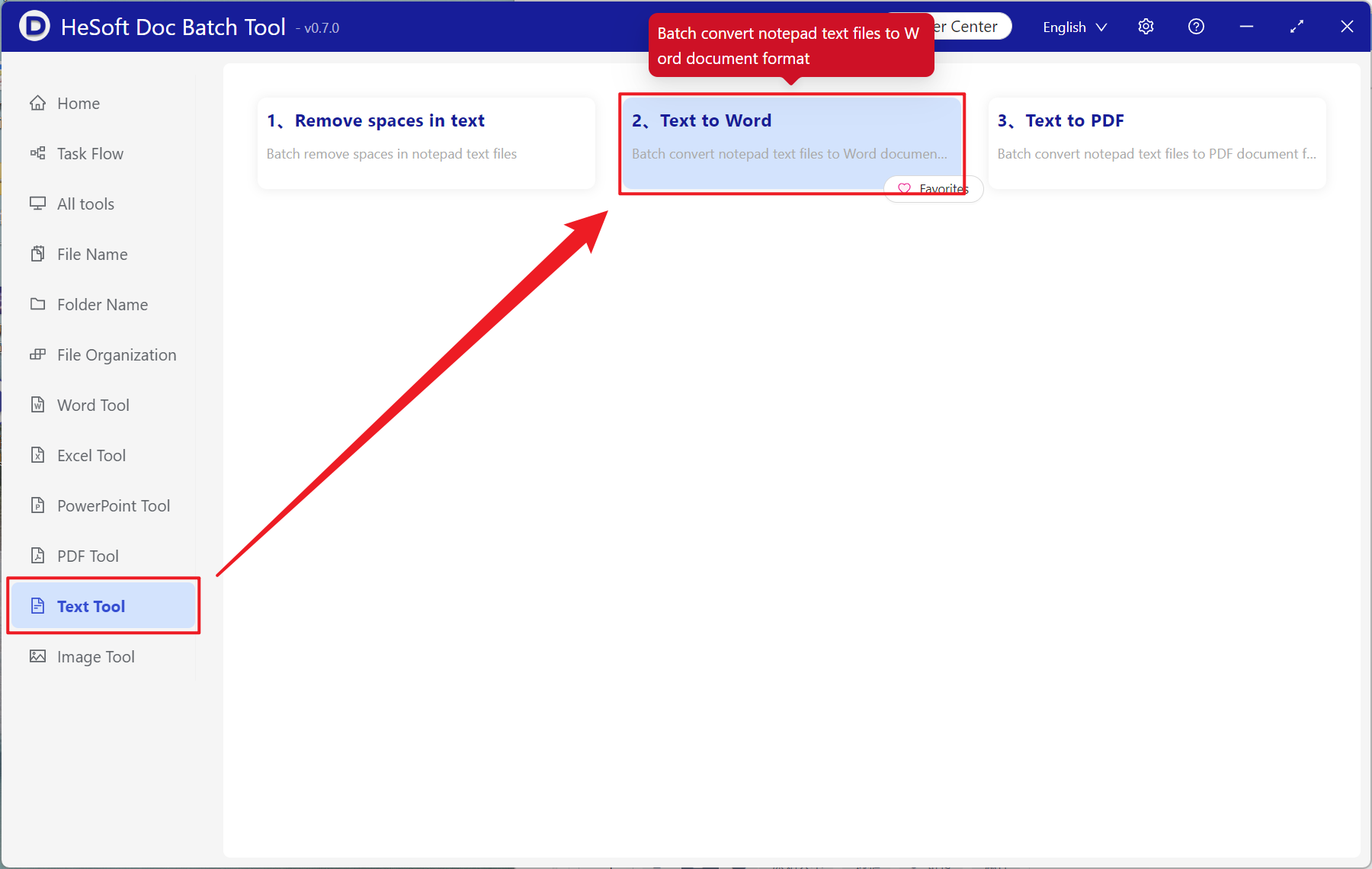
Open [ HeSoft Doc Batch Tool ], select [Text Tools] - [Text to Word].
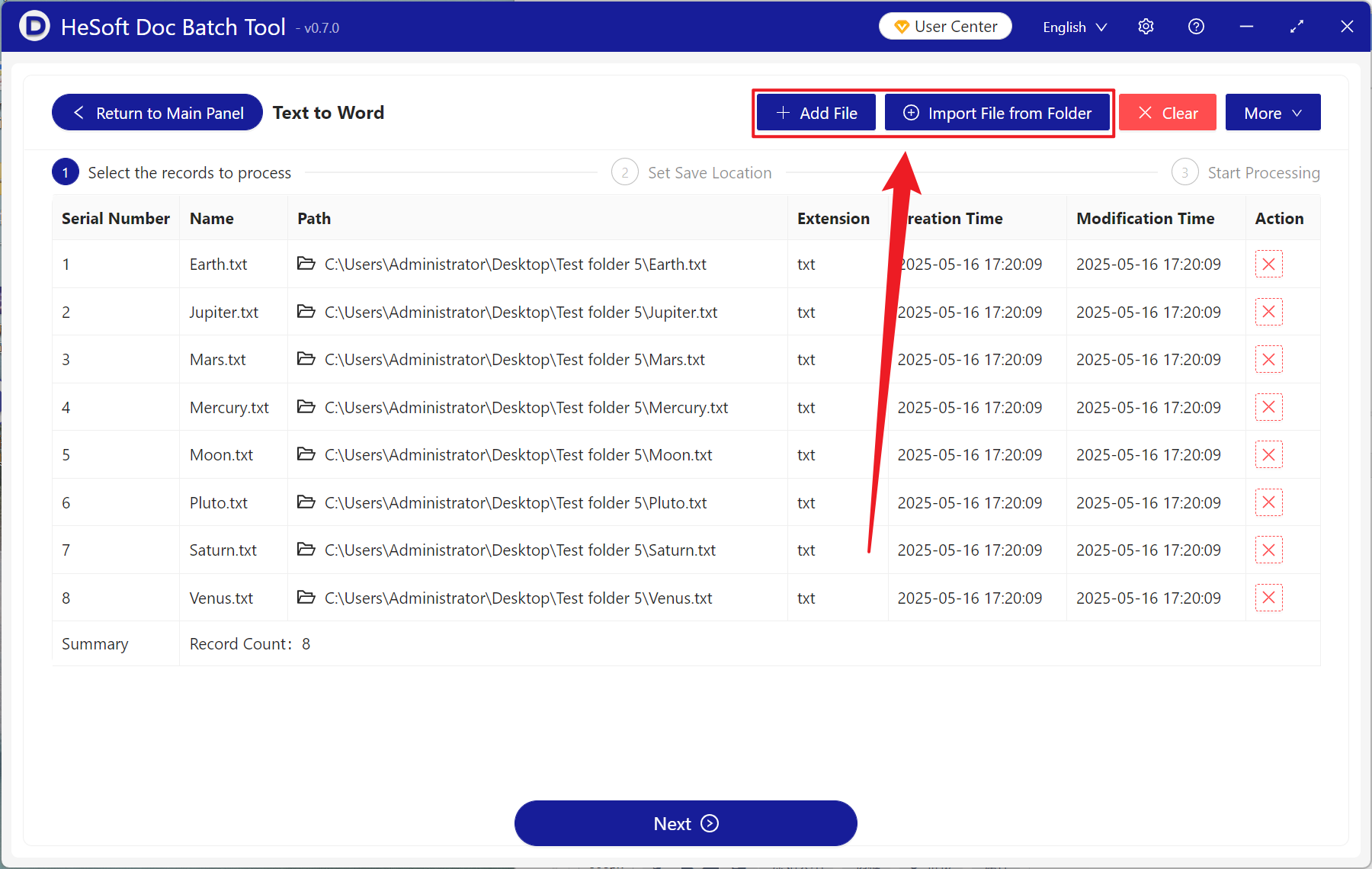
[Add Files] Add single or multiple TXT notepad files that need to be converted to Docx format.
[Import Files from Folder] Import all TXT notepad files in the selected folder.
You can view the imported files below.
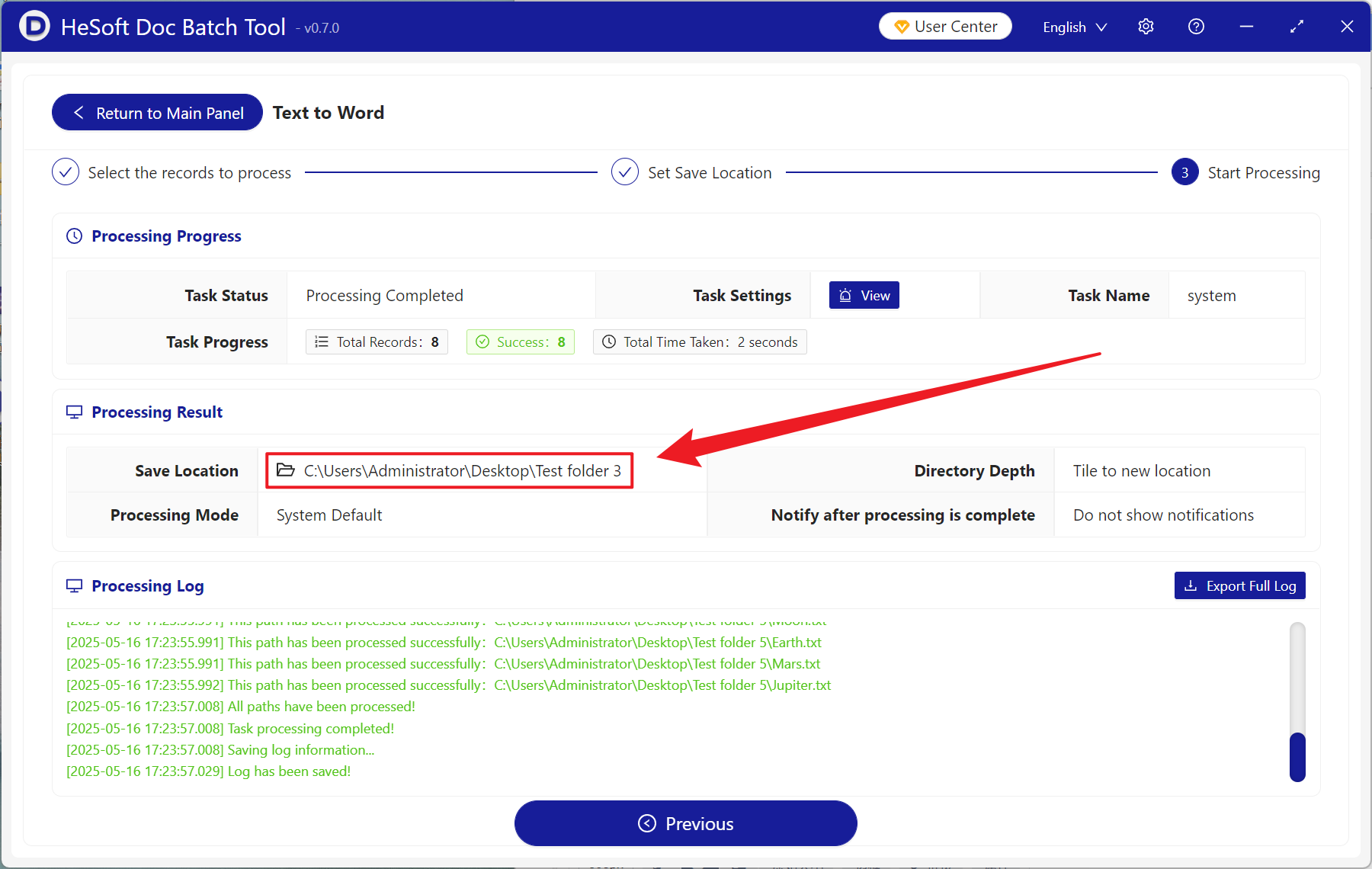
After processing is complete, click the save location to view the converted Docx format files.
Keyword:Converting TXT to Docx , how to batch convert Notepad files to Word documents , converting multiple plain text files to Word format