How to batch save many Word documents as high-definition JPG images?
Translation:EnglishFrançaisDeutschEspañol日本語한국어,Update Time:2025-06-07 20:22:14
When working or studying, sometimes you need to convert Word to JPG images. Usually, we directly export and save them, but the image quality doesn't achieve the desired effect. Here's a method: simply adjust the PPI parameter before conversion to get a complete, high-definition JPG image. PPI acts as the quality switch for images—the higher the value, the clearer the image, though the file size will also increase. When printing important Docx documents, adjust the PPI to 600 for conversion to an image, and the printed result will be identical to the original file. For distributing Word document content to others for preview, setting 300 PPI keeps the file clear on any device while reducing file size for faster transfer. And when converting to an image with an appropriate PPI for insertion into other files or websites, or for viewing in a browser, it enhances the image quality inserted into the document without making the file overly large due to the inserted image. So how should we set a custom PPI before converting a Word document to a JPG image to obtain a high-definition JPG image?
1. Use Cases
When you have a large number of Word documents and need to ensure clarity while controlling file size for sharing with others, you can use PPI to batch convert Word documents to high-definition JPG images, ensuring the image quality is significantly improved after sharing.
2. Effect Preview
Before processing:

After processing:

3. Operation Steps
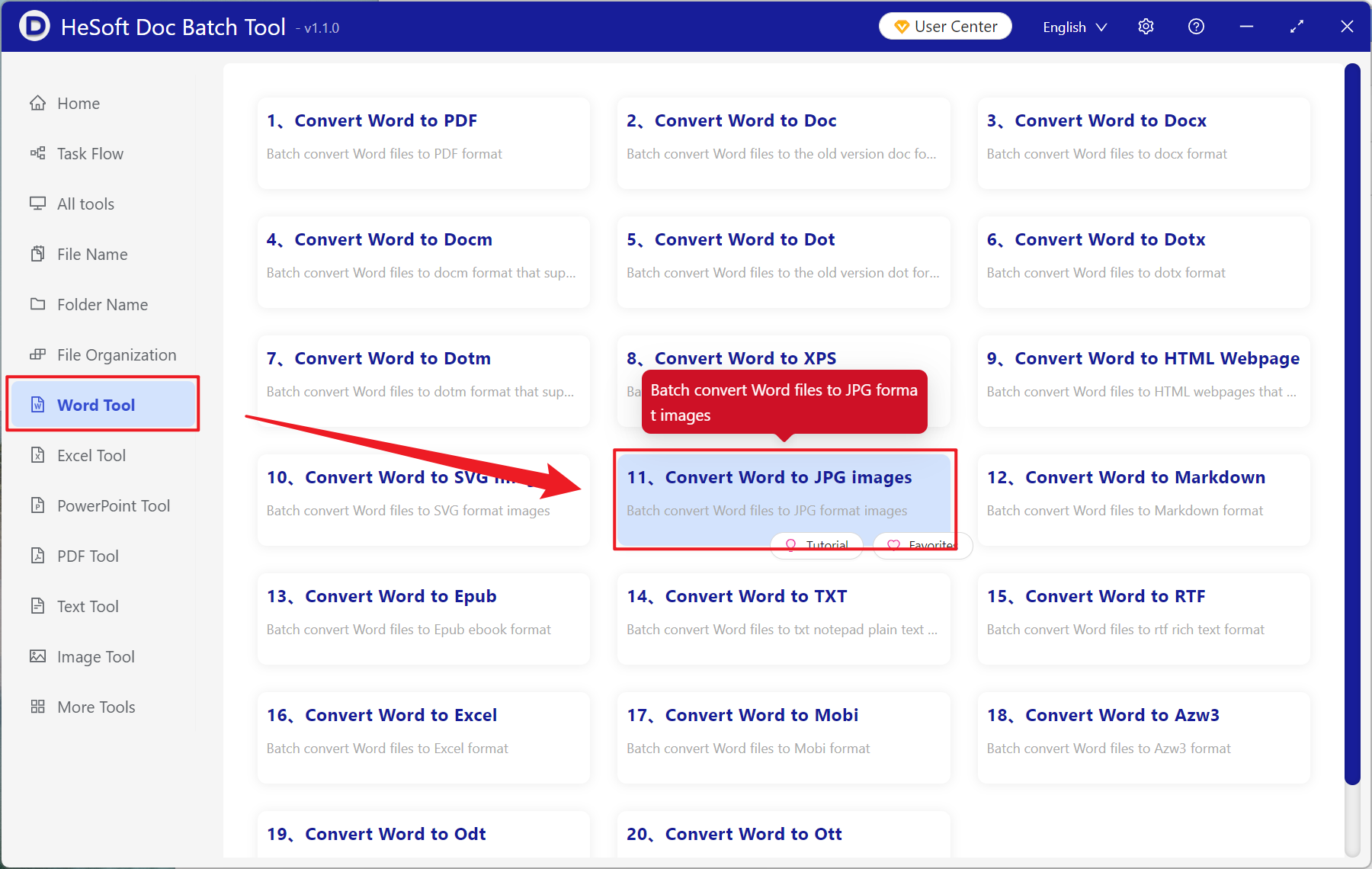
Open【 HeSoft Doc Batch Tool 】and select【Word Tools】-【Word to JPG Image】.
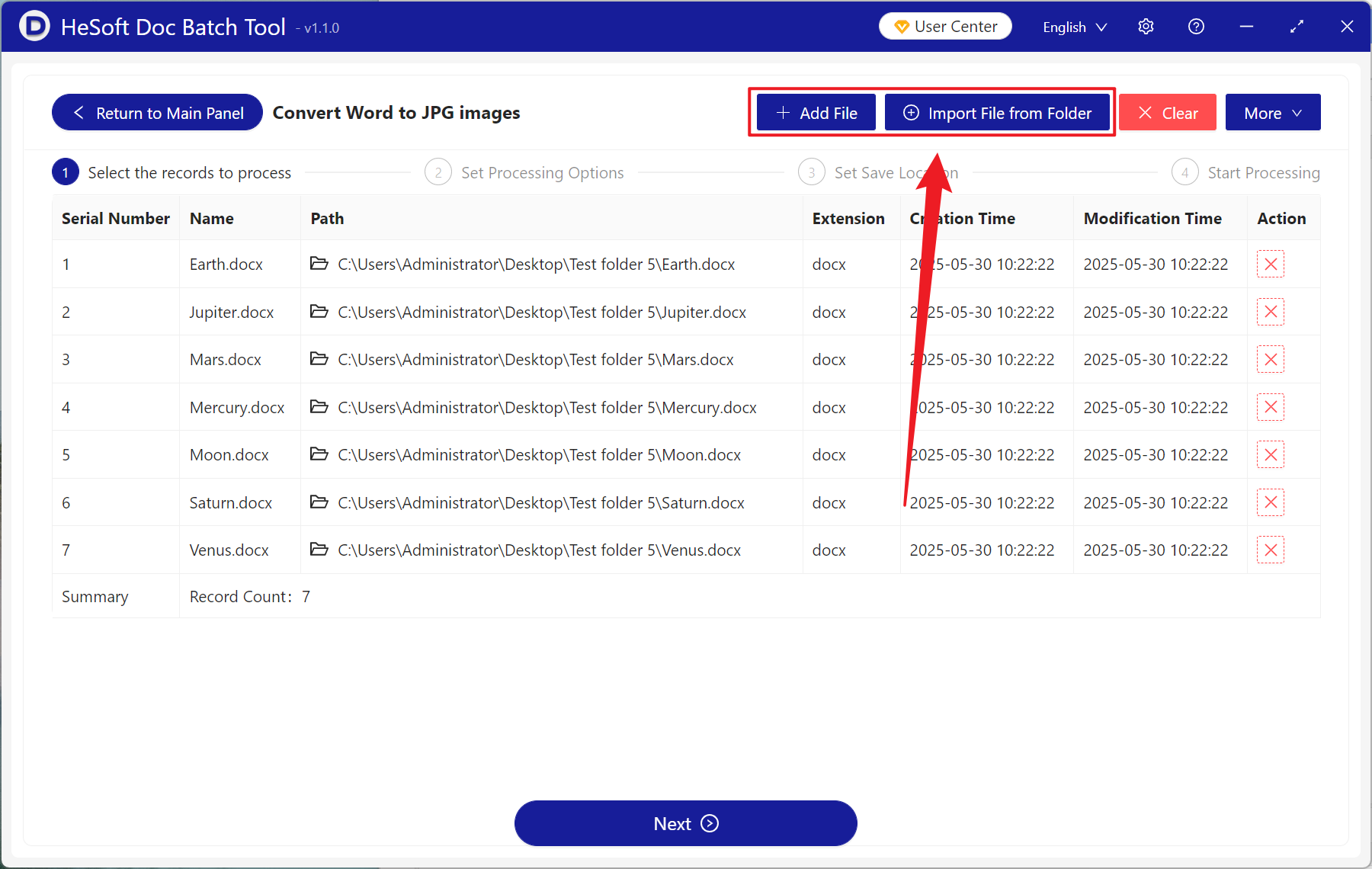
【Add Files】manually select and add Word documents that need to be converted to images with improved clarity.
【Import Files from Folder】import all Word documents in the selected folder.
Imported files can be viewed below.
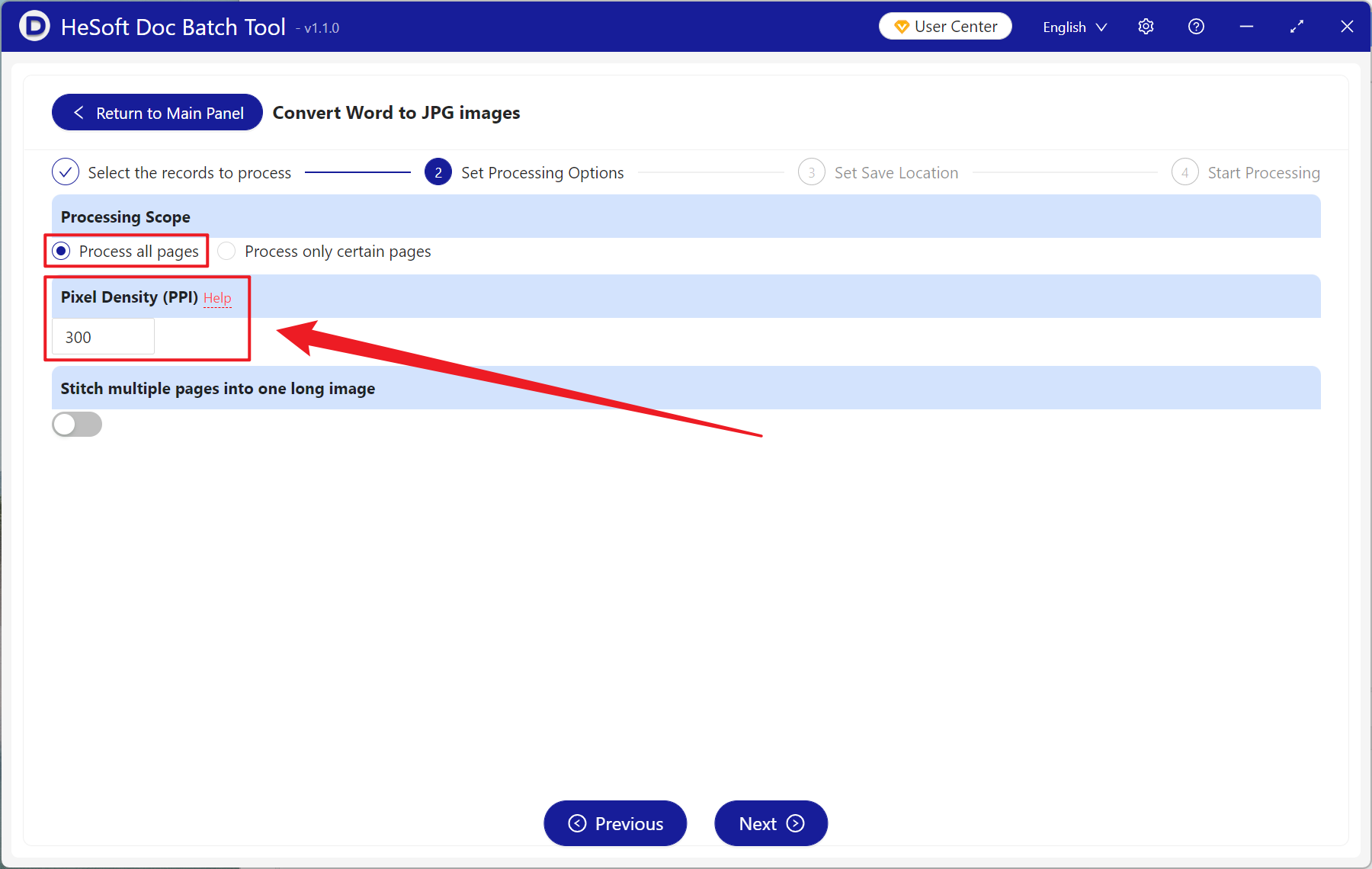
【Processing Range】select to process all pages.
【Pixel Density (PPI)】manually select the input here; you can click help to view the description. A lower value results in blurrier images, while a higher value results in clearer images.
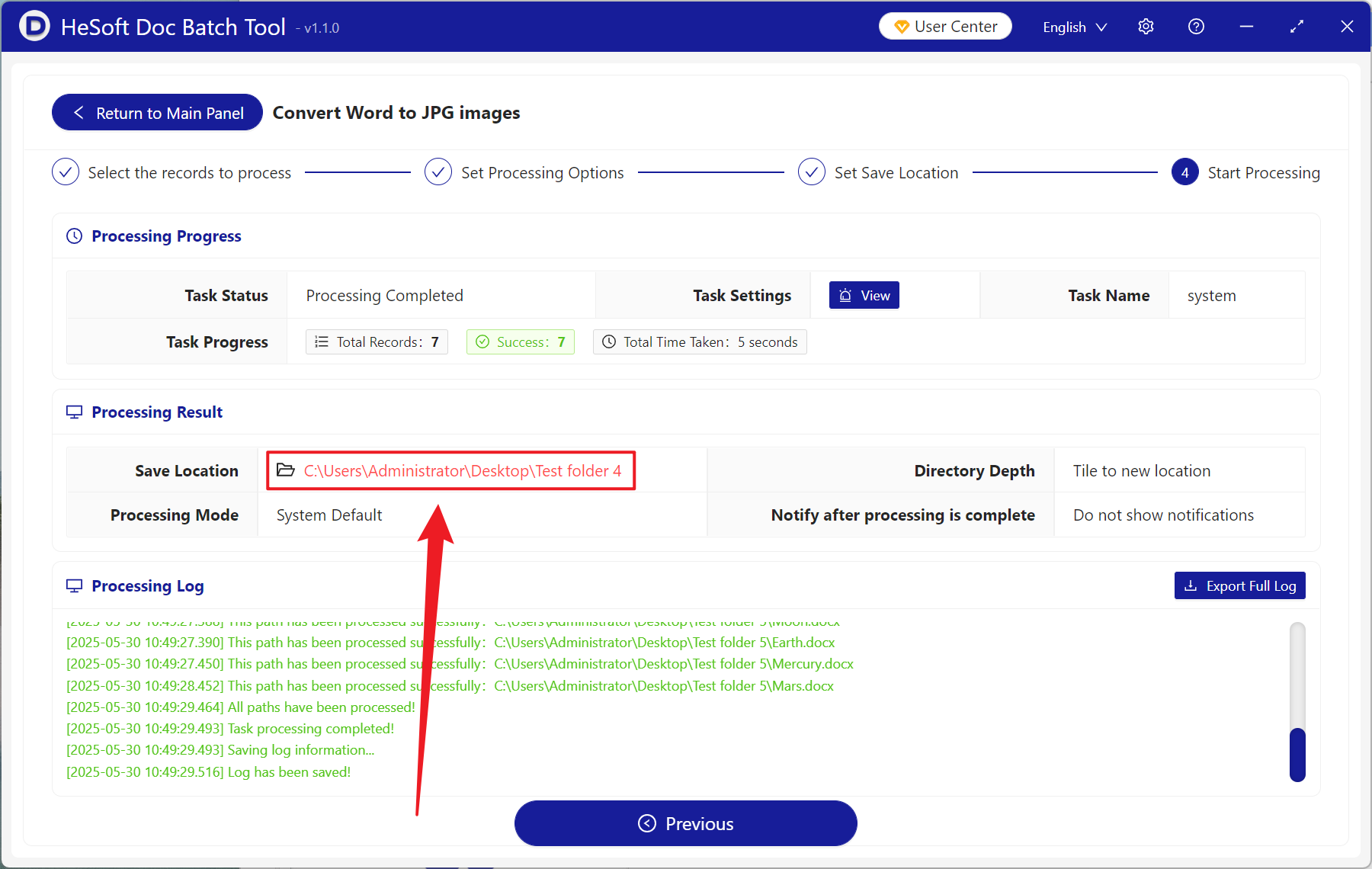
After processing is complete, click the save location to view the successfully converted image files.
Keyword:Batch convert Word to high-definition JPG , How to save Docx as high-definition images , Convert Word to high-quality images