Unified conversion of many XLS, XLSX worksheets into XLSM format supporting macro code
Translation:EnglishFrançaisDeutschEspañol日本語한국어,Update Time:2025-06-07 20:20:41
Xlsm is a file format in Excel that supports macro code. It can use advanced features in Excel to process large data or perform complex analysis, while also being manageable in team collaboration due to its small size and strong compatibility. When you need to use macros in Excel, process complex data in files, and automate these tasks, convert Excel spreadsheets to Xlsm. Below is an introduction on how to quickly convert a large number of Excel spreadsheets to Xlsm format.
1. Use Cases
In scenarios involving multiple spreadsheets in formats such as Xls, Xlsx, etc., where there is a need for automated processing of content or custom functionality (e.g., batch data processing, generating dynamic reports, and complex calculations), they can be batch-converted into Xlsm format to run operations using VBA macro code.
2. Preview
Before processing:

After processing:

3. Operation Steps
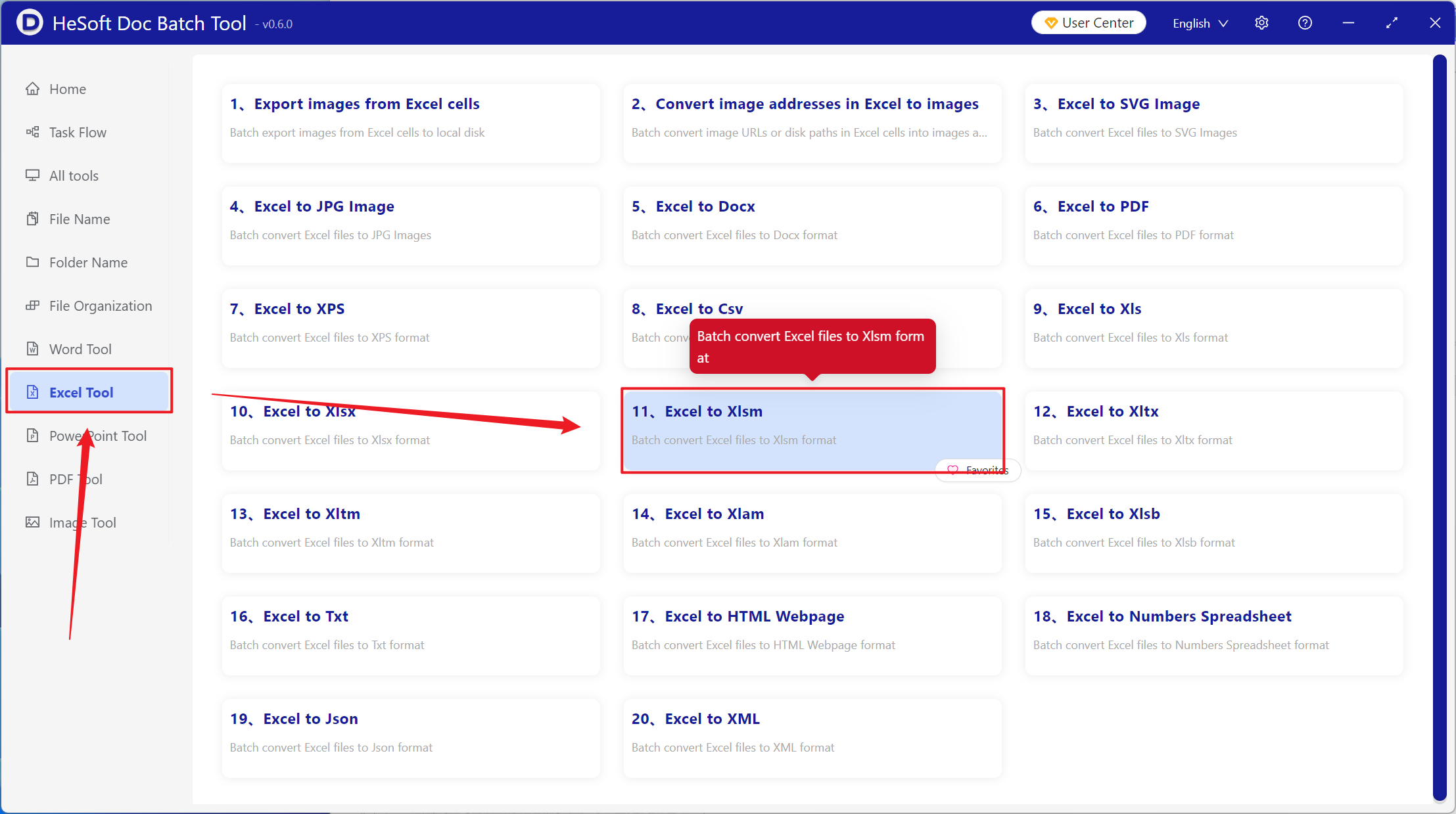
Open【 HeSoft Doc Batch Tool 】, select【Excel Tools】-【Convert Excel to Xlsm】.
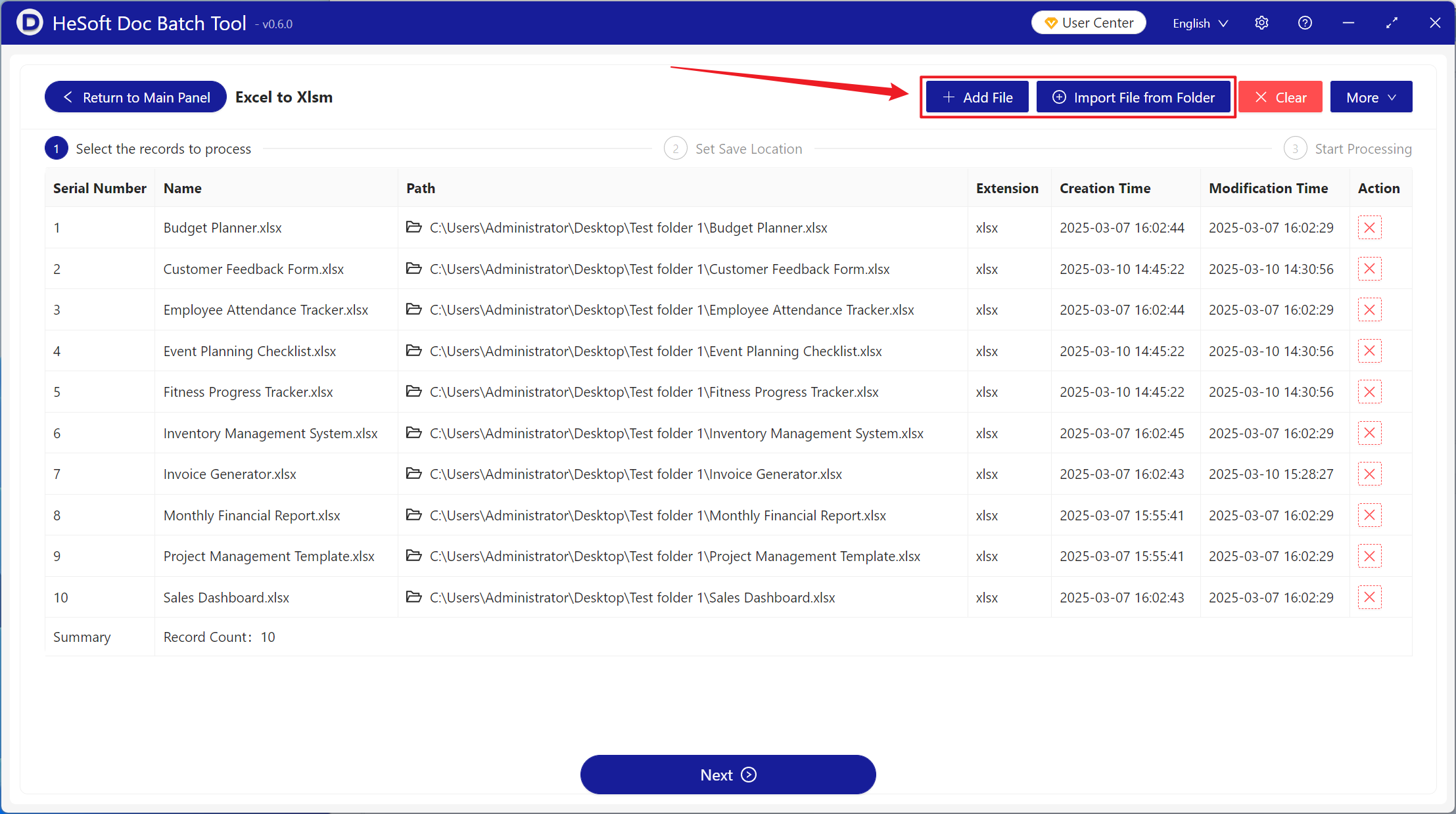
【Add Files】Add one or more Excel files to be converted to Xlsm format.
【Import Files from Folder】Import all Excel files from the selected folder.
You can view the imported files below.
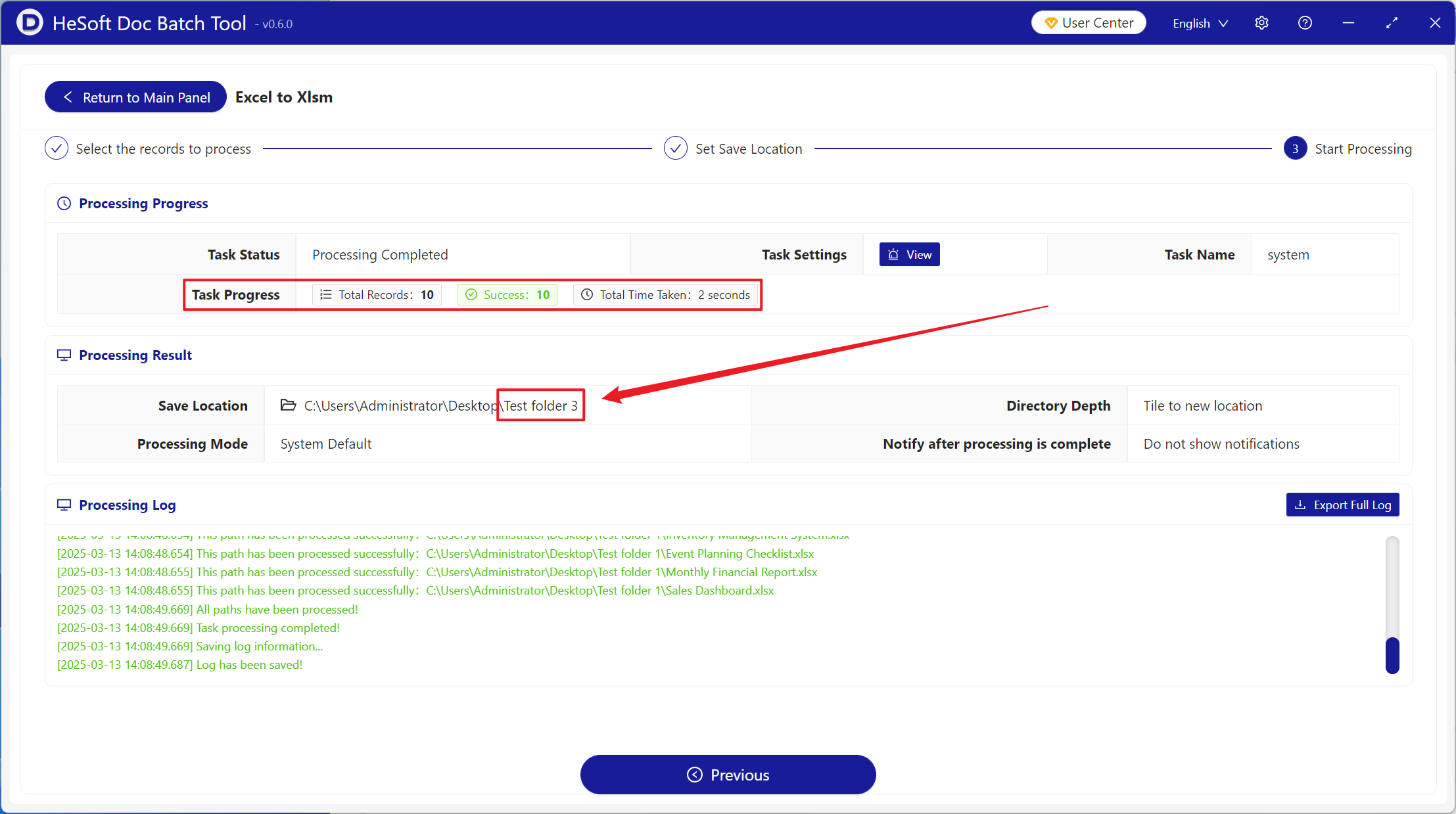
After processing is complete, click the save location to view the successfully converted Xlsm files.