Batch convert numerous Xls, Xlsx, and other spreadsheet files to SVG vector graphics
Translation:EnglishFrançaisDeutschEspañol日本語한국어,Update Time:2025-06-07 20:20:34
When embedding Excel charts into web pages, PPTs, or printed materials, such as creating interactive web reports, academic paper illustrations, or promotional posters that require high-definition display and data visualization, you can use the SVG format. As a vector graphic, SVG can be scaled up infinitely without losing quality. Compared to bitmap formats like JPG or PNG, SVG files are smaller in size, store only dynamically modifiable styles, and can even control animation effects directly through code. Here's how to batch convert a large number, even up to thousands, of Excel spreadsheet files into the SVG vector graphics format, supporting various worksheet formats such as Xls, Xlsx, Xlt, Xltx, and Xlsb.
1. Usage Scenarios
1. When creating web pages, you need to display Sheet tables from Excel worksheets on the webpage.
2. After completing a report or poster, you need to print high-quality Sheet charts.
3. You need interactive Sheet charts, and the text content on the SVG can still be copied.
2. Effect Preview
Before processing:

After processing:


3. Operation Steps
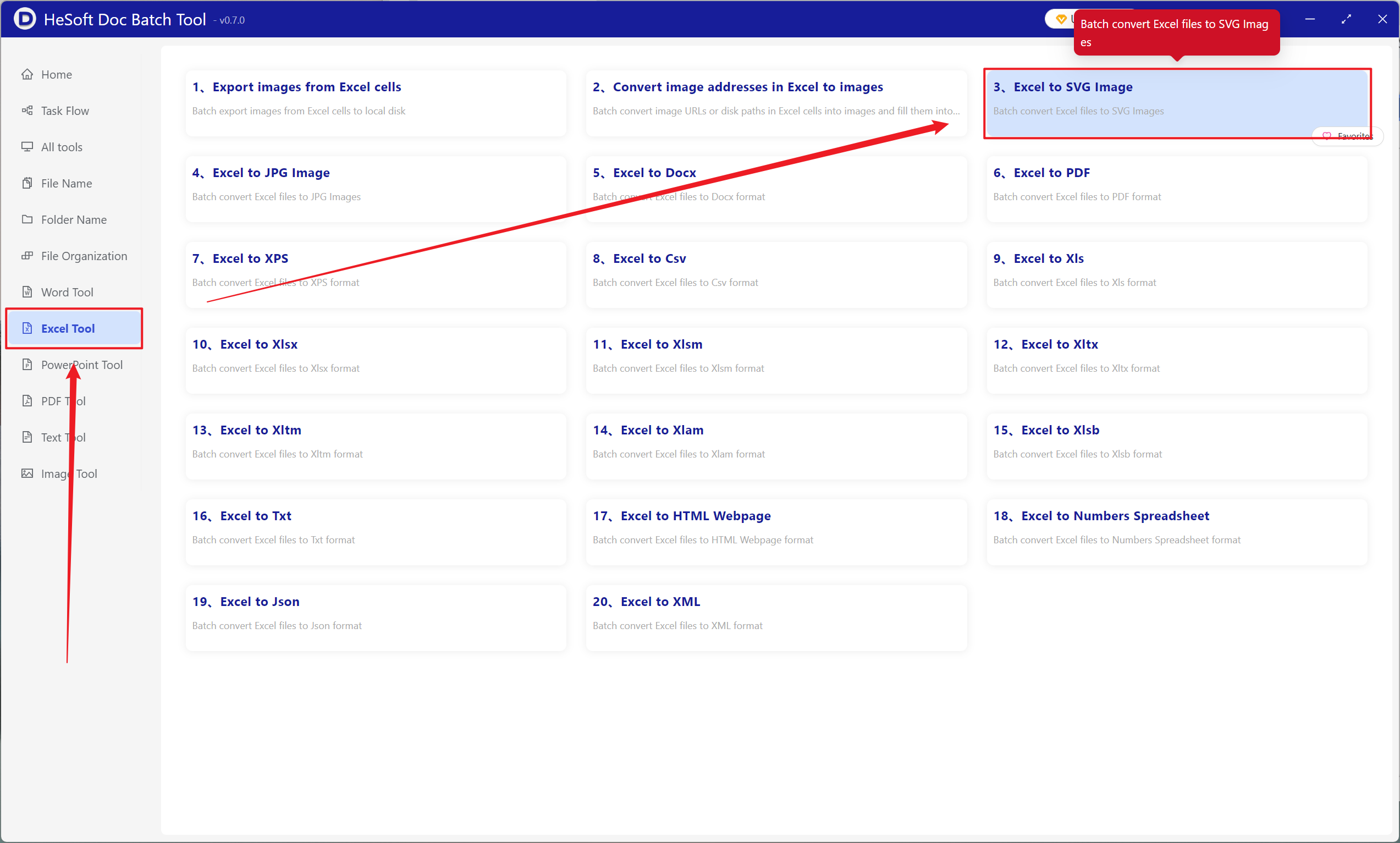
Open [ HeSoft Doc Batch Tool ], select [Excel Tools] - [Convert Excel to SVG Image].
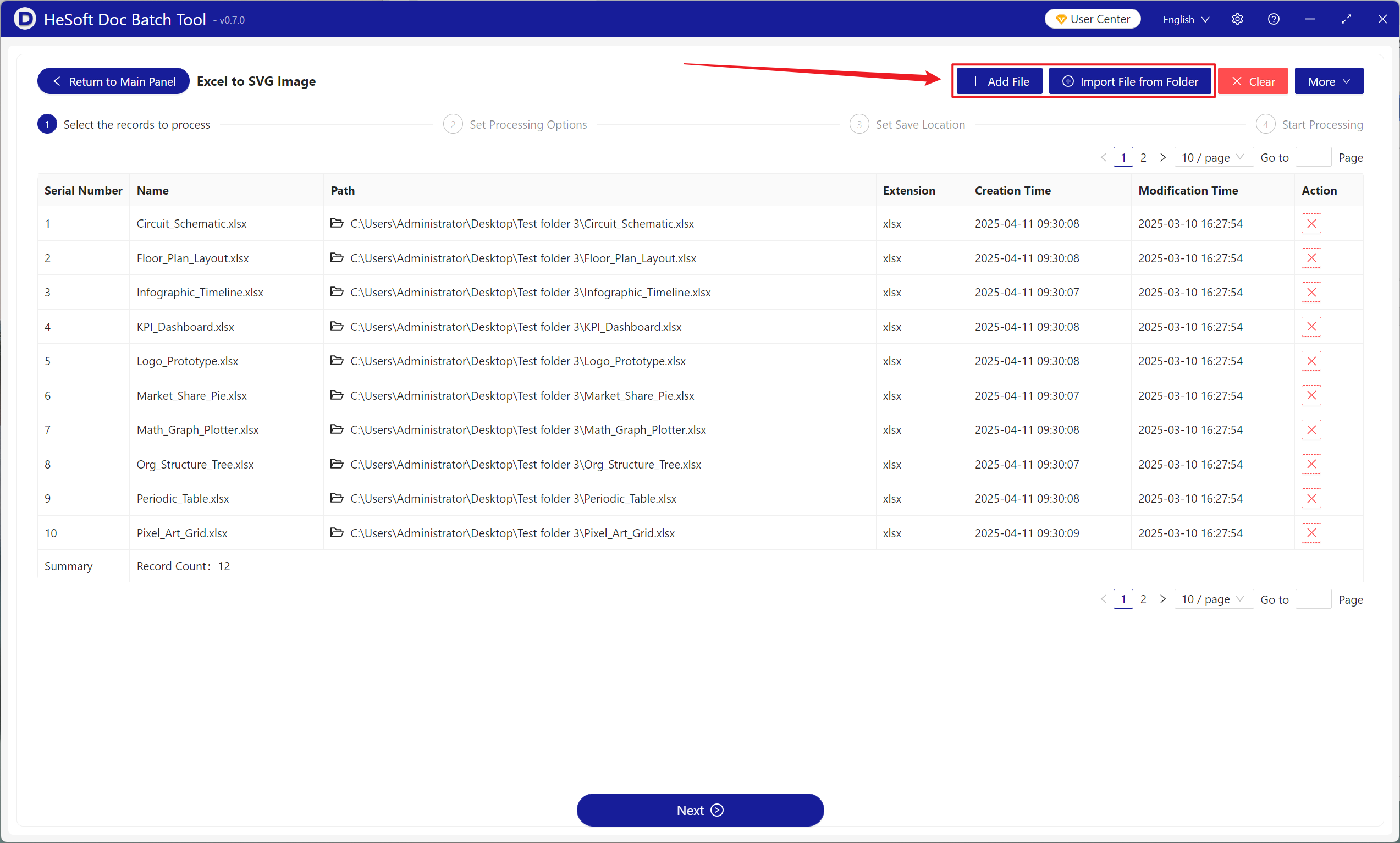
[Add Files] Add single or multiple Excel spreadsheet files that need to be converted to SVG format.
[Import Files from Folder] Import all Excel spreadsheet files in the selected folder.
Below you can view the imported files.
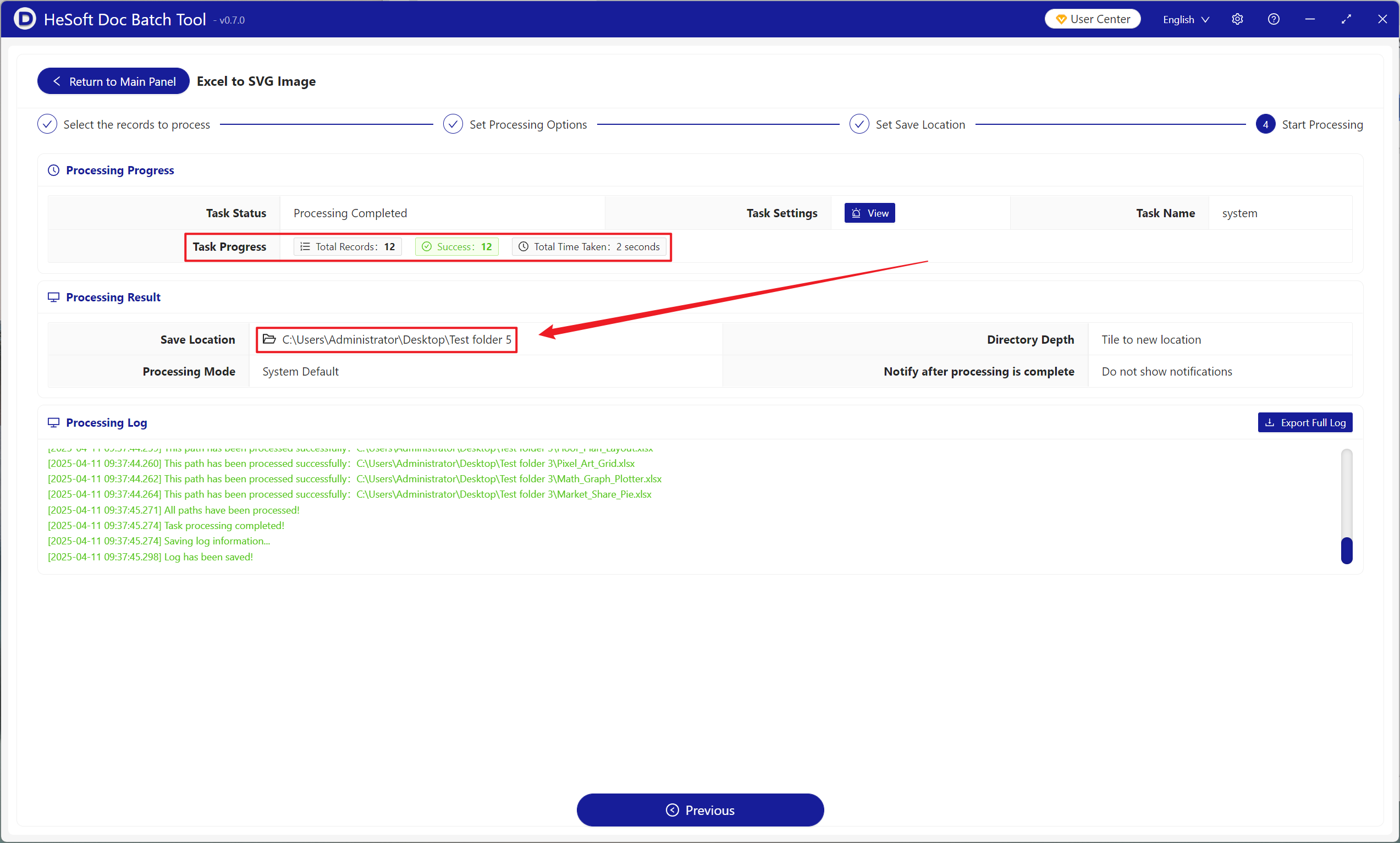
After processing is complete, click the save location to view the successfully converted Excel spreadsheets.