Batch conversion of large BMP material image files into Photoshop-specific PSD format
Translation:EnglishFrançaisDeutschEspañol日本語한국어,Update Time:2025-06-07 20:22:54
In daily design work, the PSD format, as a dedicated Photoshop format, supports professional features such as layers, masks, and adjustment layers, enabling design tasks to be completed more efficiently. When processing hundreds or thousands of BMP product or material images, converting them to PSD can increase retouching efficiency several times over. The PSD format preserves vector paths and can adapt to screens of different sizes. Photographers with original BMP photos can convert them to PSD for lossless preservation of all color adjustment parameters. In the game art industry, character concept art and scene textures can be drawn in layers. Ordinary self-media creators can also produce cover images and posters more proficiently. Here is how to batch convert multiple BMP formats to layered PSD format—hundreds of images can be handled in just seconds, with support also for JPEG, PNG, TIF, WEBP, SVG, and various other image formats.
1. Use Cases
When designers are working on large album or poster design projects and need to handle a large number of material images, or when e-commerce platforms need to retouch hundreds of product images, you can batch convert them to PSD format at once. This allows for layer management, adding special effects, or color correction in Photoshop. Its layered nature significantly saves time and improves work efficiency.
2. Effect Preview
Before processing:

After processing:

3. Steps
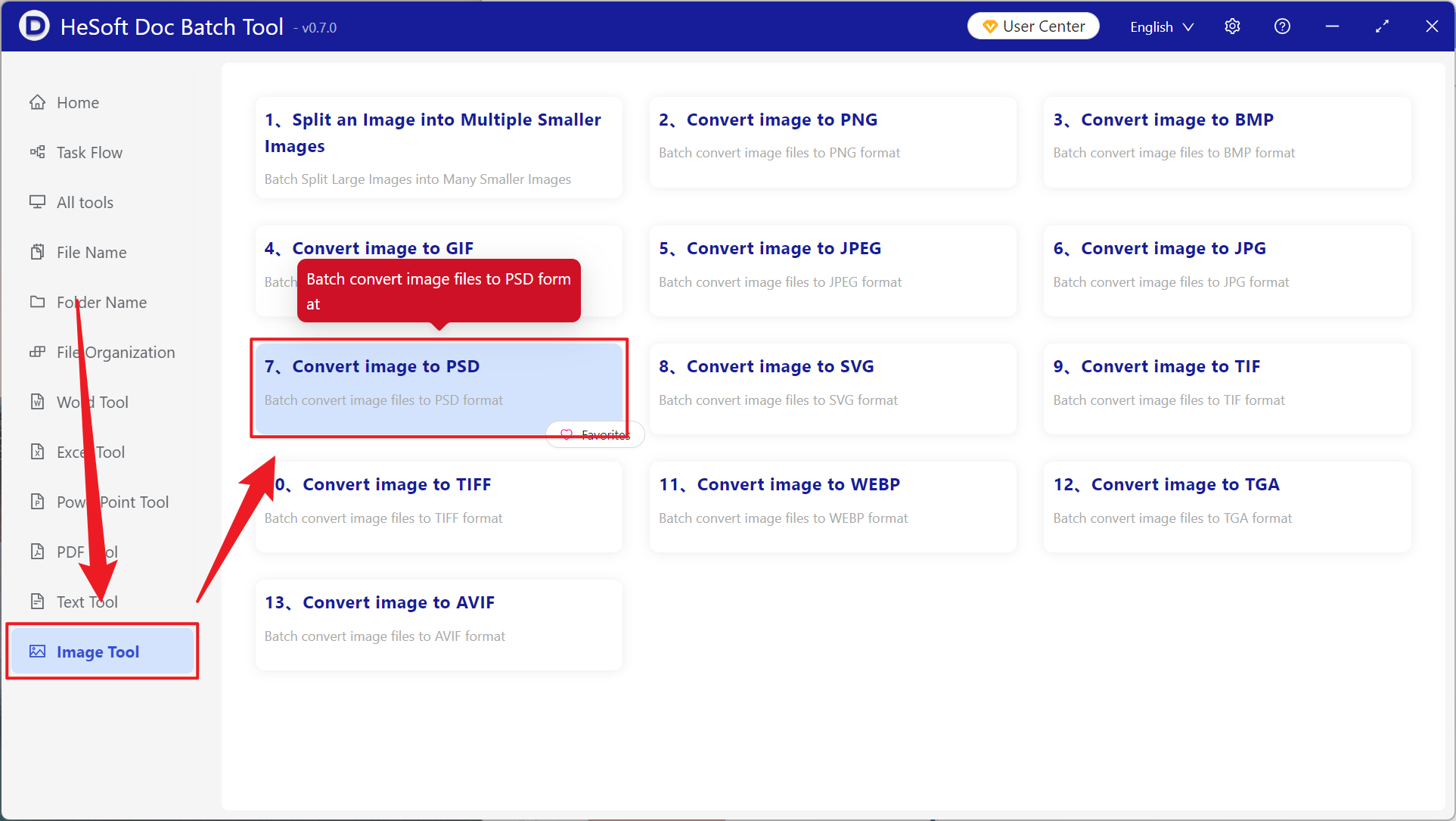
Open【 HeSoft Doc Batch Tool 】, select [Picture Tools] - [Convert Image to PSD].
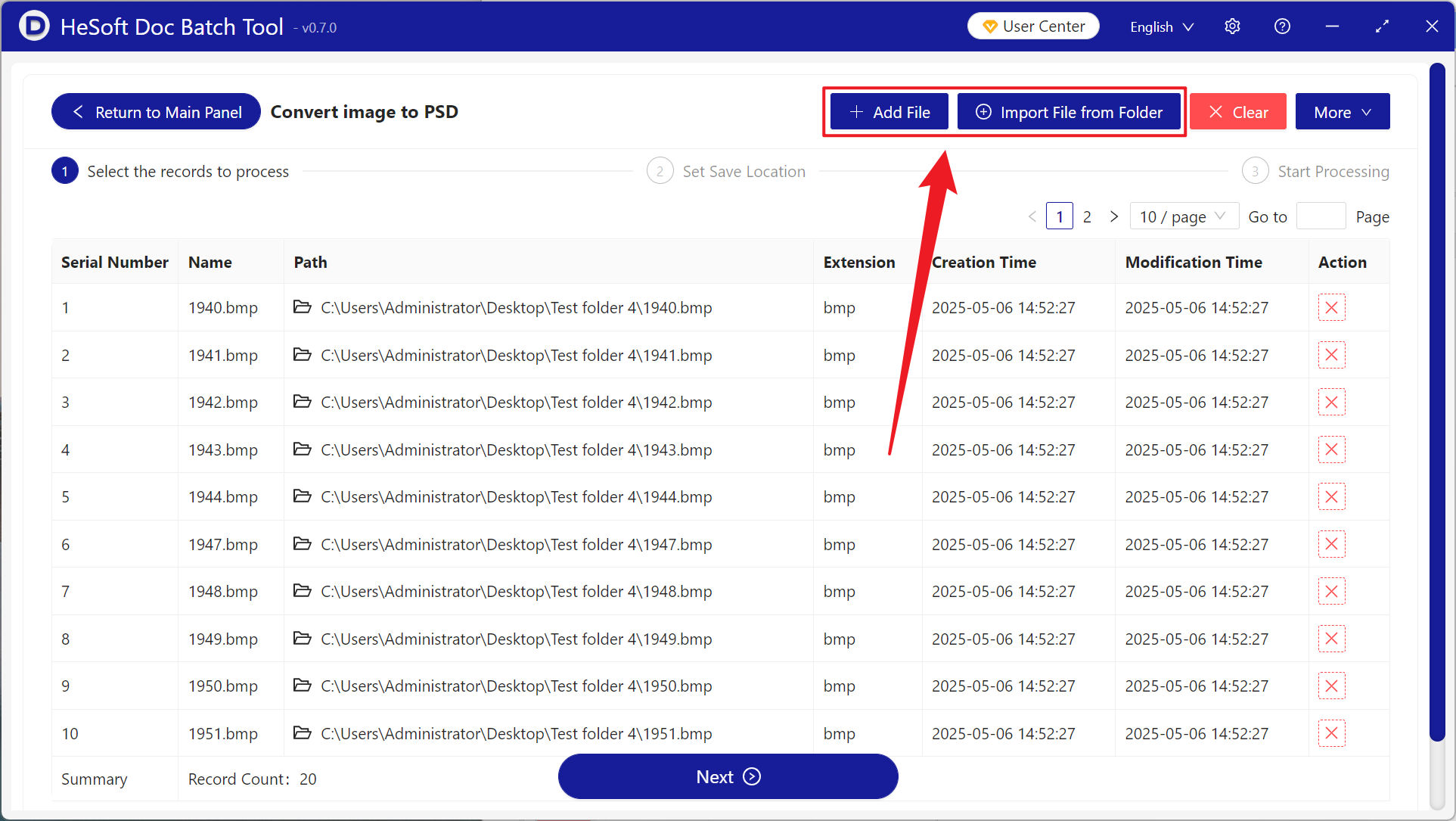
【Add Files】Manually select and add image files such as BMP that need to be converted.
【Import Files from Folder】Import all images from a selected folder.
View the imported files below.
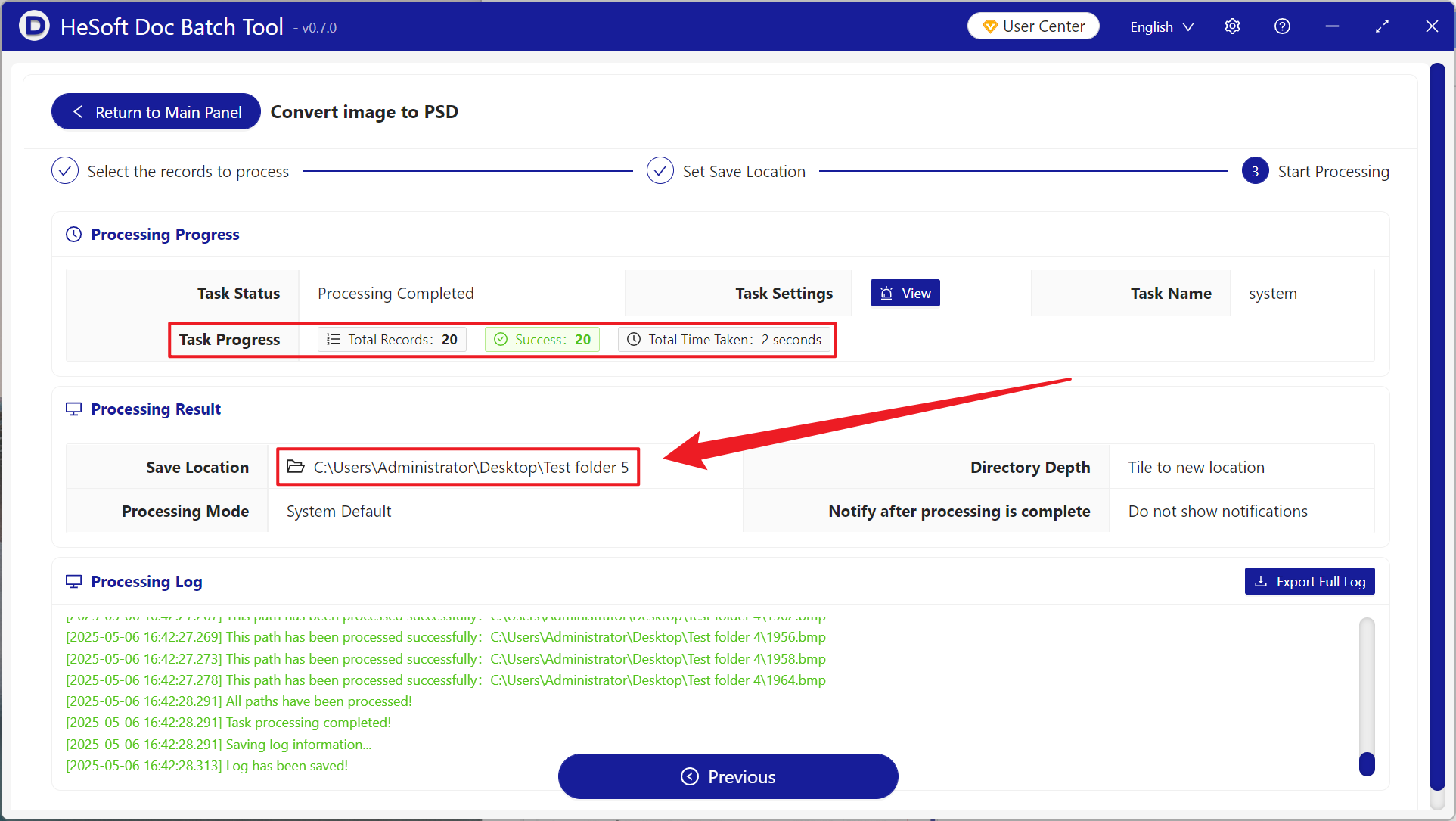
After processing is complete, click the save location to view the successfully converted PSD files.