Batch delete the preceding date in file names using regular expressions
Translation:EnglishFrançaisDeutschEspañol日本語한국어,Update Time:2025-06-07 20:24:00
We often encounter various dates mixed into file names when handling different files, such as 2024-01-01_XXX.docx, 2025-02-02_XXX.xlsx, and similar formats. As time passes, the number of files stored on a computer increases, making everything cluttered and finding the needed files particularly difficult. In these situations, we can use regular expressions to quickly batch-remove the verbose date content from the front of file names, leaving only the specific content. Using regular expressions to batch-remove the year, month, and date from file names is applicable in many scenarios—for example, when organizing old files, removing unnecessary dates allows us to quickly match file types; when preparing a new round of files, removing old dates from template file names lets us directly reuse the files; when a team project reaches a stage requiring unified file naming, the first step is to delete the date in front of the file names. Applying regular expressions effectively in the above scenarios can quickly batch-delete the dates at the beginning of file names with one click, avoiding the need to manually delete them one by one, significantly boosting our work efficiency. So how should we use regular expressions to batch-remove content such as the year, month, and date from the front of a large number of file names?
1. Use Cases
When organizing old files, many files with dates become invalid. Keeping them will affect finding other files. At this time, we can use regular expressions to quickly batch remove the dates at the beginning of file names to improve our work efficiency.
2. Effect Preview
Before processing:

After processing:

3. Steps
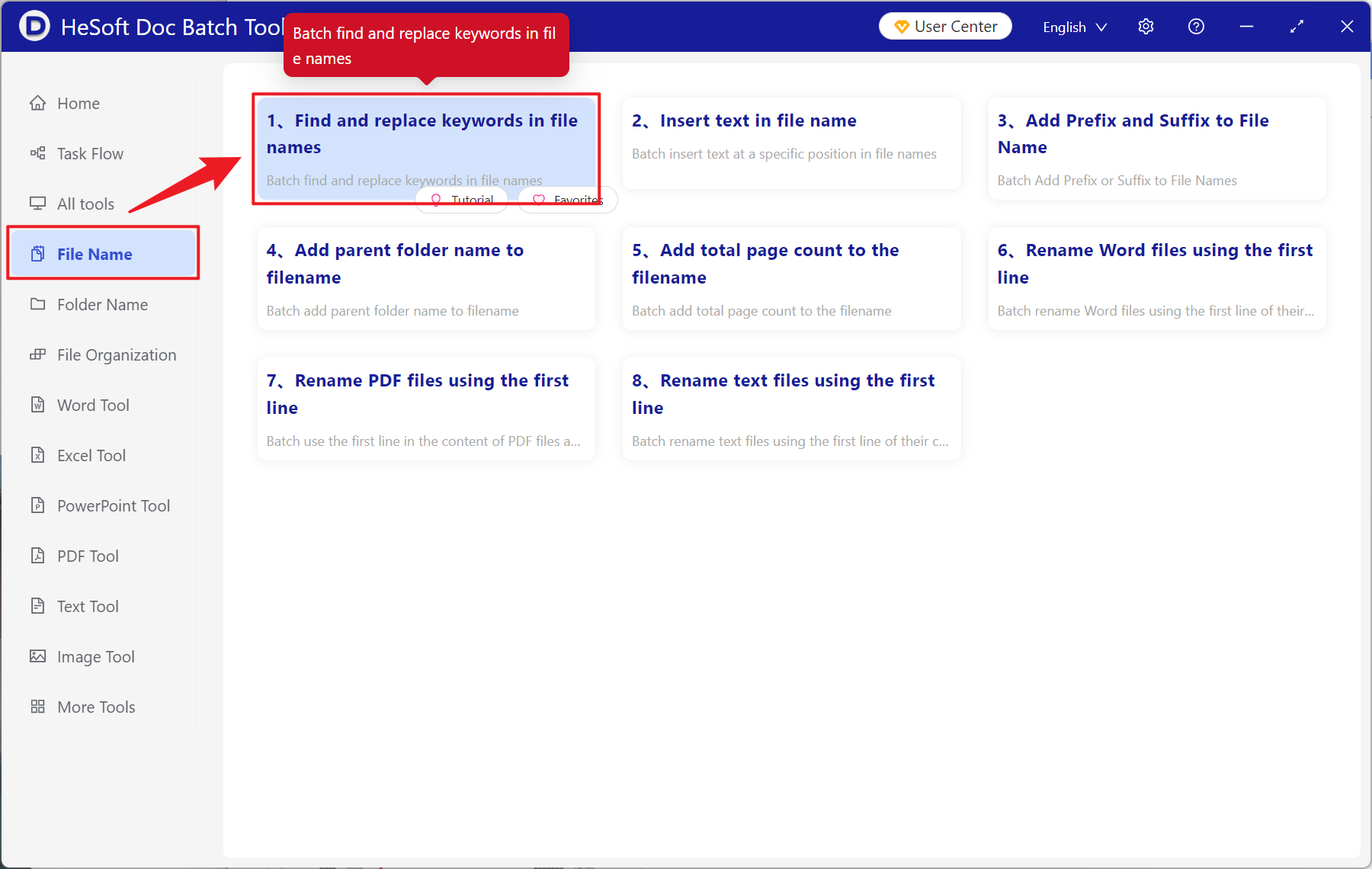
Open【 HeSoft Doc Batch Tool 】, select【File Name】-【Find and Replace Keywords in File Names】.
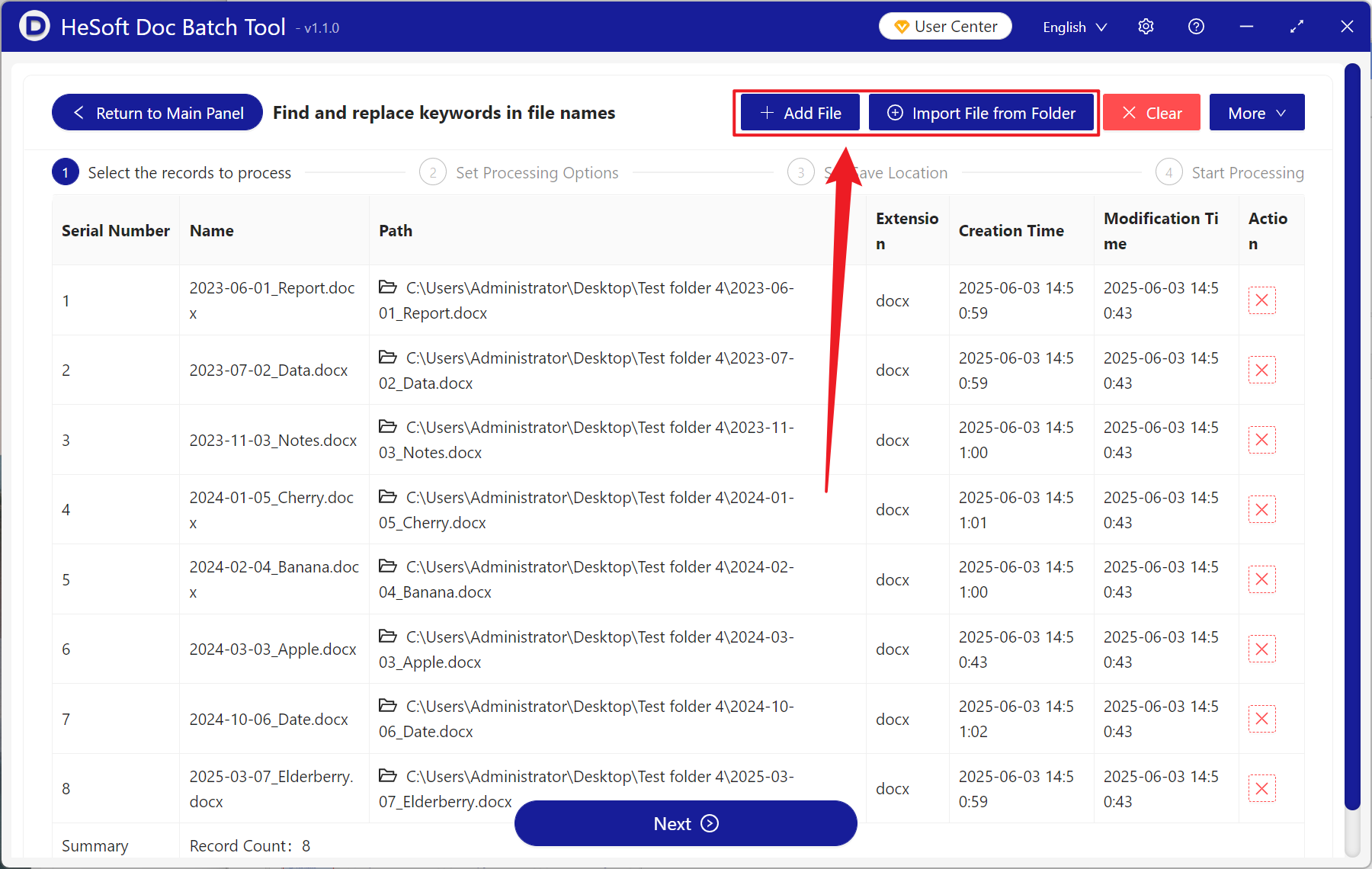
【Add Files】Manually add files for which you need to remove dates from the beginning of their names.
【Import Files from Folder】Import all files from the selected folder.
You can view the imported files below.
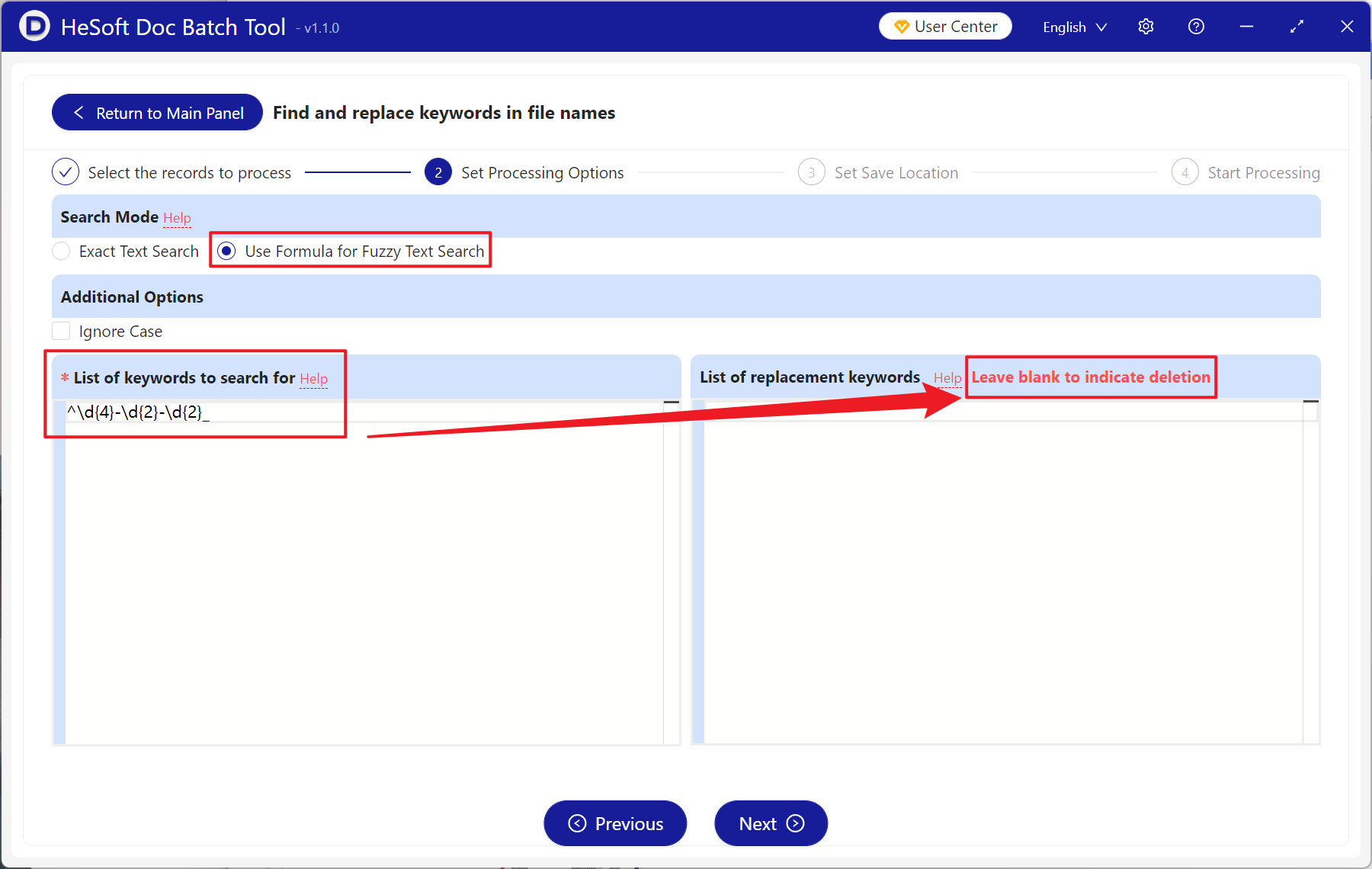
【Search Method】Click to use formula for fuzzy text search.
【List of Keywords to Find】Enter the regular expression as shown in the image below. \d{4} represents the year, and the following two consecutive \d{2} represent the month and day.
【List of Keywords After Replacement】Leave blank to indicate deletion.
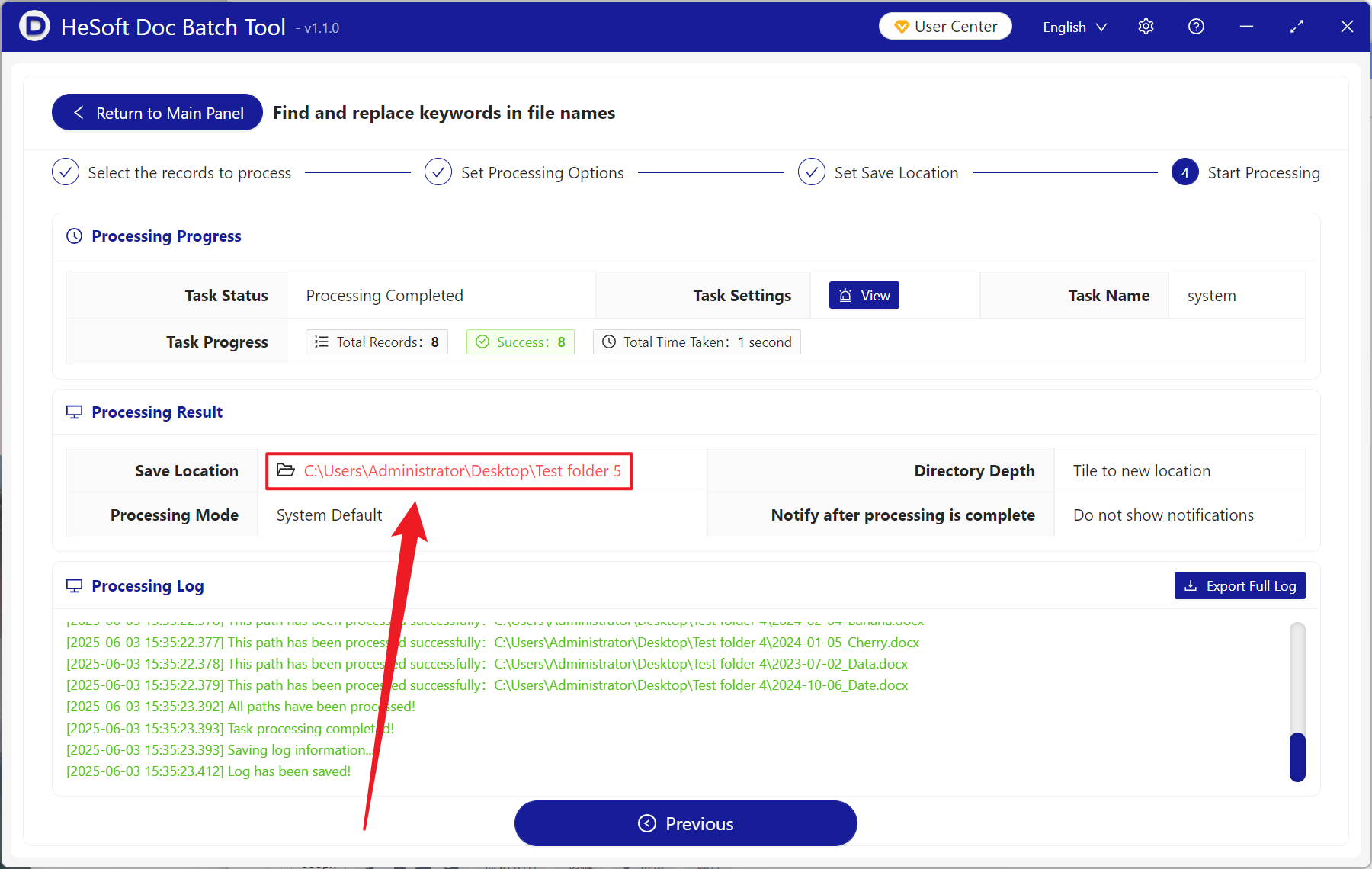
After processing is complete, click the red path behind the save location to view the files with the deletion completed.
Keyword:Batch delete file name year , month , day , how to batch delete text in file names , how to delete date in file names