Quickly export clipboard text content to a TXT Notepad file
Translation:EnglishFrançaisDeutschEspañol日本語한국어,Update Time:2025-06-07 20:19:59
When you need to save or further process copied temporary content, exporting the clipboard to a Notepad file is very necessary. For example, when receiving important verification codes or temporary account information, directly exporting to a TXT plain text file is safer than relying on the clipboard, or when collecting scattered survey materials or search content, copying and saving them in Notepad allows for unified organization and editing. Here, we will introduce how to save the text in the clipboard directly as a TXT file without creating a TXT file after copying text content.
1. Usage Scenarios
When you have copied important information that needs to be temporarily saved, or when you have copied a lot of text content that needs to be organized centrally, you can skip creating a Notepad file and directly save the clipboard text as a TXT file.
2. Effect Preview
Before Processing:

After Processing:

3. Operation Steps
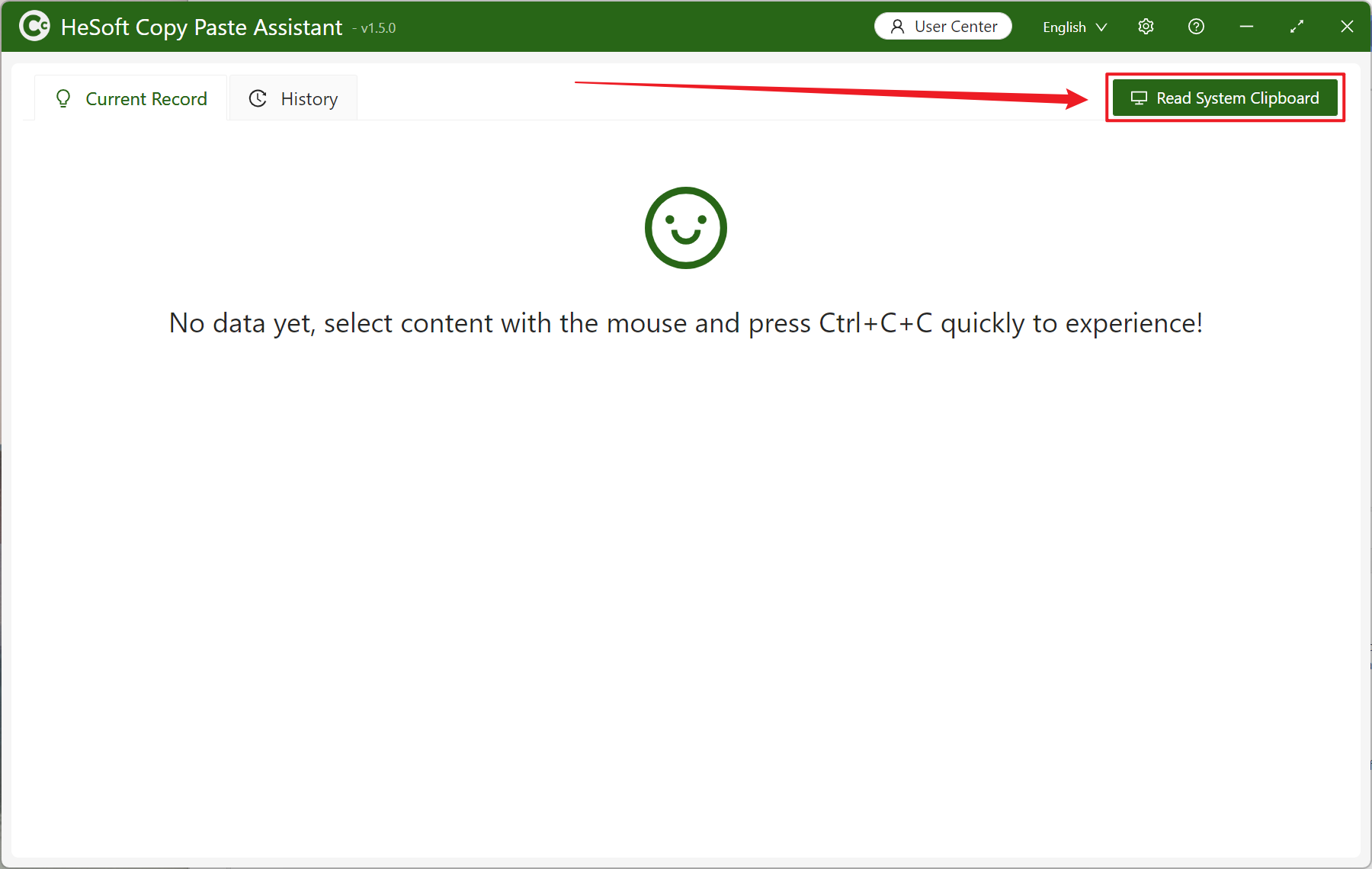
Open 【 HeSoft Copy Paste Assistant 】, click 【Read System Clipboard】 or press Ctrl + C + C to import the clipboard content.
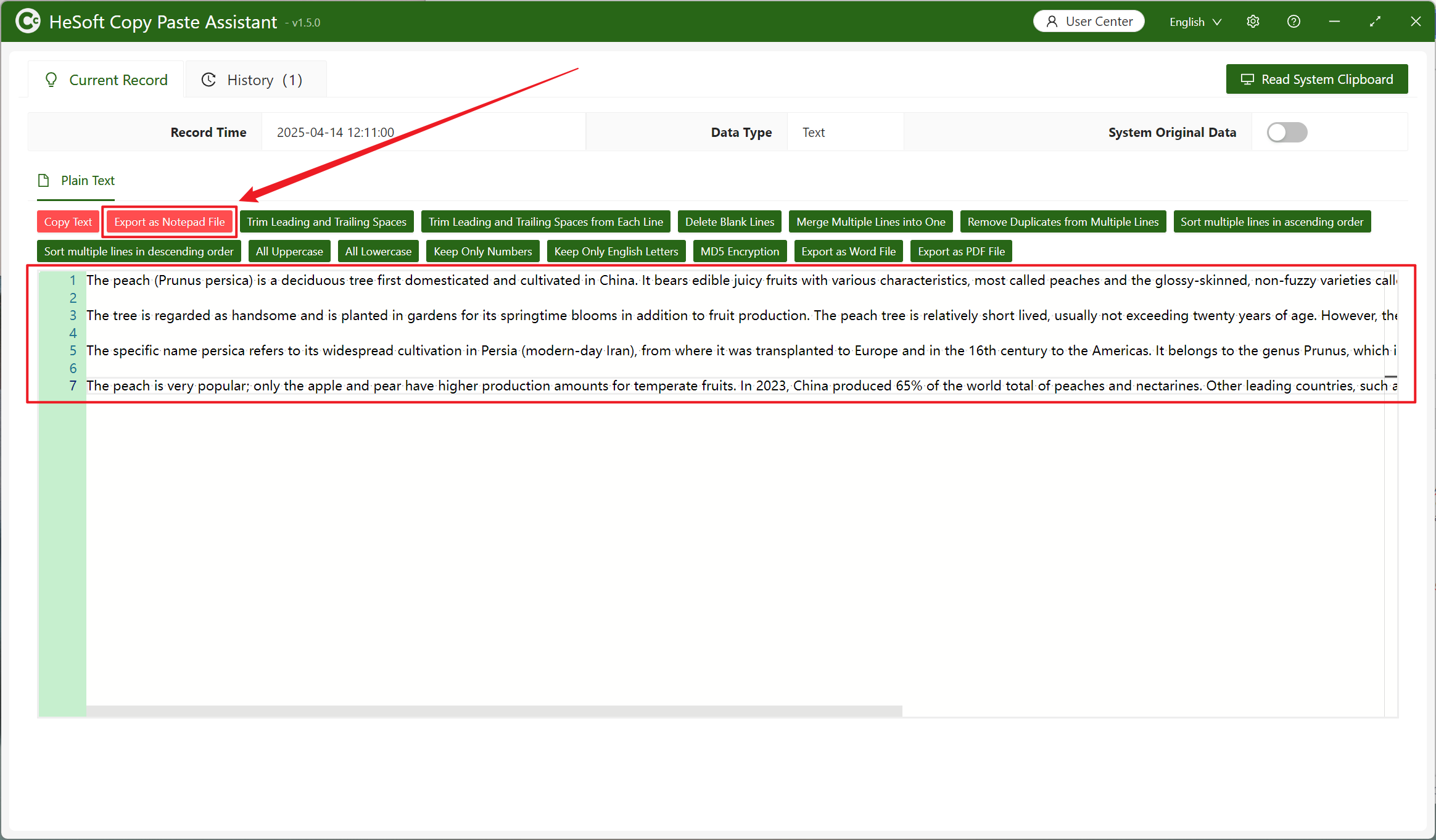
After the clipboard text is imported, select 【Export as Notepad File】.
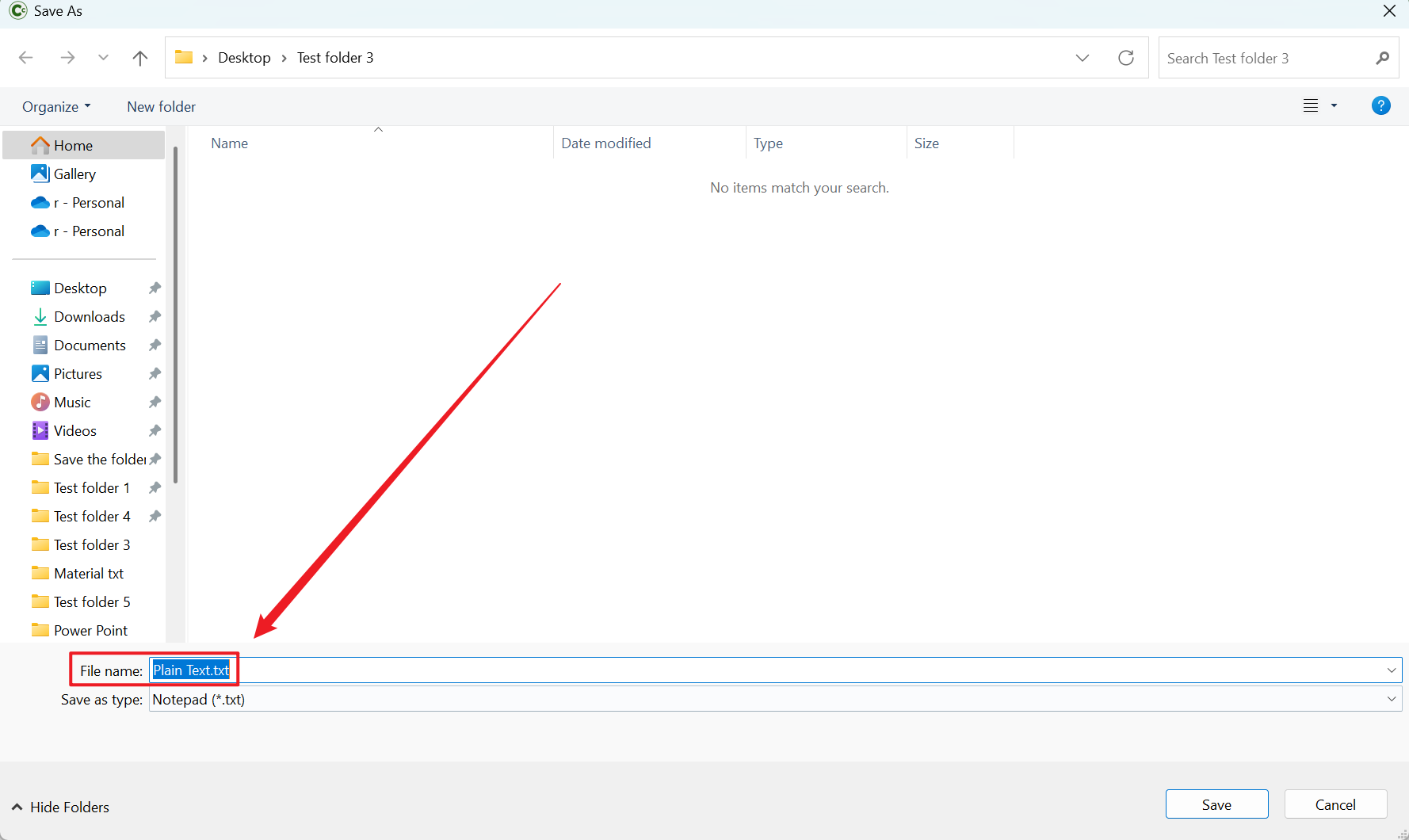
Select the save path and enter a new name for the TXT plain text file.
View the TXT file at the save location.
