Batch convert hundreds of Xls, Xlsx spreadsheet files to Xltx template format
Translation:EnglishFrançaisDeutschEspañol日本語한국어,Update Time:2025-06-07 20:20:44
In the monthly reports, sales performance, quality reports, and other documents of some large enterprises, a unified reporting system needs to be established. Historical Xls and Xlsx format reports can be standardized with fixed standards and calculation formulas by converting them to the Xltx template format. When new employees use them, they only need to create new files based on the template, eliminating the need to design the table structure from scratch. This ensures report consistency and lowers the usage barrier. At the same time, when handling repetitive workflow files, such as employee onboarding forms, purchase lists, and issue records, they can also be converted to the Xltx template format to retain necessary data validation and conditional formatting settings, and to prevent the base structure from being modified. When you need to hand a spreadsheet over to someone unfamiliar with Excel, templates are the safest option. Once converted to the Xltx format, users only need to fill in the content on the worksheet without worrying about accidental deletion or modification. This can directly reduce problems caused by formatting errors. Any spreadsheet file that is frequently reused, requires collaboration from multiple people, or needs to be shared with others should be converted to the Xltx template format to maintain unified standards and avoid repetitive operations. So, how can we batch convert many processed Excel workbooks into the Xltx format? Here is a method to share, which completes the format conversion in three seconds and greatly improves work efficiency!
1. Use Cases
When a company has many purchase requisitions, customer information registrations, etc., in Excel spreadsheet format and needs to lock important formulas and header rows to prevent modification or for repetitive use, we can batch convert them into Xltx template format to ensure standardized and unified spreadsheets, solving repetitive work issues.
2. Effect Preview
Before processing:

After processing:

3. Operation Steps
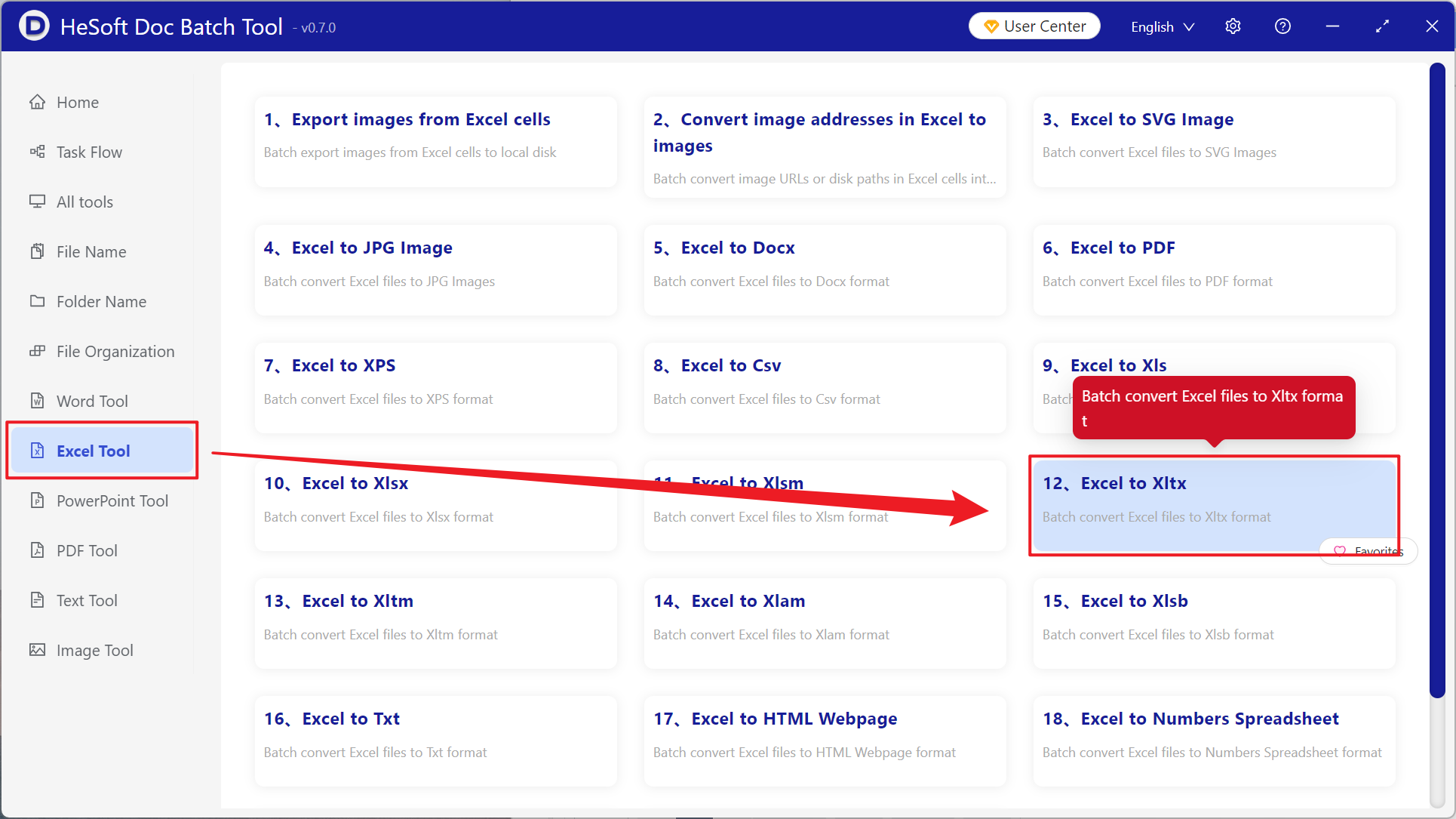
Open【 HeSoft Doc Batch Tool 】 and select 【Excel Tools】-【Excel to Xltx】.
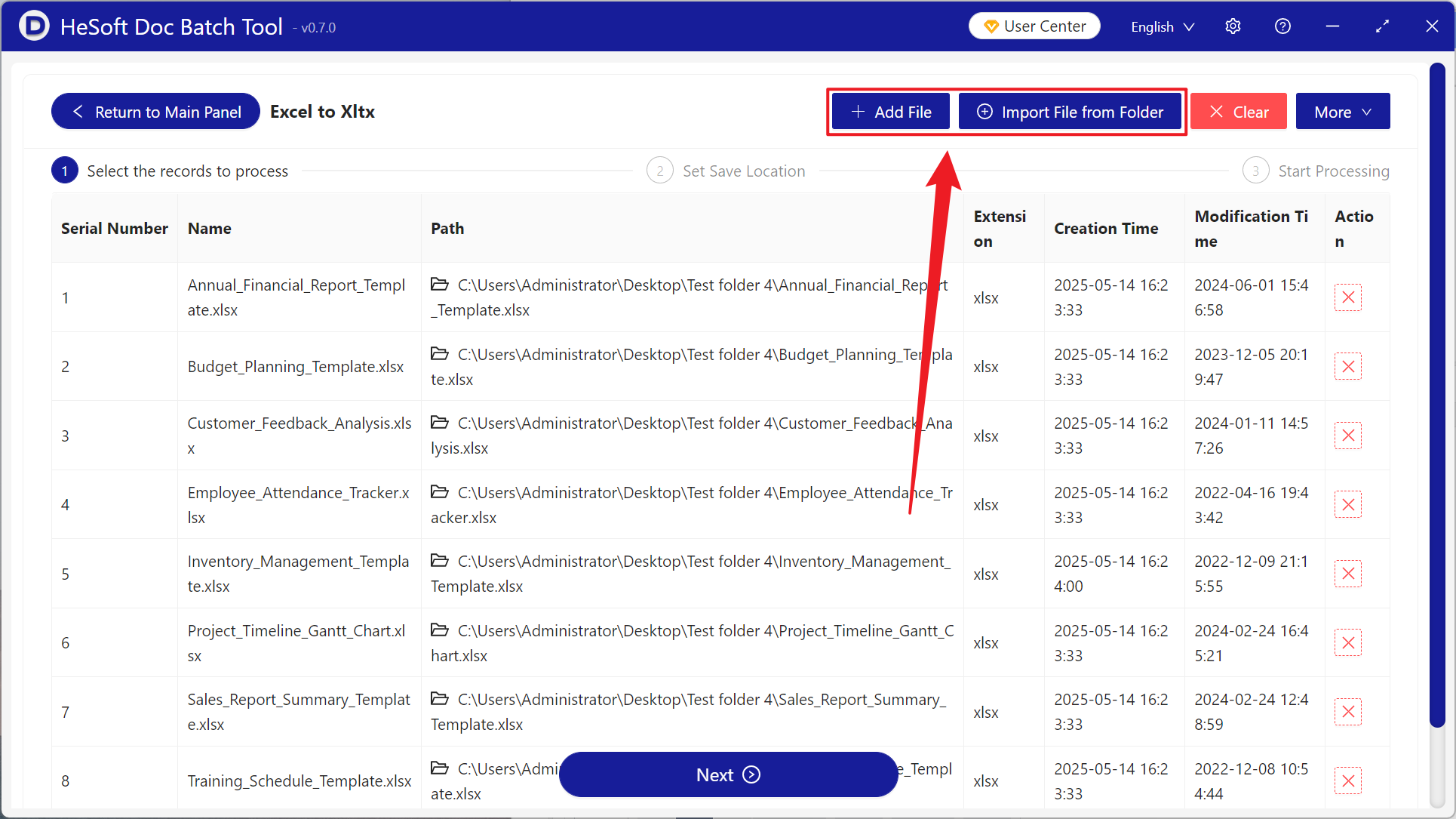
【Add Files】Select and add the Excel files you want to convert to Xltx.
【Import Files from Folder】Imports all Excel files from the selected folder.
You can view the imported files below.
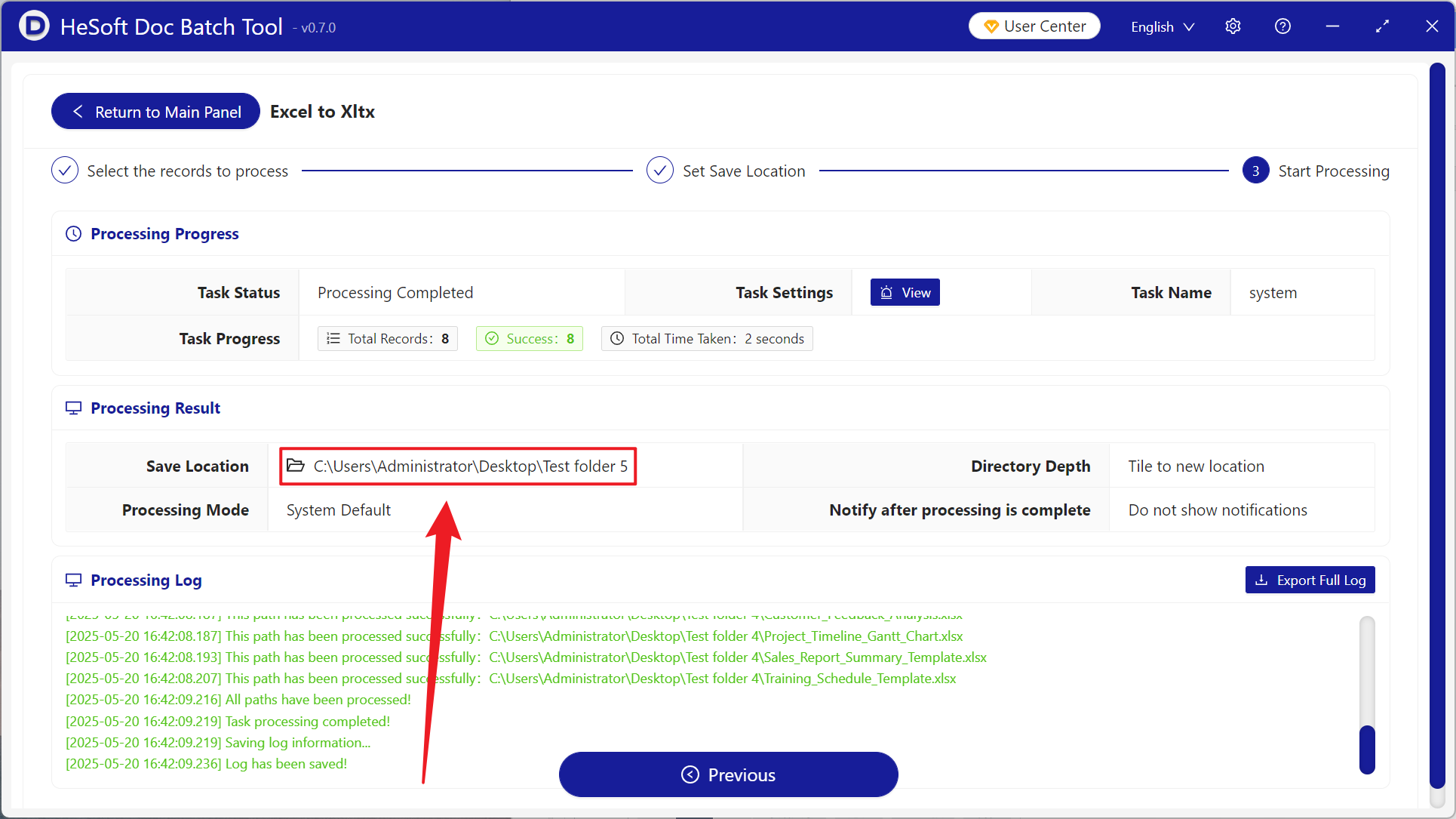
After processing is complete, click the save location to view the successfully converted Xltx files.
Keyword:Excel batch conversion to Xltx , how to convert Xlsx to Xltx , Xlsx to Xltx converter