How to batch view all JPG, PNG and other format images in a specified folder
Translation:EnglishFrançaisDeutschEspañol日本語한국어,Update Time:2025-06-07 20:19:30
With the advancement of modern technology, a large number of photos and images are generated daily in both work and life. Many JPG and PNG images are mostly downloaded from the internet, transferred as files, sent via mobile phones, and stored in various forms within my computer folders. When the number of stored images becomes too large, and you need to view important ones, you have to search through the folder one by one, making it extremely inconvenient to view them. The following introduces how to import all images from a selected folder for batch preview operations.
1. Usage Scenarios
Import and view all jpg, png, and other format images from multiple folders, eliminating complex opening and browsing processes, making it easy to quickly find the images you need.
2. Effect Preview
Before processing:

After processing:

3. Operation Steps
Open [ HeSoft Multi-function Media Album Viewer ], click the upper right corner:
[Add Files] Add single or multiple jpg, png, and other image format files.
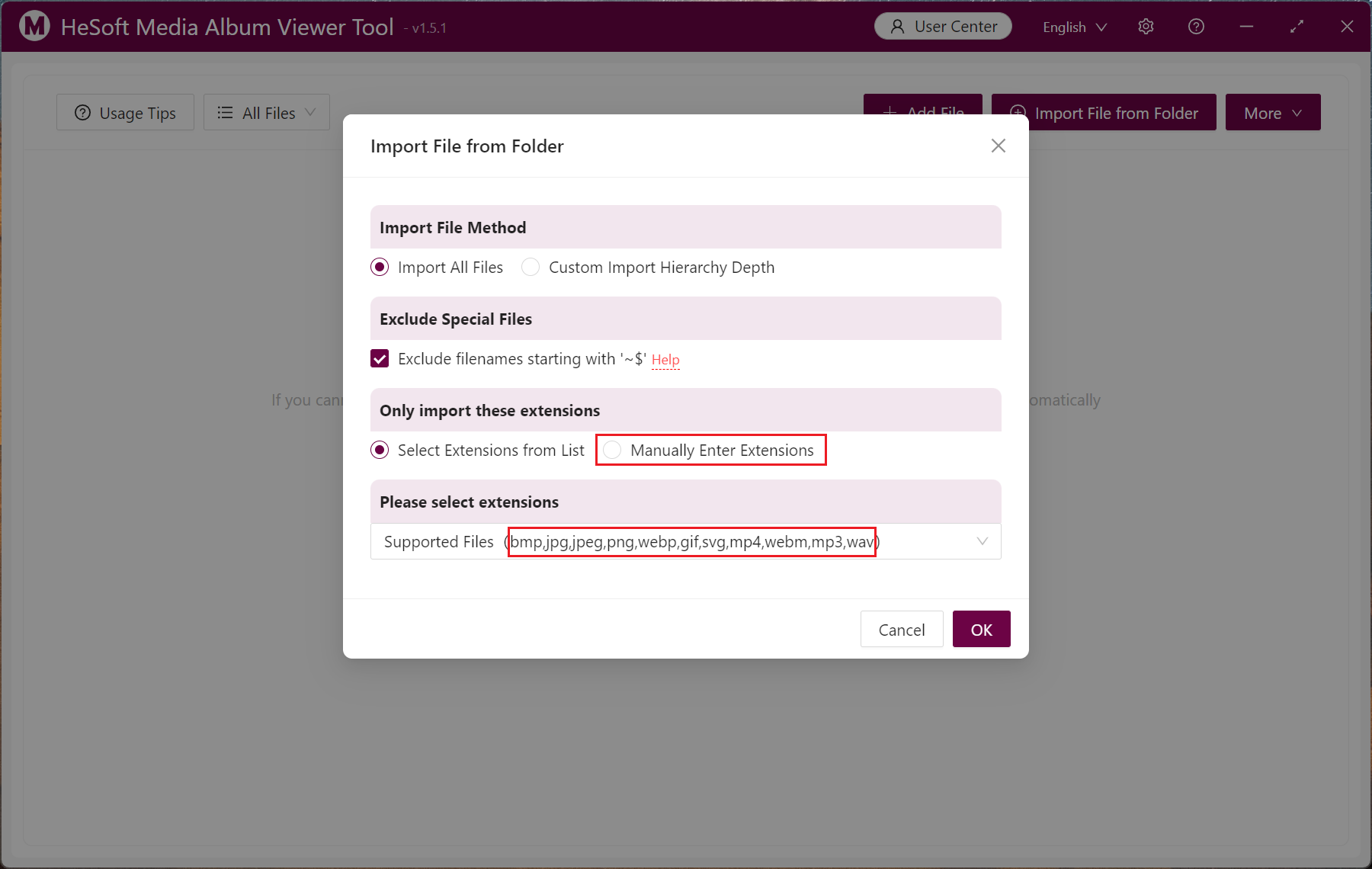
[Import Files from Folder] Import multiple folders containing jpg, png, and other image format files.
You can also drag and drop files or folders directly below.

If you need to view image files of a specific format, choose to manually enter the extension, and input the image format suffixes like jpg, jpeg, png, gif, webp, bmp, svg below.
After adding successfully, right-click the image to select large image browsing, and also perform operations like opening the file's folder, copying the filename, copying the file path, and deleting the image.

Left-click to select specified images, and click on the batch operation below for overall operation management of the images.
