How to view and manage media files in specified formats across multiple folders and save them in batches to a designated location
Translation:EnglishFrançaisDeutschEspañol日本語한국어,Update Time:2025-06-07 20:19:39
With the widespread adoption of smartphones and digital cameras, people today are capturing more and more videos and photos in their daily lives, including personal life photos, corporate work video materials, and more. As the volume grows, there is a need to categorize, store, and share them. Without an effective management method, media files can become chaotic, requiring a lot of time to search for images and videos, making efficient action impossible. One of the most troublesome aspects is the variety of media file formats, ranging from JPG and MP4 used for photography and videography, to PNG used for design, and MP3 used for music and entertainment. Having such a diverse mix of file formats jumbled together on a computer can be a real headache. Therefore, an efficient, reliable, and easy-to-use management system is crucial for both life and work. The following introduces how to specify, view, and preview media files of designated formats, while also supporting batch saving of important files to specified locations.
1. Usage Scenario
When there are too many media files on a computer, you need to preview and play them, manage image files, video files and audio files of different formats, and save selected files in batches to a specified location.
2. Preview of Effect
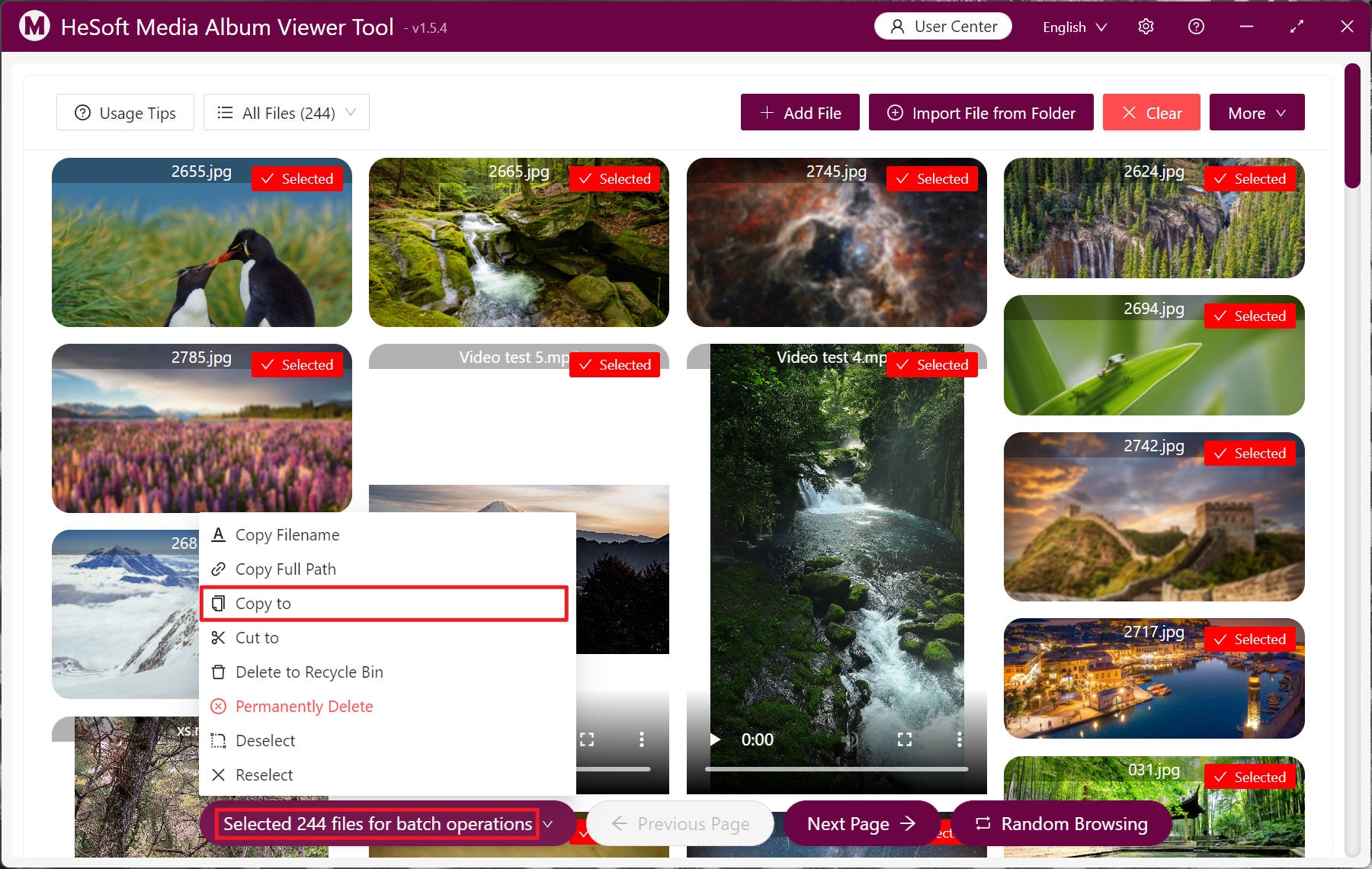
Before processing:

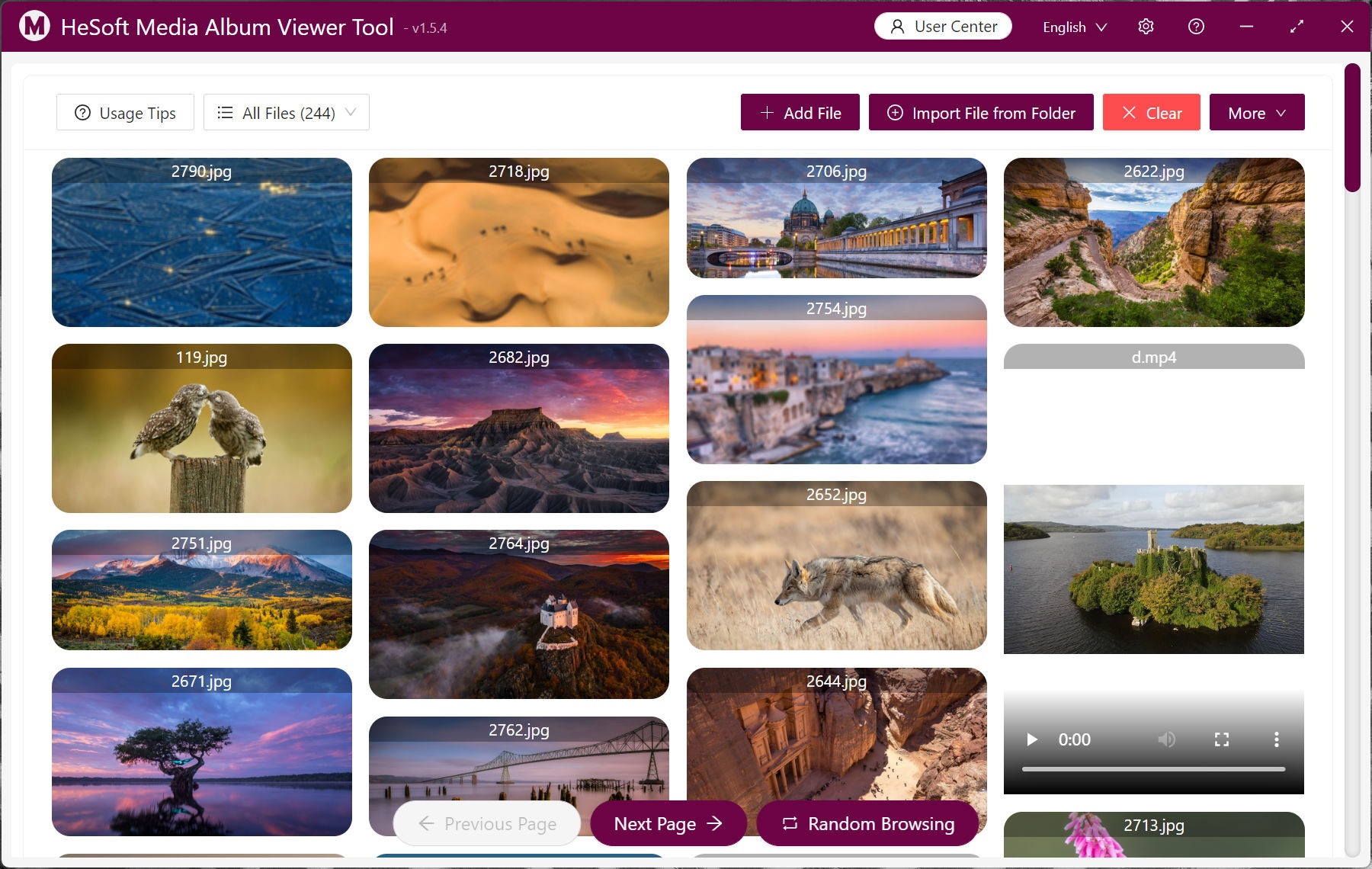
After processing:

3. Operation Steps
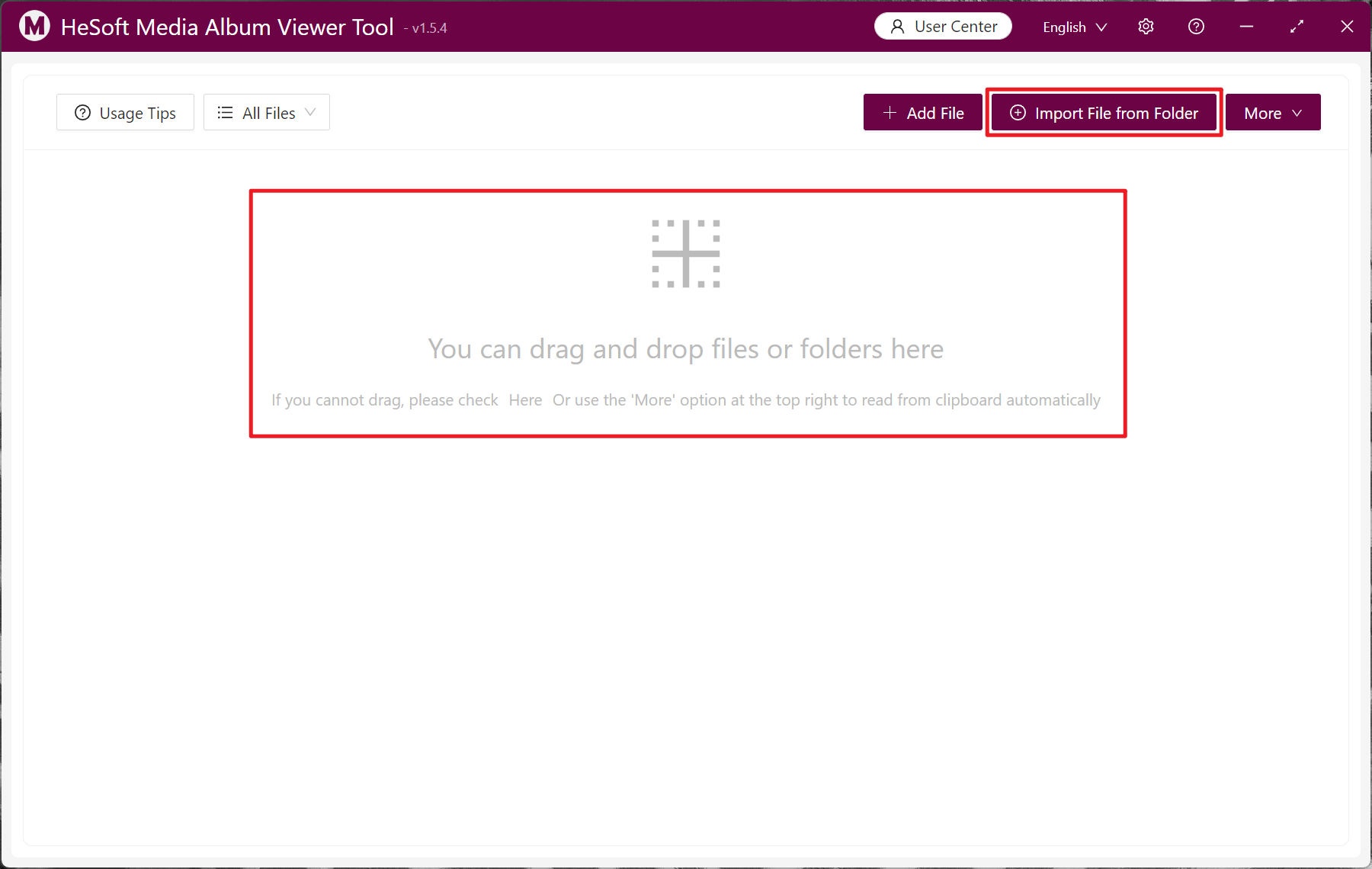
Open HeSoft Multi-function Media Album Viewer , click the upper right corner:
【Import files from folder】Import a folder containing a large number of image, video, and audio files.
You can also drag files directly in below.
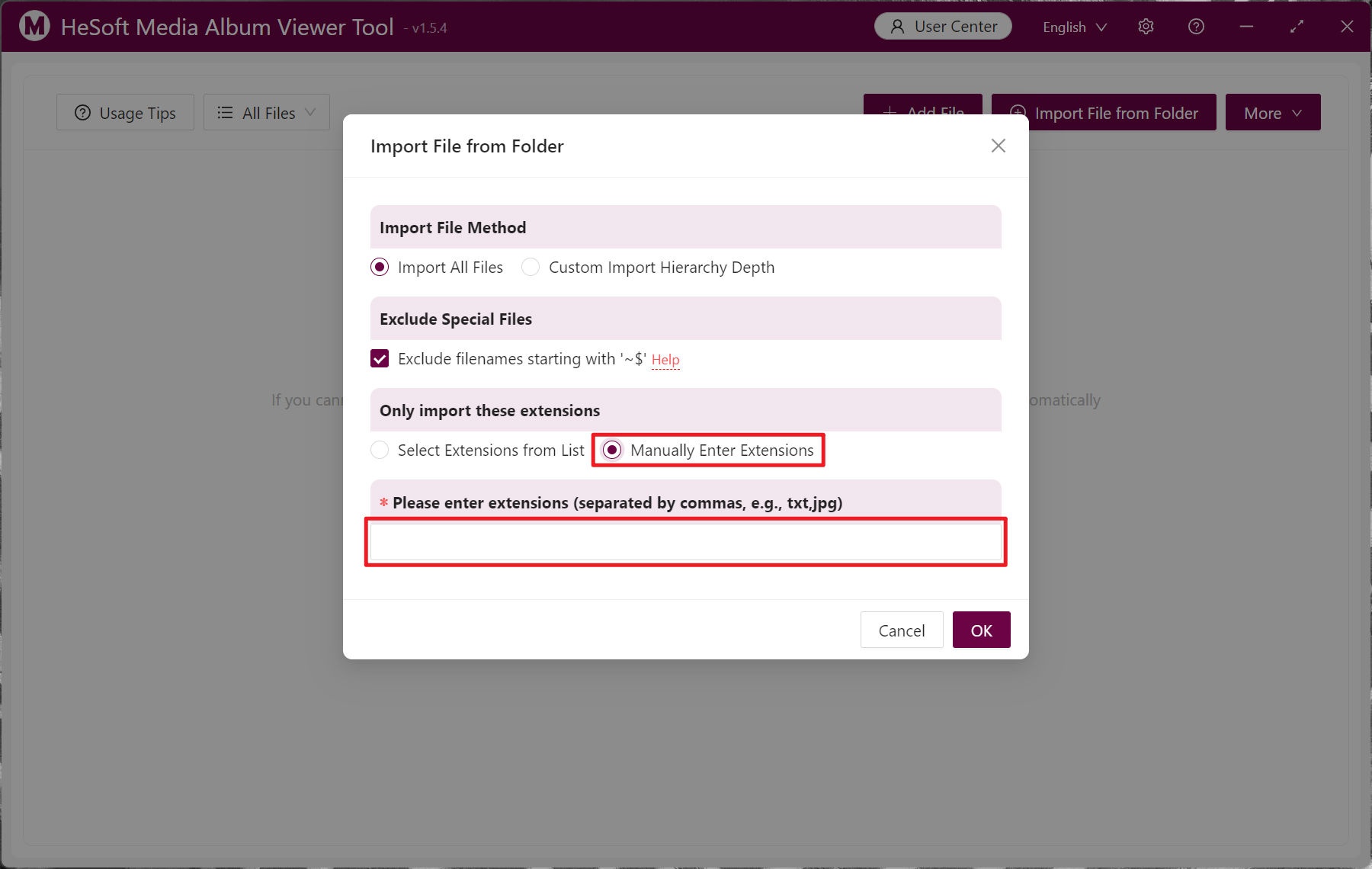
After importing the selected folder, select 【Manually enter extensions】, and enter the extensions of the files you need to find below, for example: bmp, jpg, jpeg, png, webp, gif, svg, mp4, webm, mp3, wav.
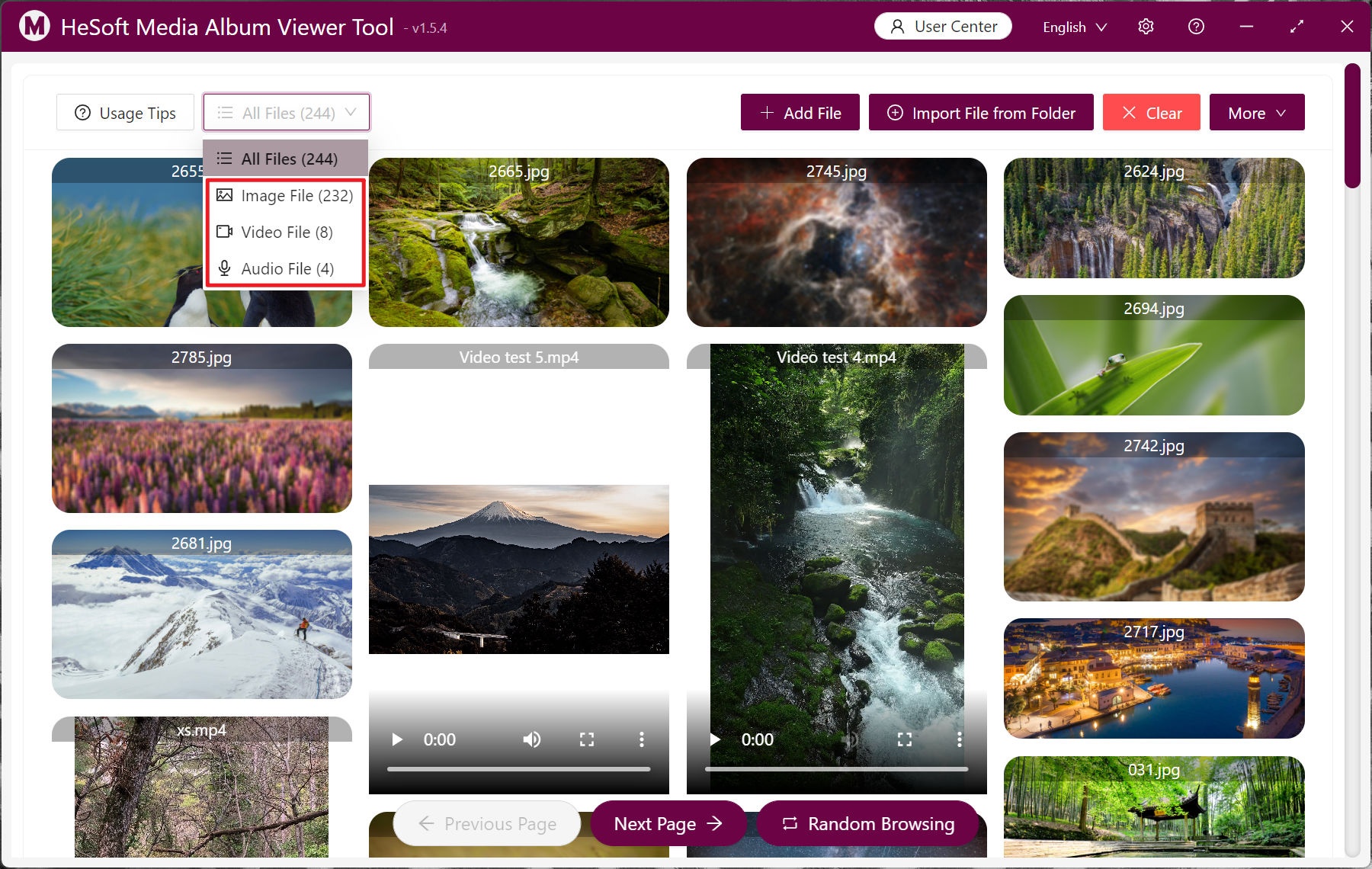
In 【All files】, select image files, video files, and audio files for categorized viewing.
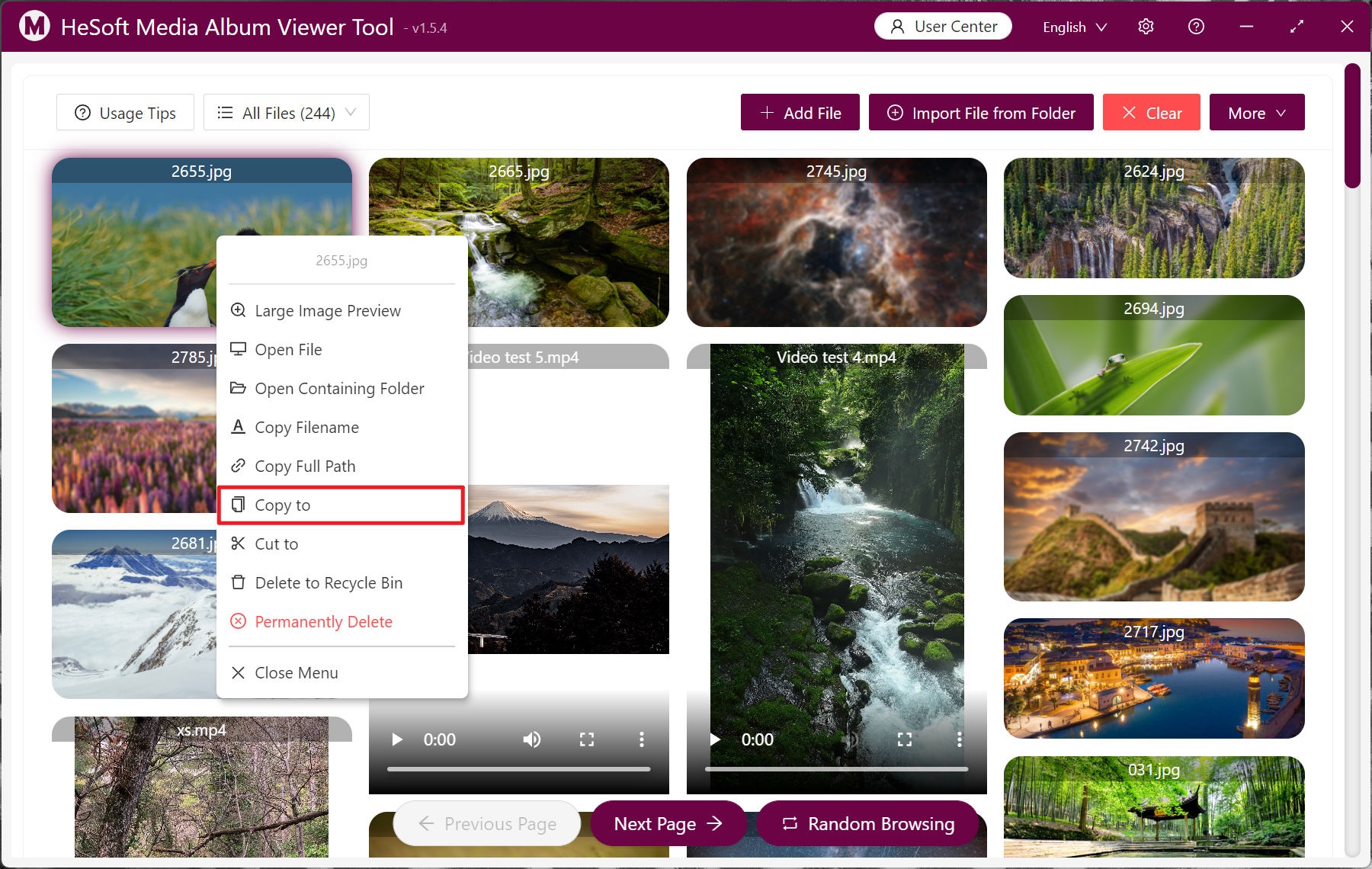
Select a single file, right-click, and click 【Copy to】 to choose a new file save path.
Click on the files you need for batch selection. After selection, click 【Batch Operations】 - 【Copy to】 below to save a large number of files to a new location.