How to batch convert Excel to high-definition JPG images?
Translation:EnglishFrançaisDeutschEspañol日本語한국어,Update Time:2025-06-07 20:20:29
After receiving or creating an Excel spreadsheet at work, you often need to save it as an image for use, but images obtained directly with screenshot tools are often not clear enough. In this case, we can adjust the PPI parameter before saving to get a very high-definition image. For example, by setting the PPI of a printed report to 300 PPI, the printed data and charts are clearer than normal export. When transferring and previewing across different devices, inputting 200 PPI not only keeps the file size from being too large, but also ensures clear viewing on both phones and computers. In short, PPI is a very important indicator for measuring image clarity; the higher the PPI value, the higher the image resolution will become along with PPI, and the clearer the image will be. So how can we set the PPI in advance to ensure image quality before batch exporting many Xls and Xlsx format files as JPG images? Here is a practical tip to quickly export spreadsheets as high-definition JPG, greatly improving our work efficiency!
1. Use Cases
When an enterprise needs to convert a large number of Excel financial statements or employee records into JPG images for long-term preservation, you can use this feature to increase the PPI and save Excel worksheets as high-definition JPG images, ensuring that they will not be plagued by compatibility issues or unclear images when they need to be opened again in the future.
2. Effect Preview
Before processing:

After processing:

3. Steps
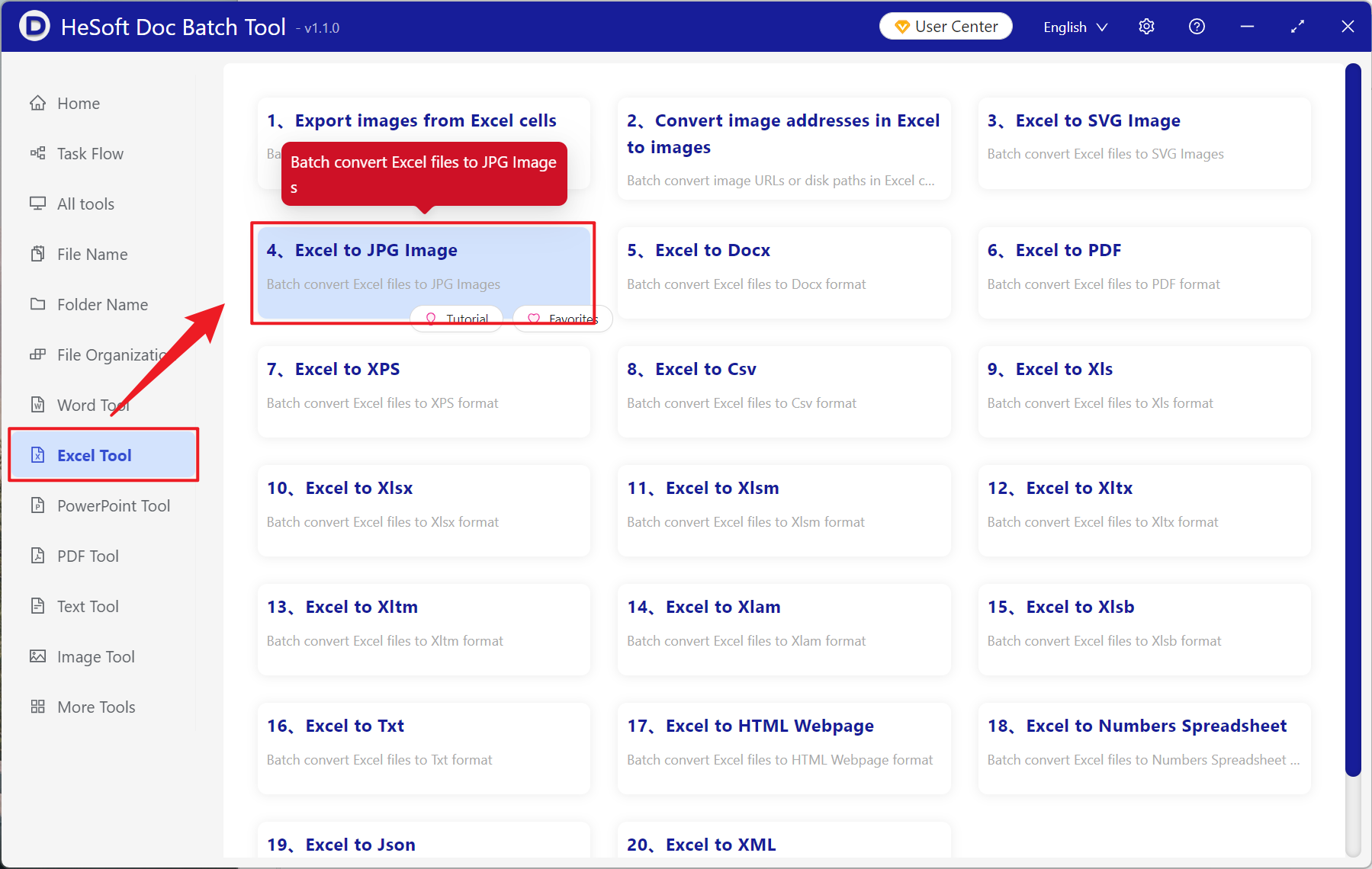
Open【 HeSoft Doc Batch Tool 】, select【Excel Tools】-【Convert Excel to JPG Image】.
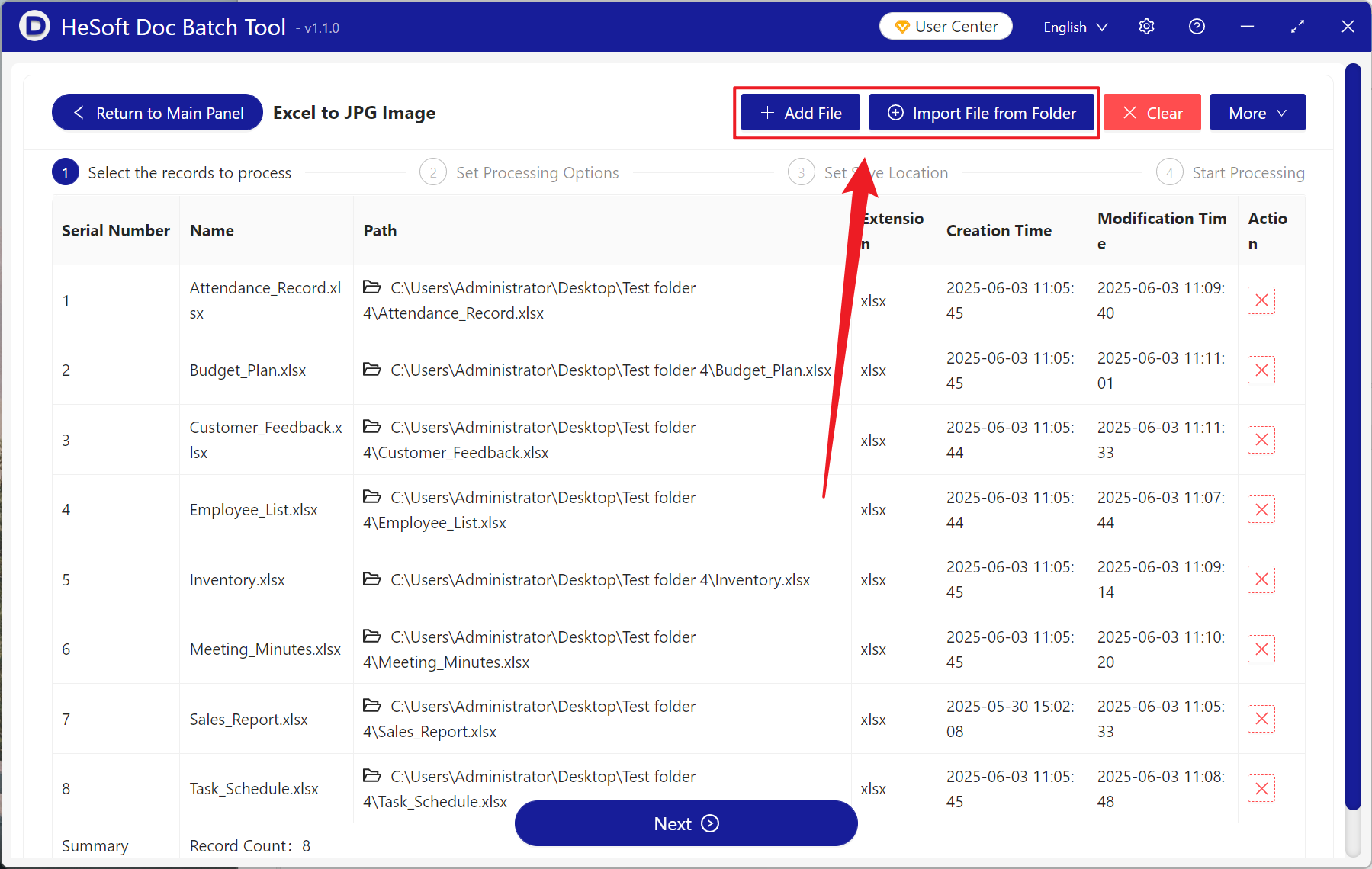
【Add Files】Manually select and add Excel spreadsheets to be converted to high-definition images.
【Import Files from Folder】Import all Excel spreadsheets from the selected folder.
You can view the imported files below.
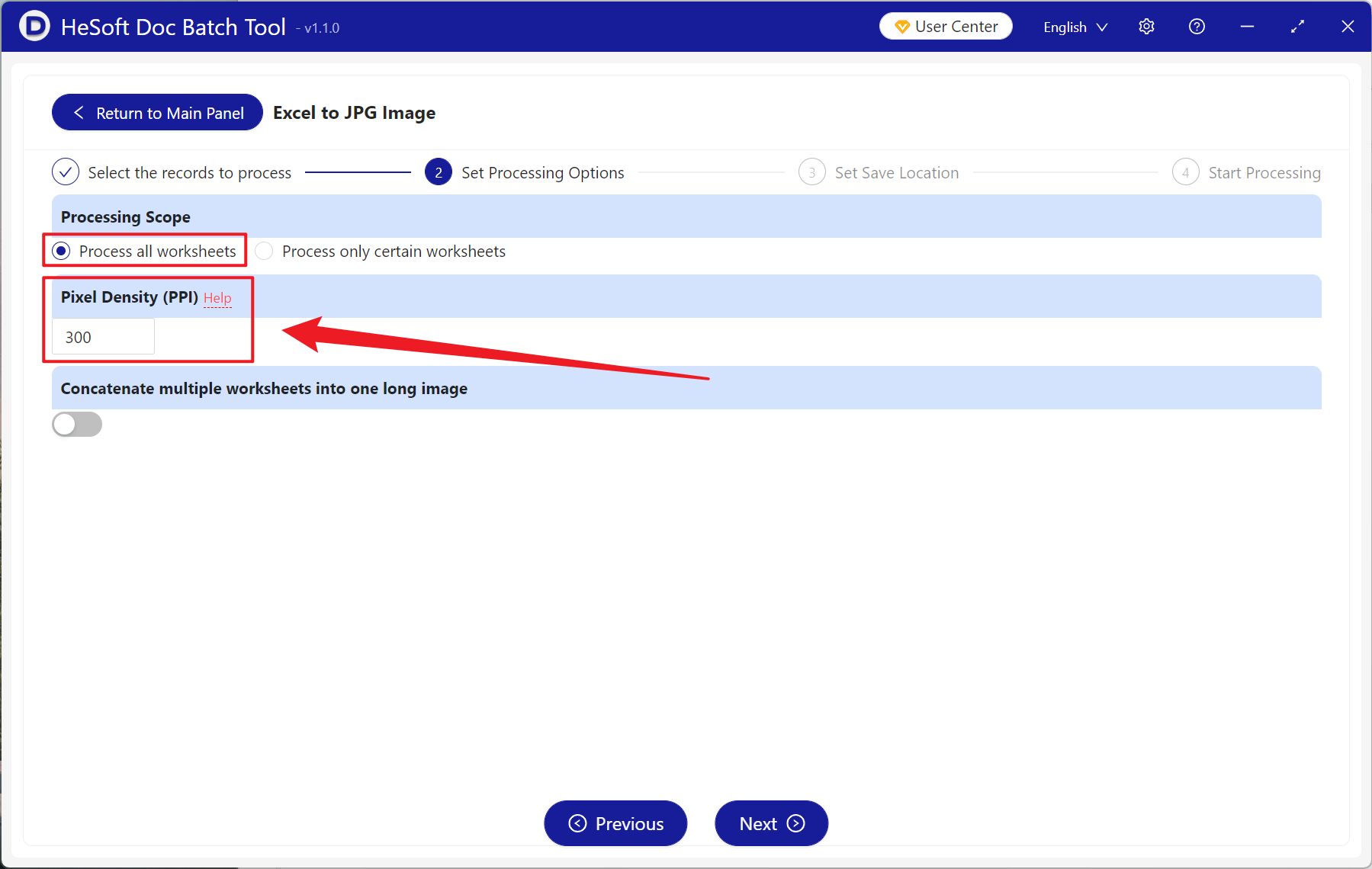
【Processing Scope】Select to process all worksheets.
【Pixel Density (PPI) 】Enter the value independently here. You can click Help for explanation. Lower values result in blurrier images, and higher values result in clearer images.
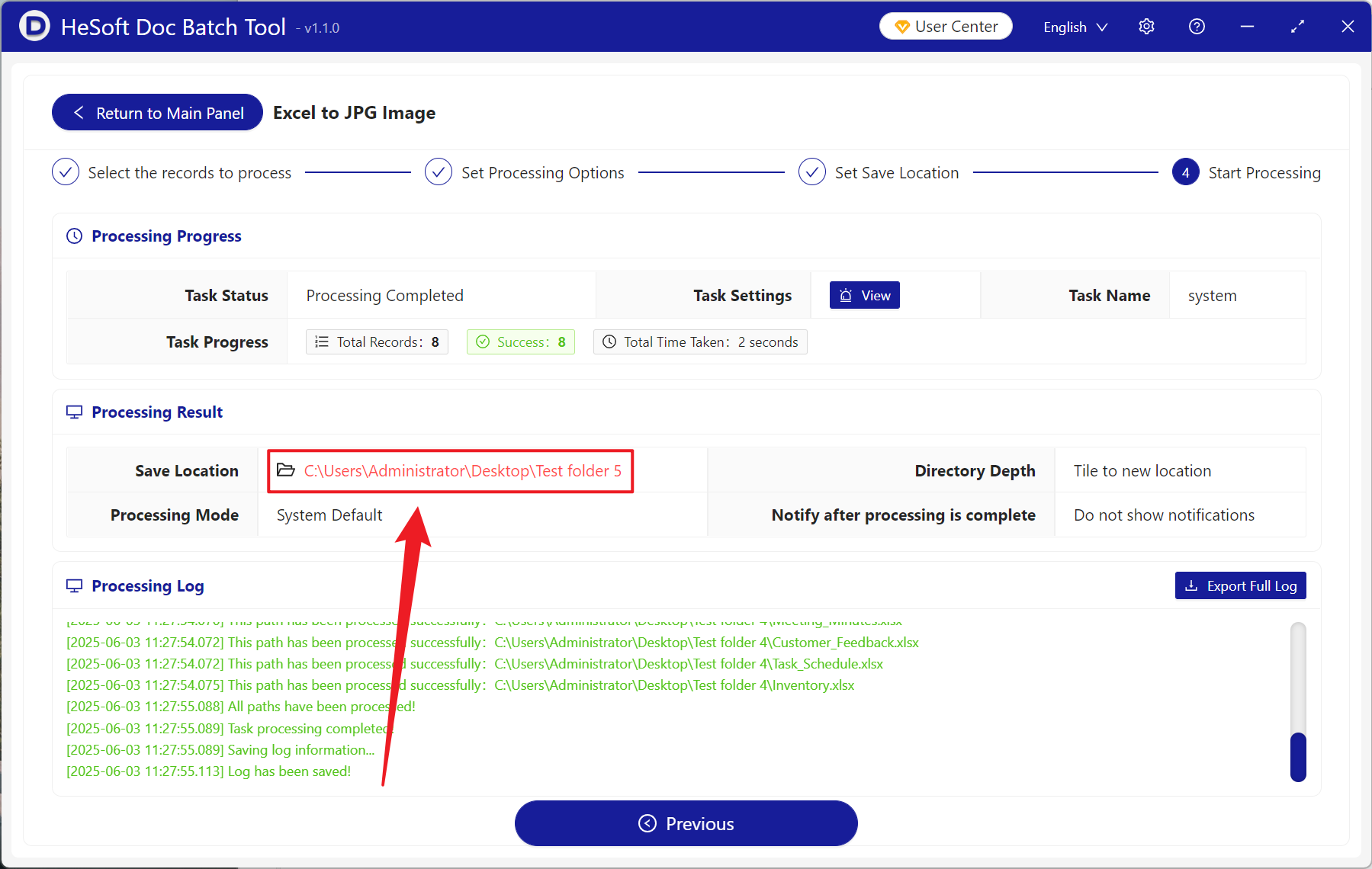
After processing is complete, click the save location to view the successfully converted image files.
Keyword:Excel batch to image , how to convert Xlsx into high-definition JPG , export Excel as HD image