Many files are batch-classified into corresponding folders based on the last two digits, letters, or characters at the end of their file names
Translation:EnglishFrançaisDeutschEspañol日本語한국어,Update Time:2025-06-07 20:23:25
In daily office work, the characters at the end of file names often carry classification information. This feature can be used to quickly organize and locate files. By setting fixed ending identifiers for different types of files, management becomes more convenient and can save a lot of time. However, when there are too many files distributed across multiple folders, how can we accurately classify all files, batch-sorting files with the same two ending characters in their names into corresponding folders? Here's how to batch classify hundreds of files uniformly by the two digits, letters, or characters at the far right end of the file names, supporting various file formats such as Word, Excel, PDF, and JPG.
1. Use Cases
When hundreds or thousands of files already have distinguishing identifiers at the end of their names but are scattered across multiple folders, and you need to organize them into corresponding folders uniformly, we can batch-organize them based on the last two characters at the end of their filenames.
2. Preview Effect
Before processing:

After processing:


3. Operation Steps
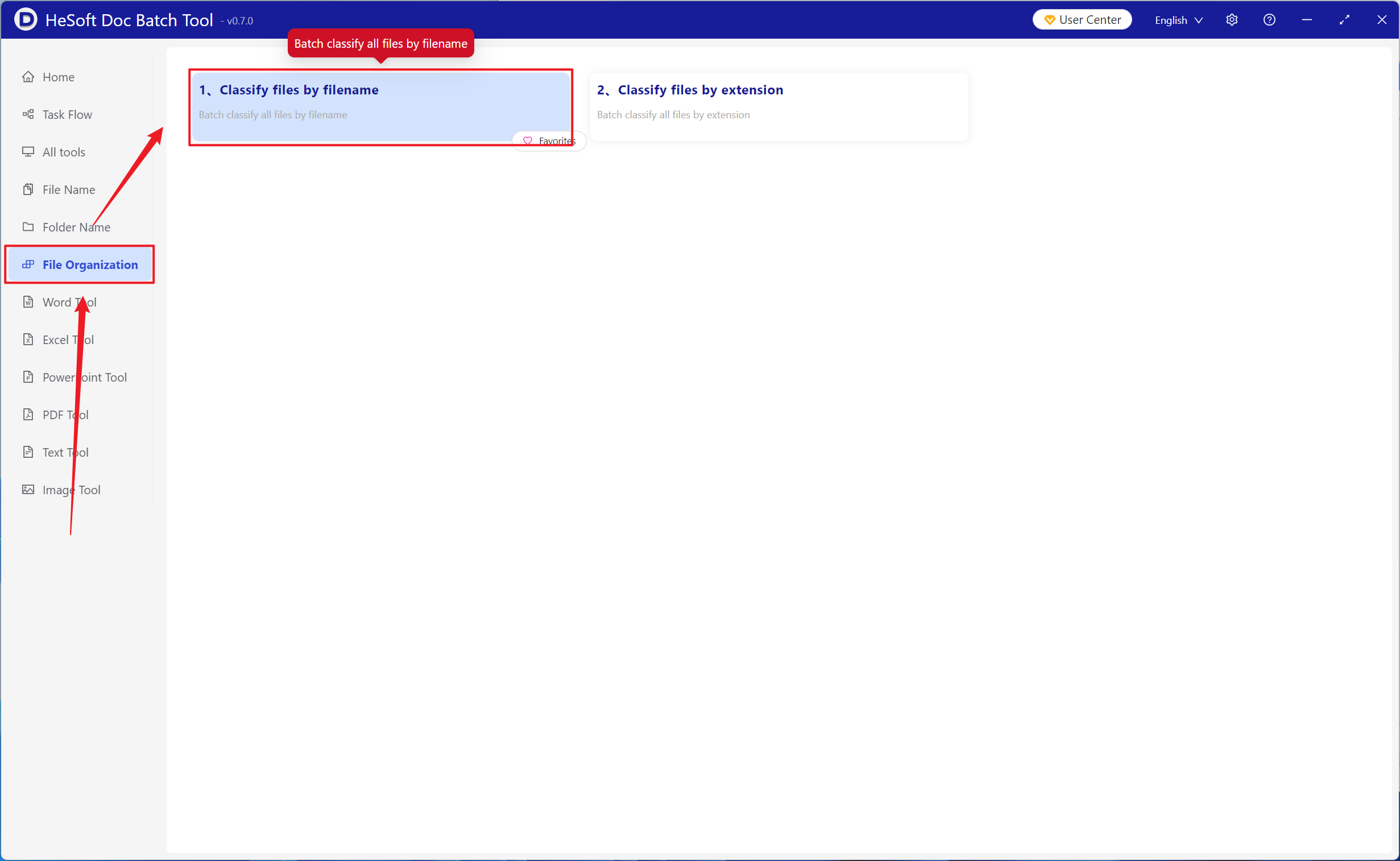
Open 【 HeSoft Doc Batch Tool 】, select 【File Organization】-【Classify files by filename】.
【Add Files】Add multiple files that need to be classified and organized based on the last two rightmost characters of their filenames.
【Import Files from Folder】Import folders containing a large number of files that need to be classified and organized based on the last two rightmost characters of their filenames.
Below you can view the imported files.

【Classification Method】Click to classify by the last few characters.
【Quantity】Enter 2; can also be adjusted based on requirements.

After waiting for the processing to complete, click the path behind the save location to view the classified files.
