How to batch replace certain specified text in folder names
Translation:EnglishFrançaisDeutschEspañol日本語한국어,Update Time:2025-06-07 20:24:12
In daily work, batch replacing specified text in folder names is very common, such as during project renaming, folder name readjustment, or cleaning up redundant information in folder names. For example, when a project needs to update date information or the person in charge, all folder names related to that project must be uniformly replaced; otherwise, future searches will be very error-prone. Batch replacing folder names can improve file management standards, clean up unnecessary information, or uniformly replace old text content with new text content. Overall, batch replacing certain key parts of folder names allows for better file management, makes file searches clearer and more straightforward, reduces hassles caused by naming issues, and flexibly adjusting folder names also saves a significant amount of time. So how should we uniformly batch replace multiple keywords that appear in folder names?
1. Use Cases
When project information changes, the related folders representing this project need to be updated synchronously. For example, if the year and code in 2024_ProjectXX_001 change to 2025 and 002 respectively, we can batch rename these folders to 2025_ProjectXX_002 at once, saving the manual effort of updating the time and getting twice the result with half the work.
2. Effect Preview
Before:

After:

3. Steps
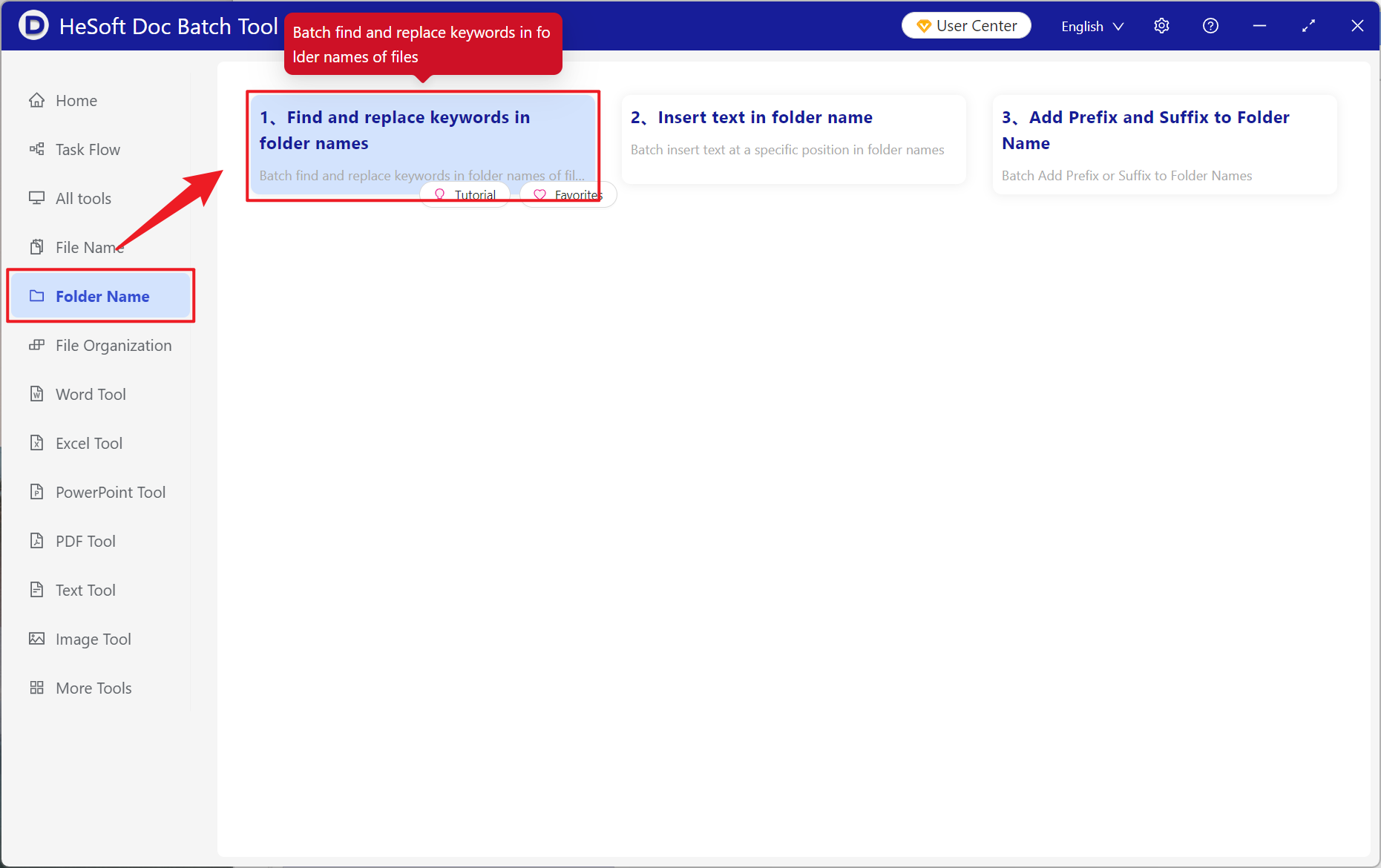
Open 【 HeSoft Doc Batch Tool 】, select 【File Name】-【Find and Replace Keywords in Folder Names】.
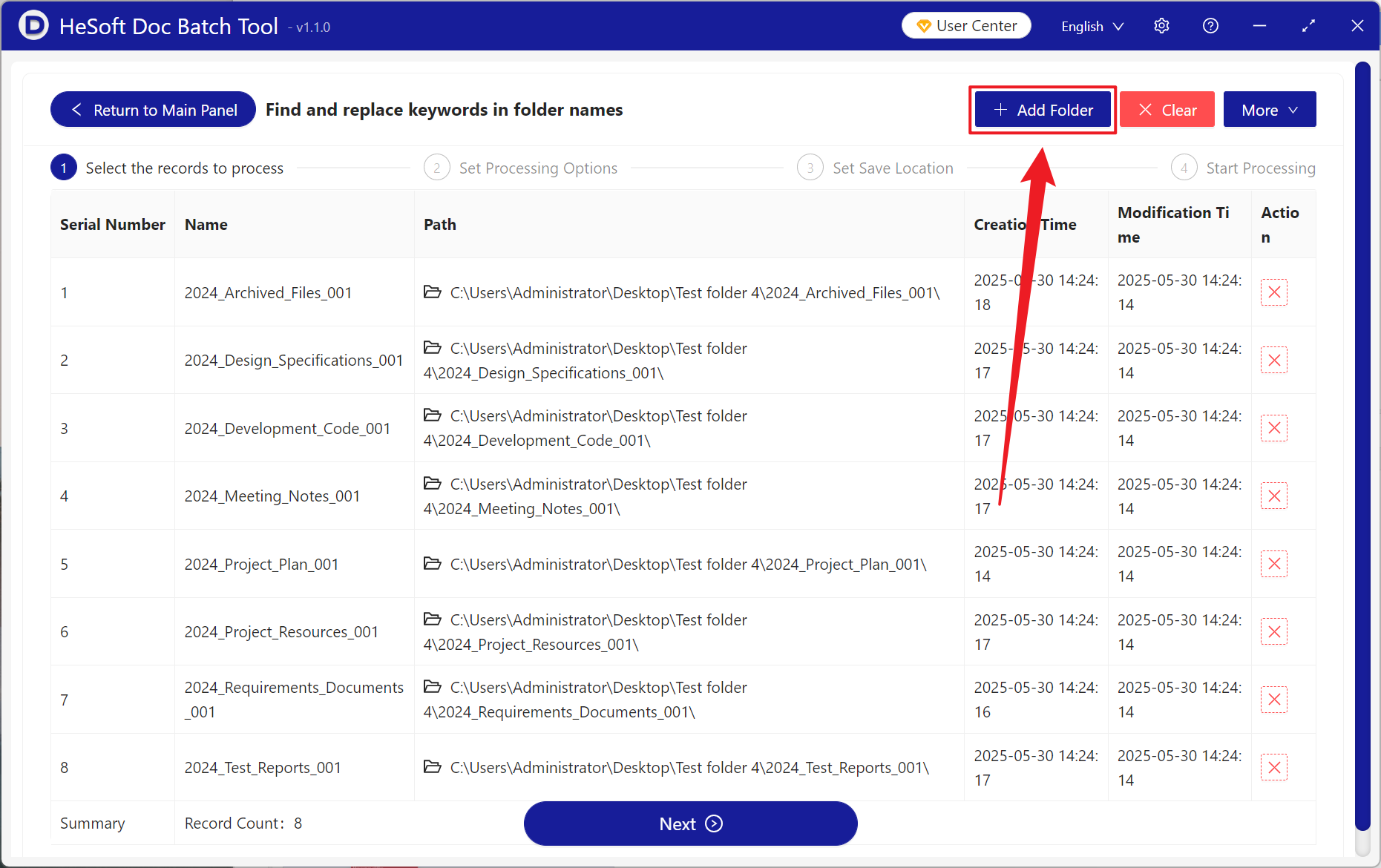
【Add Folders】to import the folders that need to be renamed.
You can view the imported folders below.
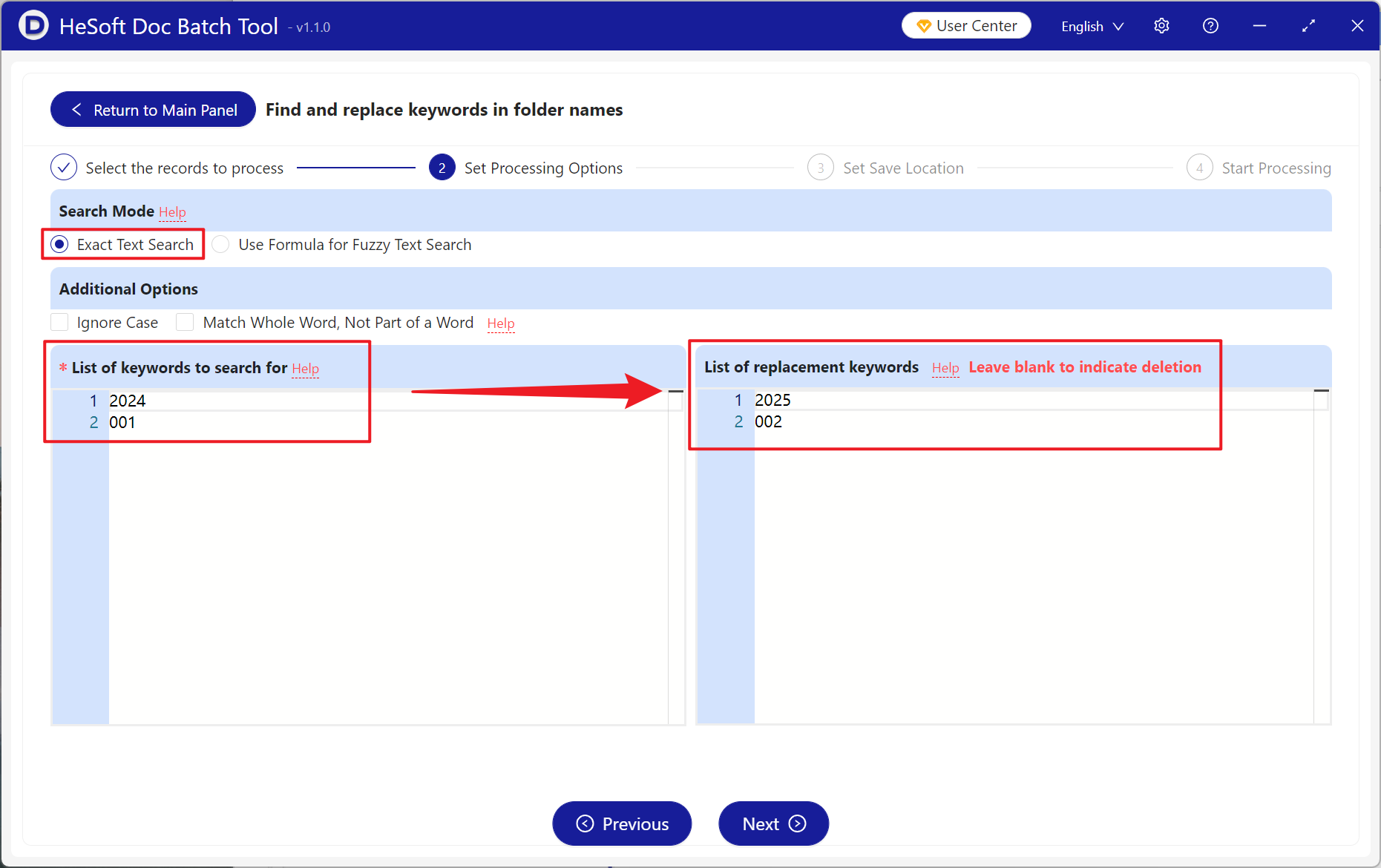
【Search Method】Click to search for exact text.
【Keywords to Find】Enter the keywords you want to find in the folder names below, one keyword per line.
【Replace With】Enter the keywords to replace the found content with below, one keyword per line. Leave it blank to indicate deletion.
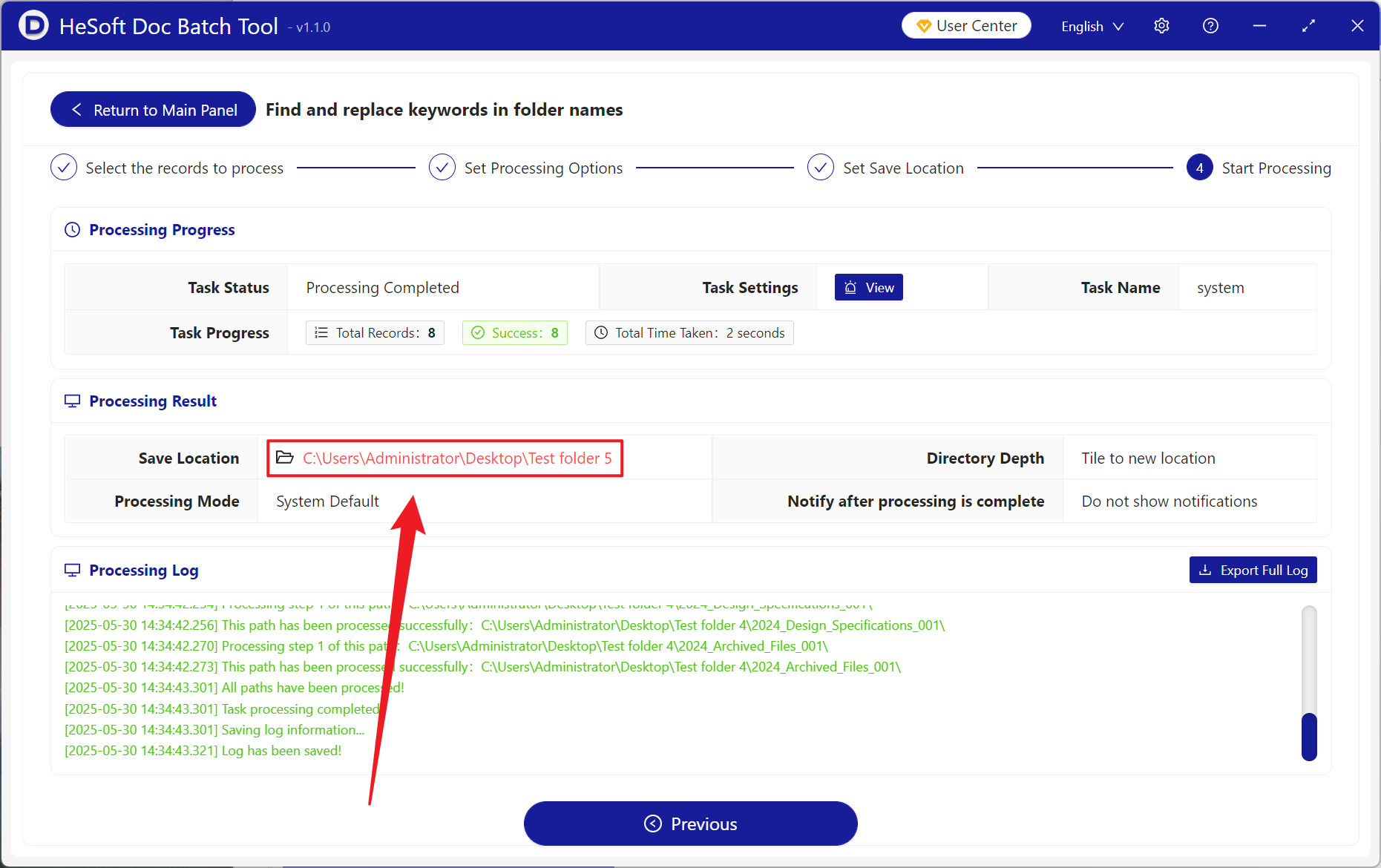
After processing, click the red path behind the save location to view the converted files.
Keyword:Rename folder , replace text in folder names , batch replace folder names